
Inbox
An event sends a lot of email — invitations, confirmations, meeting emails, campaigns — and people answer them: a question about parking, a changed flight, "can I bring a colleague?". The Inbox keeps all of it for the event in one place, grouped by person, so your whole team sees what each person was sent and what they wrote back, and answers from the event rather than from somebody's personal mailbox.
How it works
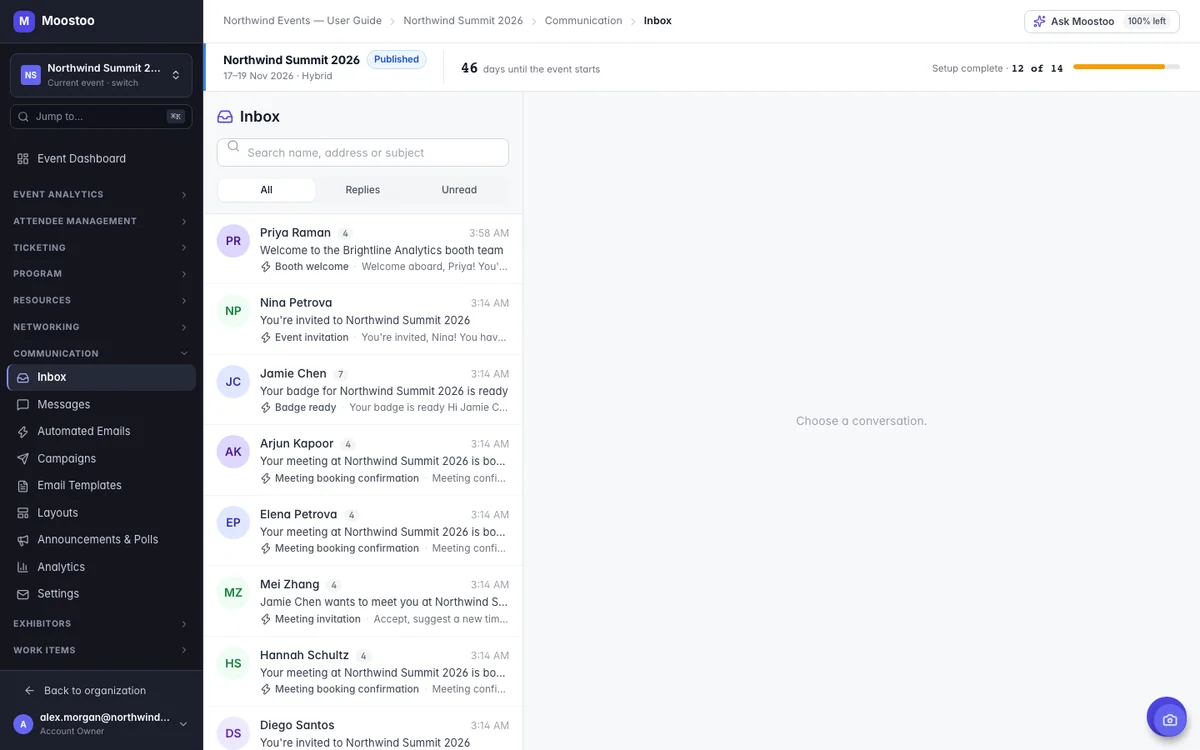
Open Communication → Inbox in the event sidebar. Everything the event emails is recorded here — automated emails, meeting emails, the notification digest, campaigns, announcements sent by email and your team's replies — together with every reply people send back. Test sends are not included.
One conversation per person Messages are grouped by email address, so everything one person was sent and everything they wrote back reads as a single conversation. The list is in two parts: Replies — people who wrote to the event, most recent first — and Sent by the event, conversations that are only emails the event sent. A campaign sent to everyone therefore never pushes a waiting reply down the list. Each row shows the person, how many emails the conversation holds, the subject, and what the latest email was (Replied, You replied, Campaign, or the automated email's name) beside its first line.
Filters and search All, Replies (conversations with something written back) or Unread, and a search box that looks through names, addresses and subjects.
Unread A conversation with a new reply is highlighted — tinted, with a coloured bar and its name and subject in bold — until you open it. Unread is kept per team member: opening a conversation clears it for you, not for your colleagues. The number of unread conversations is shown beside Inbox in the Communication menu, and unread chats beside Messages.
Each message A conversation reads like a mail client: the latest email is open and older ones are one line each — click one to open it, and a long conversation folds its middle into N older emails. An open email shows who sent it, who it went to (with any copies), what kind of email it was and its delivery status when it is not simply sent or received: Captured — not delivered, Not sent, Bounced or Spam. Attachments a person sent are listed as downloads.
View attendee When the address belongs to one of the event's attendees, View attendee opens their record.
Replying Click Reply on an email (or Reply / Reply all under the conversation) to open a compose window in the corner, as in a mail client. To is filled with the person, Subject with Re: …; add Cc and Bcc addresses as you would anywhere. It goes out from the event's sender address and joins the conversation as a team reply with your name, so colleagues see who answered. Under your text the earlier email is quoted, the way mail clients do it ("On … wrote:"); click ••• to see it, or × to send your reply without it. In the conversation, quoted text is folded behind ••• too.
- How replies get here. Every email the event sends carries a Reply-To of the event's own address,
event@<event subdomain>.moostoo.com(event@<subdomain>.eu.moostoo.comfor an organization hosted in the EU). When somebody presses Reply, their answer lands here. - A custom Reply-To takes replies elsewhere. If you set Replies go to: Another address on Communication → Settings, replies go to that mailbox and do not appear in the Inbox. A campaign with its own reply-to address does the same for that campaign.
- Who can open it. Account Owners, Super Users, and Users who have Can send emails on this event. Anyone else sees "You don't have access to this event's inbox".
- Spam and viruses. A reply marked as spam is tagged Spam and not counted as unread. A message carrying a virus is dropped and never shown.
- Nothing is thrown away. The Inbox is kept for as long as the event exists; it is deleted with the event.
Step by step
Open Communication → Inbox.
Choose Replies or Unread to see who is waiting for an answer, or search for a name, address or subject.
Click a conversation to read everything that person was sent and wrote back. Download any attachment they sent, or click View attendee to open their record.
Click Reply on the email you are answering. Check To, add anyone who should get a copy under Cc or Bcc, write your answer and click Send.
It goes out from the event's sender address and appears in the conversation as a team reply with your name. Reply all also copies the people the person copied.
What attendees see
In attendee emails
Attendees do nothing new: they simply press Reply on an event email, as they would with any email. Your team's answer reaches them as an ordinary reply in their own mailbox, from the event's sender address.
Tips
- Keep Replies go to on Event inbox unless someone reads another mailbox all day — otherwise replies are split between two places and your team sees only half of each conversation.
- Check Unread each morning before the event and several times on event day; people reply to confirmation emails with the questions they did not find answered anywhere else.
- A Bounced status means the address is wrong or full; correct the attendee's email before the next important message.
- Captured — not delivered is expected on test environments and sandbox events, where email is recorded but not actually sent.