
Platform migration
Switching platforms usually means losing history or re-keying it. A migration reads your account on the old platform through its own API and writes every event it holds — past, live and upcoming — into Moostoo, together with your contacts, companies and images. It is built to be safe to press: nobody is emailed, your existing Moostoo records are never overwritten, a migration that stops continues from where it stopped, and running it again later only picks up what changed.
How it works
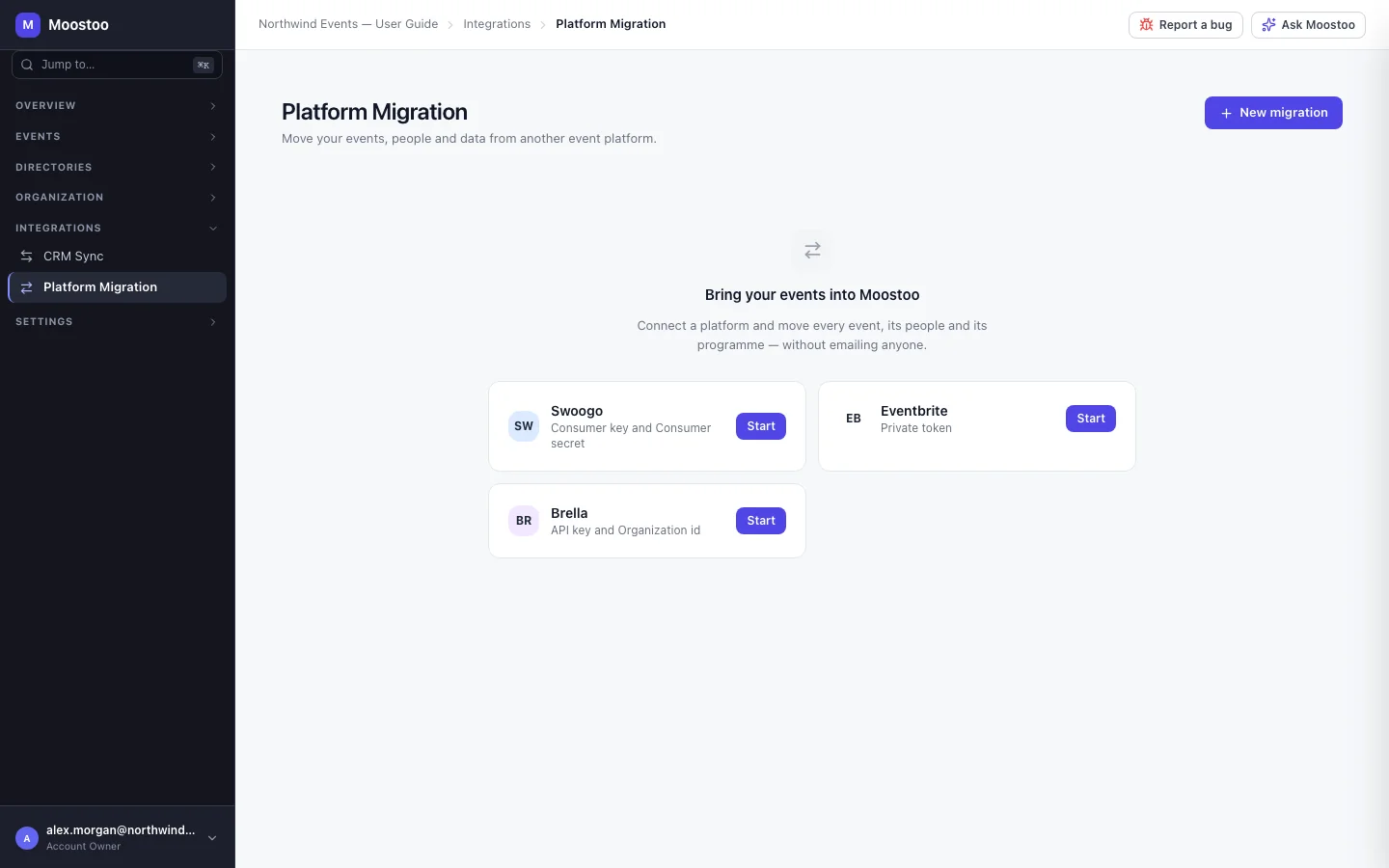
Open Integrations → Platform Migration in the organization sidebar. Only Account Owners and Super Users see it; anyone else who opens the address is told who can. The screen lists every migration your organization has run — platform, account, status, number of events, and Created / Updated / Skipped / Failed counts — with a running one pinned above the table.
| Platform | You provide | What can be migrated |
|---|---|---|
| Swoogo | Consumer key and consumer secret | Contacts, events, attendee types, questions, locations, tracks, sessions, speakers, sponsors, registrants with their answers, ticket types, promo codes, orders and payments, check-ins and session attendance. |
| Eventbrite | Your private token (you then pick the organization if the token reaches several) | Organizer profiles, events and venues, one attendee type per admission ticket, questions, ticket types, discounts, orders and refunds, attendees with their barcodes, check-ins. Eventbrite has no sessions, speakers or sponsors to read. |
| Brella | An API key and your Brella organization id | Events, attendee types (from Brella's registrant lists), registrants, locations, tracks, the programme (sessions, speakers, sponsors), questions discovered from registrants' answers, saved sessions and session check-ins. A speaker is migrated only when their name matches exactly one registrant of the same event, because Brella gives no speaker email. Brella is not a ticketing platform, so there are no orders or ticket types; meetings and chats are not migrated because Brella's API gives no meeting time. |
Silence While a migration writes, no email, notification, push, ticket or webhook is sent — not a welcome email, not a meeting notice, not an invitation. The report tells you how many messages were held back. Nothing is registered on the old platform either.
Events arrive safe Every migrated event is new in Moostoo. An event that has not ended arrives as a draft, never published; one that has ended arrives completed. Ticket types and promo codes arrive inactive. Dates keep the source's days on the source's timezone.
Your data is not overwritten Contacts are matched by any of their emails, companies by name or website, speakers by email. A match only gains details it is missing — nothing you already filled in changes.
History is history Orders keep the totals, tax and payment state the old platform reported, with their original dates. They are not re-priced, numbered as new invoices or charged. A migrated unpaid ticket is still refused at the door until the payment is recorded.
Can't be migrated Anything the old platform exposes that Moostoo does not migrate is listed, with the reason, on the preview and on the report — so nothing disappears unexplained.
| Question | Resume | Run again |
|---|---|---|
| When it is offered | A migration that failed, was cancelled, or finished with an event that failed. | Any finished, failed or cancelled migration. |
| What it does | Continues the same migration from its checkpoint. Finished events and everything already written are not read or written again. | Starts a new migration over the same connection that re-reads everything, to pick up what changed on the old platform. |
| Changes on the old platform | Not picked up. | Picked up. Records you edited by hand in Moostoo since the last run are kept, not overwritten; a record you deleted in Moostoo is not recreated. |
Re-runs never duplicate: every migrated record remembers where it came from, so the same registrant, session or order is updated in place — and a record whose source did not change is simply counted as unchanged.
Step by step
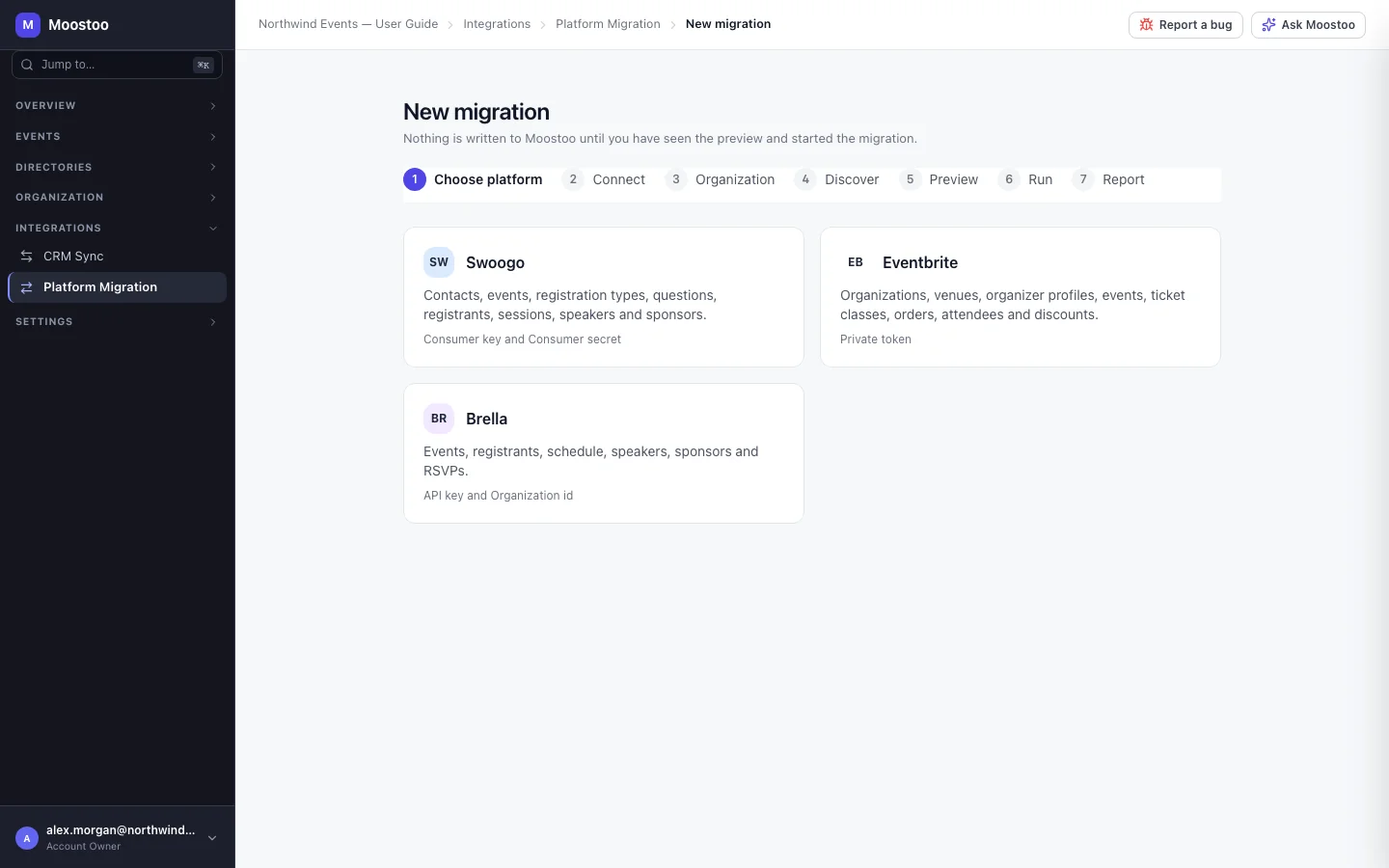
Click New migration and choose Swoogo, Eventbrite or Brella.
Connect: enter the credential the platform asks for, following the numbered help under each field, and click Connect.
Moostoo checks it with the platform before storing anything and shows the platform's own reason if it is refused. If you already connected this platform, choose Use this connection. For Brella, the API key exists only once your Brella organization has finalized Brella's integration services, and only an organization administrator can create it.
Organization (Eventbrite only, when your token reaches several): pick the organization and click Discover.
Discover: wait while Moostoo counts every event, then untick events you do not want and choose What to bring from every selected event.
A kind that another needs stays ticked — for example Attendees while Orders is ticked. In the Ticketing & Check-in Console, programme kinds are still migrated and marked Stored now; visible with full management.
Click Preview and read it: what will be created, what matches existing records, what can't be migrated, and the notes Won't change your existing data and Nobody will be notified.
Click Start migration. You can close the page — it keeps running and you will find it under Platform Migration.
If the old platform's rate limit is reached the migration pauses by itself and says when it will continue. Cancel migration stops it; everything already written stays.
Read the Report: per-event counts, Show failures for the records that were refused and why, and download it with CSV or Excel. A migration that failed because the credential was refused offers Reconnect, then Resume.
For a Swoogo or Eventbrite event that has not ended, click Connect live sync to keep it in step with the old platform from now on.
Moostoo reuses your connection, registers a webhook for that event and opens the mapping console so you can confirm how registrations map. People already migrated are matched by their registration id — nobody is duplicated.
What attendees see
Attendees are not contacted during a migration, and migrated events stay unpublished drafts (or completed) until you publish them. Once you open an event to attendees, migrated people sign in with the email they used on the old platform and find their event, their answers and — for Brella — the sessions they had saved already on their agenda.
In the attendee app
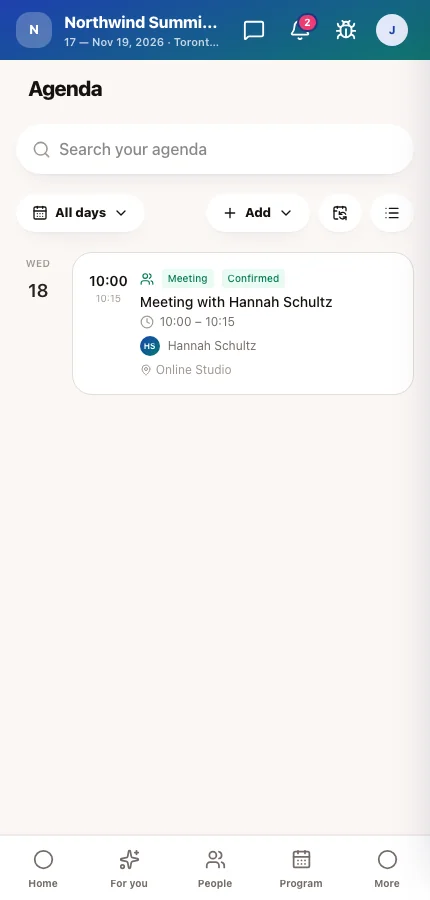
A migrated attendee's saved sessions appear on My Agenda, and their profile carries the job title, company and answers they gave on the old platform.
Tips
- Only one migration runs at a time per organization; the New migration screen links to the running one.
- Images (event logos, covers, headshots, sponsor logos) are copied into your Media Library under Migrated from <platform>. If the library is full, the record keeps the old address and the report names the image — the migration itself does not fail.
- A migrated event keeps the source's ticket or registration id on each attendee, which is what lets a later re-run or live sync find them again — do not change it by hand.
- Nothing about your old platform changes: a migration only reads from it.
- Use Run again close to the switch-over date to pick up late registrations, then connect live sync for events still selling.