
Video meeting rooms
At an online or hybrid event, one-to-one meetings happen on video — and nothing sinks a networking programme faster than a meeting link that doesn't open behind a company firewall, or two people staring at a black screen. Moostoo gives every online meeting its own video room inside the attendee app, with a waiting room to check camera and microphone first. You don't create rooms or send links: you decide which meetings are online, when rooms open and close, and how they are branded. This page explains the whole experience so you can support attendees on the day.
How it works
| Event format | Meeting session | Meeting |
|---|---|---|
| Online | Any | Video room |
| Onsite or hybrid | Held in a location of type Virtual Room | Video room |
| Onsite or hybrid | Any other location | In person, at a table — no video |
A room is created automatically when a meeting is confirmed — by the attendees themselves, or by you on Pre-arranged meetings. Both parties and any guests can enter it; nobody else can.
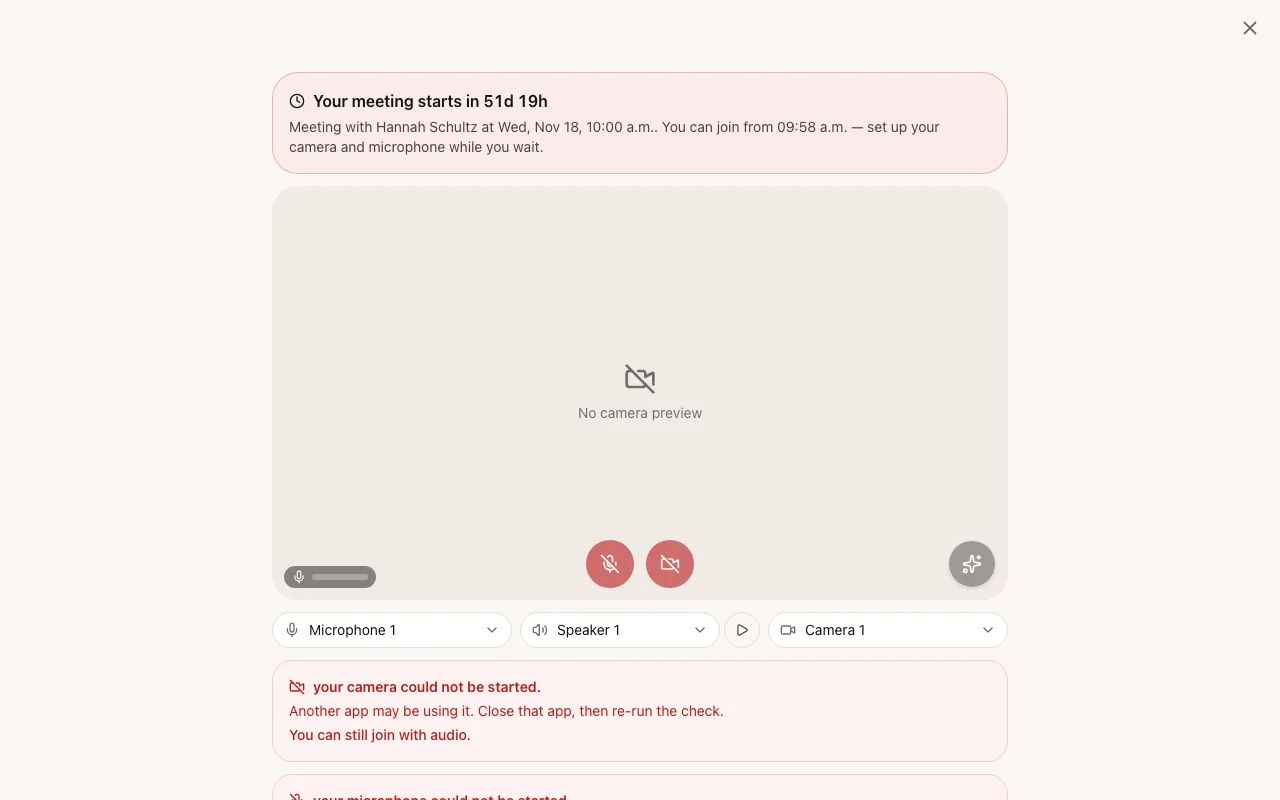
Waiting room Every Join leads here first, and it is open at any time. The attendee sees their camera, picks microphone, speaker and camera, tests the sound and chooses a background. The waiting room's own Join unlocks when the room opens and stays locked, with the reason, until then.
Room timing When the room opens, how long it stays open after the end, and when everyone is warned it will close — set per meeting session. See Meeting room timing. When the room closes the call ends and cameras and microphones are released.
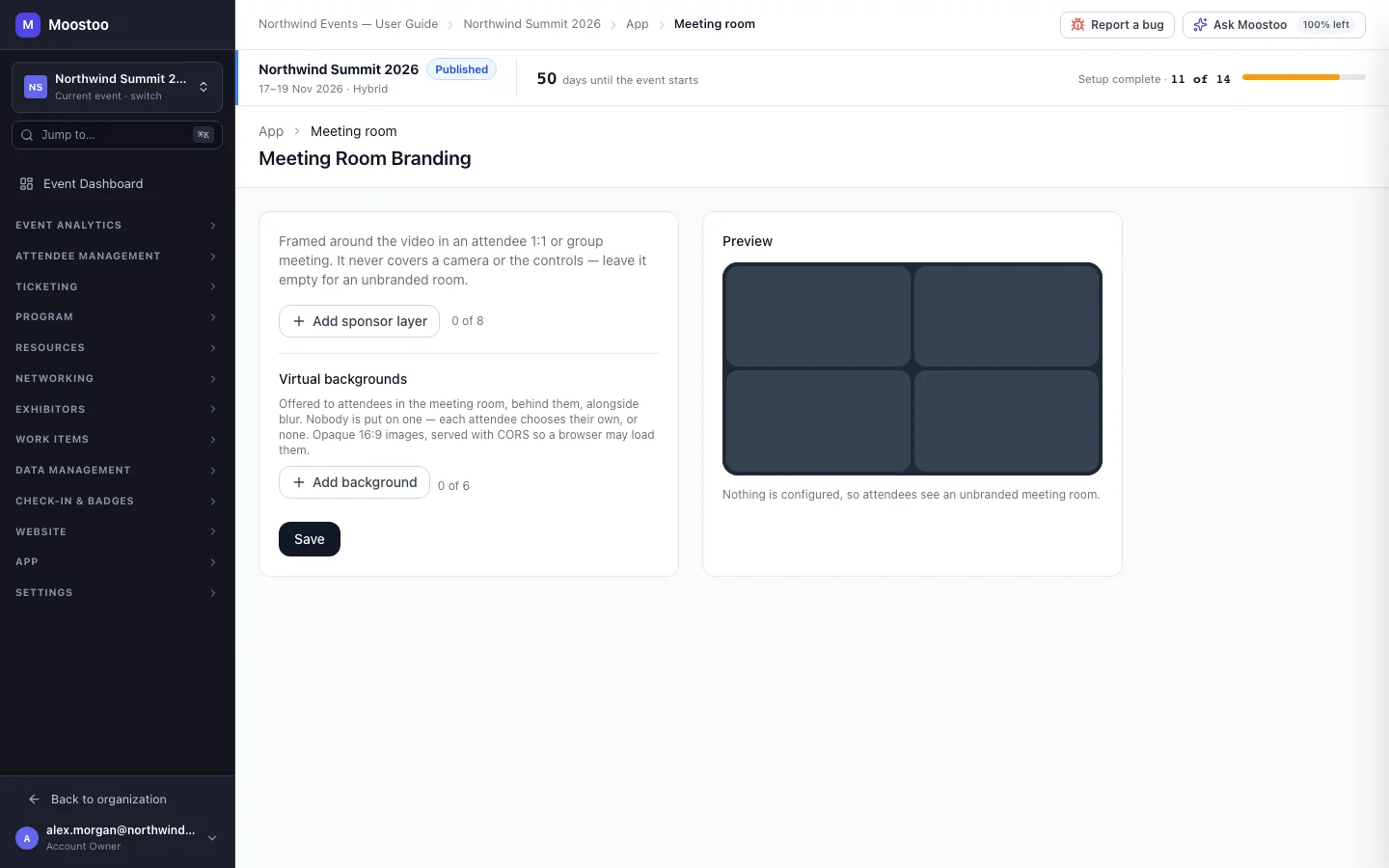
Backgrounds and effects Each attendee may blur their background or replace it with an image — a set of built-in photos, plus any background images you offer. It is always their choice; you cannot force or forbid one. The choice is remembered on that device.
In-call chat Messages typed during the call go only to the people in the room and are not kept once the call ends. A link in a message opens only after the attendee confirms where it leads.
Attendance record Once an online meeting has ended, its details show each party and guest with whether they joined and for how long.
- On a computer, a meeting opens in its own browser tab — the same tab every time, so a second click never starts a second call. In Chrome and Edge the call can float in a small window over other applications when the attendee switches away.
- Leaving asks first, so nobody drops out of a meeting by a stray click.
- Corporate networks rarely block it. The video service needs a single web domain,
*.chime.aws, and falls back to ordinary secure web traffic when the network blocks the usual media port. If an attendee's company blocks video calls entirely, their IT team only has to allow that one domain. - Phones use the browser. The video room runs in the web version of the attendee app; attendees on a phone join from their mobile browser.
Step by step
Prepare your event for online meetings
Check your event's format on Event settings. For a hybrid or onsite event, create a location of type Virtual Room for the meeting sessions that should run online.
Create the meeting sessions and set their Meeting room timing.
If a sponsor pays for it, set the meeting frame and any backgrounds you want to offer on the event-wide Meeting room screen (it has no sidebar item — search Meeting room in Jump to), or per meeting session.
Tell attendees, before the day, to open their waiting room once and allow camera and microphone in their browser.
What attendees see
In the attendee app
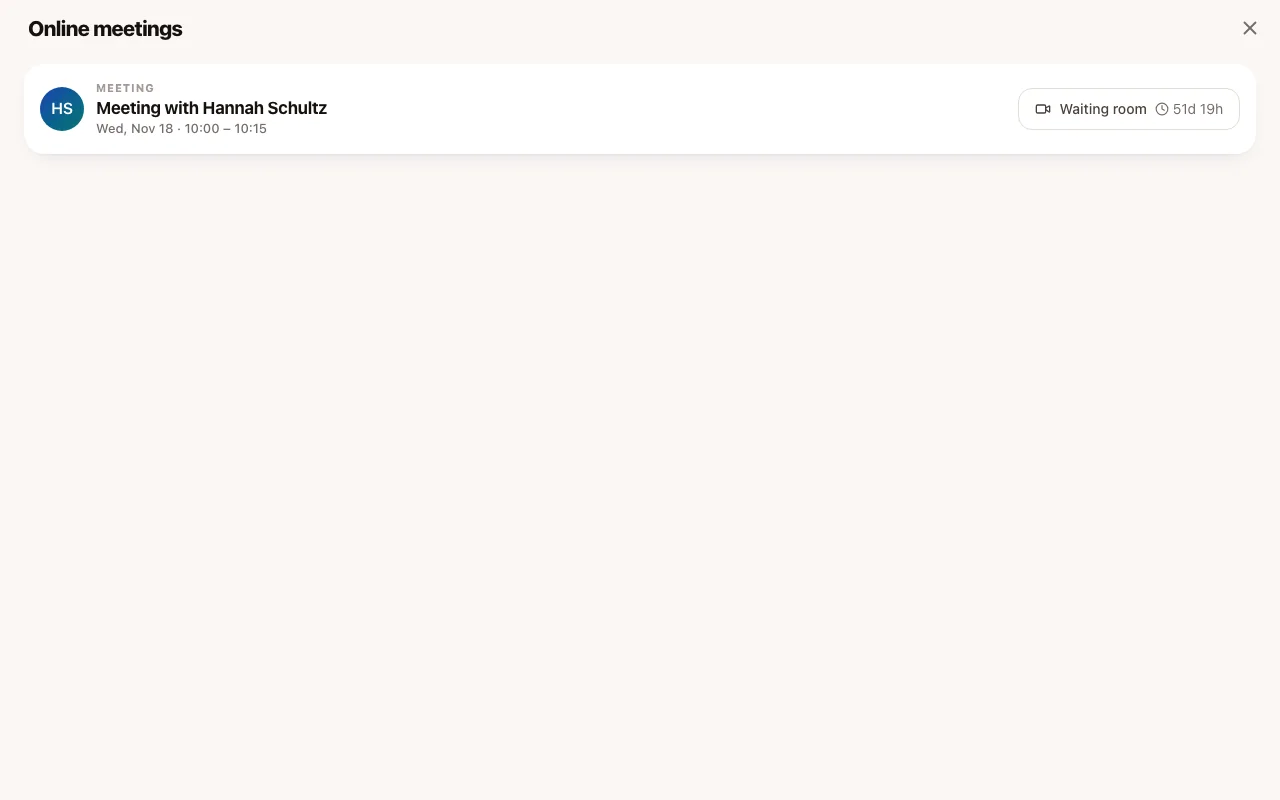
Attendees reach their calls from the meeting, their agenda, a person's card in the Attendees directory or the home screen. The lists show Join Meeting from five minutes before the start (earlier if the room opens earlier), and every Join leads to the waiting room. The Online meetings screen lists every online meeting and saved streamed session still to come; it is not a menu item — a call opens from it and returns to it when the attendee leaves.
In the attendee app
In the call, attendees see each other's video — a photo or initials when a camera is off — with a countdown to the end, the People list (who is in and who hasn't joined yet), chat, screen sharing and device controls.
Tips
- For an online event, keep Agenda high in the app's menu — it is where people look ten minutes before a meeting, and each online meeting there carries its Join Meeting button as the start approaches.
- Keep a short troubleshooting note for your help desk: reload the waiting room, allow camera and microphone in the browser, close other apps using the camera.
- A background image you offer must be served so that attendees' browsers are allowed to load it; if it fails, the attendee is told and the built-in photos still work.
- Video is paid for by the minute each person spends in a room — a long grace period on a large event adds up.