
How Moostoo is organized
Almost every question about Moostoo — why a setting lives where it does, why a change reaches some people and not others, why a screen is missing — is answered by knowing which level a thing belongs to. Settle these few ideas once and the rest of the guide reads as a map rather than a list of screens.
Three levels
Everything you create in Moostoo sits at one of three levels. A thing never moves between levels, and what you set at a higher level is the default a lower level starts from — never a value it is forced to keep.
| Level | What it is | What lives there |
|---|---|---|
| Organization | Your company or team — the account you sign up with. | Your team and their roles, the company, contact and speaker directories, the master question pool, the media library, brand colours and logo, sign-in methods, billing and your data region. |
| Event | One conference, fair, summit or festival. | Dates and timezone, attendee types, the programme, ticketing and registration, companies and booths, the attendee app and website, check-in and badges, communications, the event team and its permissions. |
| Attendee | One person's participation in one event. | Their attendee type, ticket, registration and profile answers, agenda, meetings, messages and notes, check-in and badge code. |
Defaults flow down, never up
A new event starts from your organization's brand colours and logo, and from your organization's sign-in methods. Changing the organization later changes what the next event starts with and what events that still inherit read — it never overwrites a value an event has set for itself.
Three apps, one event
The same event is seen through three different windows. You manage it in the admin app (the screens this guide describes). Your attendees use the attendee app — a web app on phone or laptop, at your event's own address. Anyone can read your public website, which is published from the same data. A change you make here reaches the other two without a separate step.
Admin app Where organizers and their team build and run events. What each person sees depends on their role and, in each event, their permissions — see Roles and permissions.
Attendee app What attendees open: the programme, their agenda, the people directory, meetings, messages and their badge. You design its menus and home screen in the App Designer. Team members use it too, as participants — and door staff find their scanners there.
Public website Your event's marketing site, built from sections that read the live programme, speakers and sponsors — see Website builder.
Devices Self-service kiosks and the Print Queue Manager that drives badge printers are their own small apps, paired to one event — see Kiosks and Printers and print hubs.
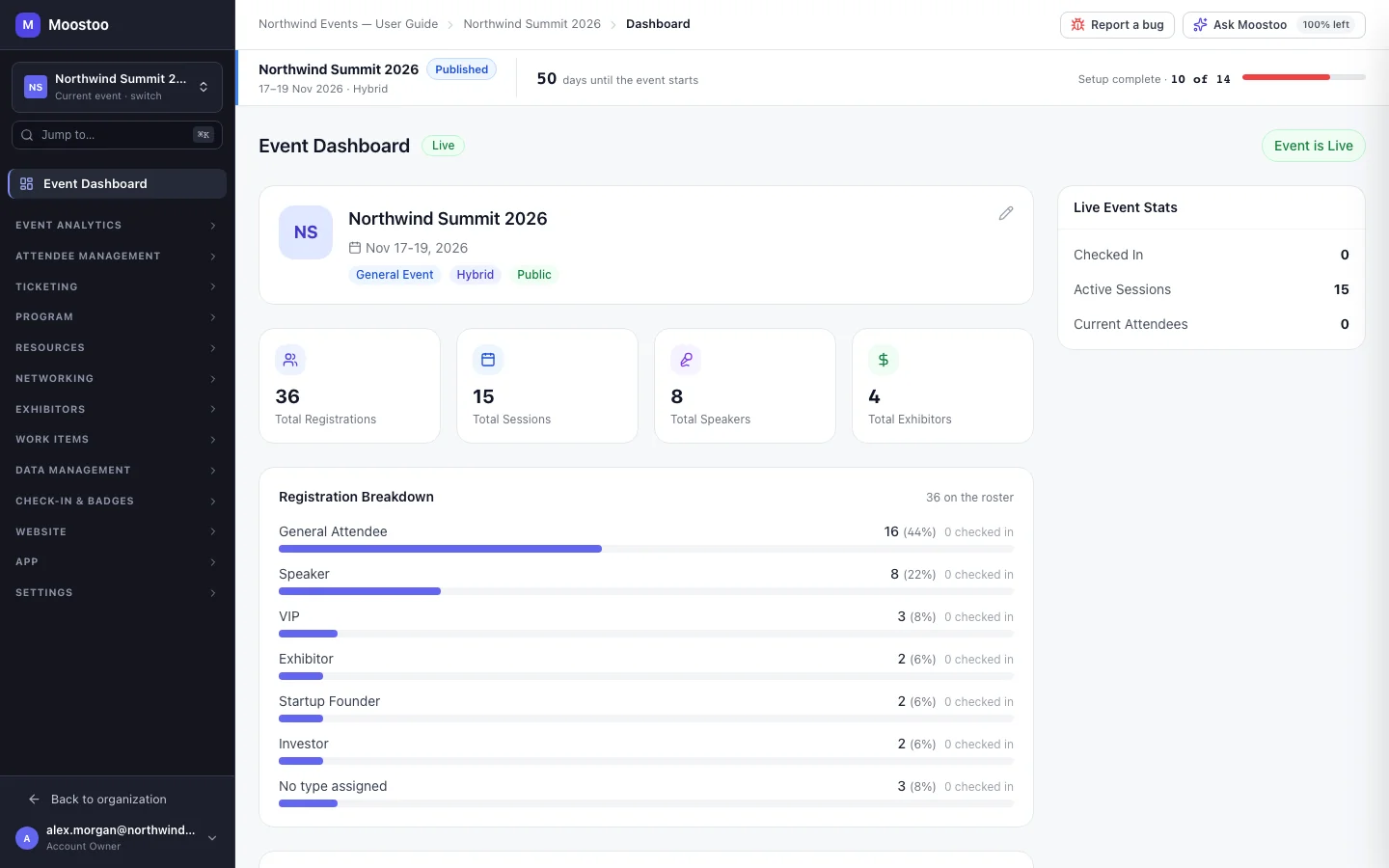
How the sidebar is arranged
Outside an event, the sidebar shows your organization: its dashboard, events, directories, team and settings. Open an event and it shows that event: analytics, attendee management, programme, networking, exhibitors, check-in and badges, the website, the app and the event's settings. The groups are the same for everyone; items you are not allowed to use are simply absent.
The ideas the rest of the guide builds on
- One person, one identity. Someone who is on your team, a contact in your directory and an attendee at two events is the same person throughout — see People and identity.
- Attendee types drive the experience. What a person may see and do — whom they may message or meet, which sessions they may attend, which profile questions they answer — follows from their attendee type.
- Every event keeps its own clock. Times are shown and entered on the event's timezone, whoever is looking — see Timezone.
- Your edition decides which screens exist. A Ticketing & Check-in Console organization sees a focused subset of the same app — see Editions.
- Your data stays in the region you chose. Canada or the EU, decided once, when your organization was created — see Where your data lives.
Start here