
Organization profile
Your organization profile is the identity your events inherit. Get the logo and brand colours right here once, and every new event, attendee app and website starts looking like you rather than like Moostoo. It is also where the organization's name — worked out for you when you signed up — can be changed, and where your data region is stated for anyone who asks.
How it works
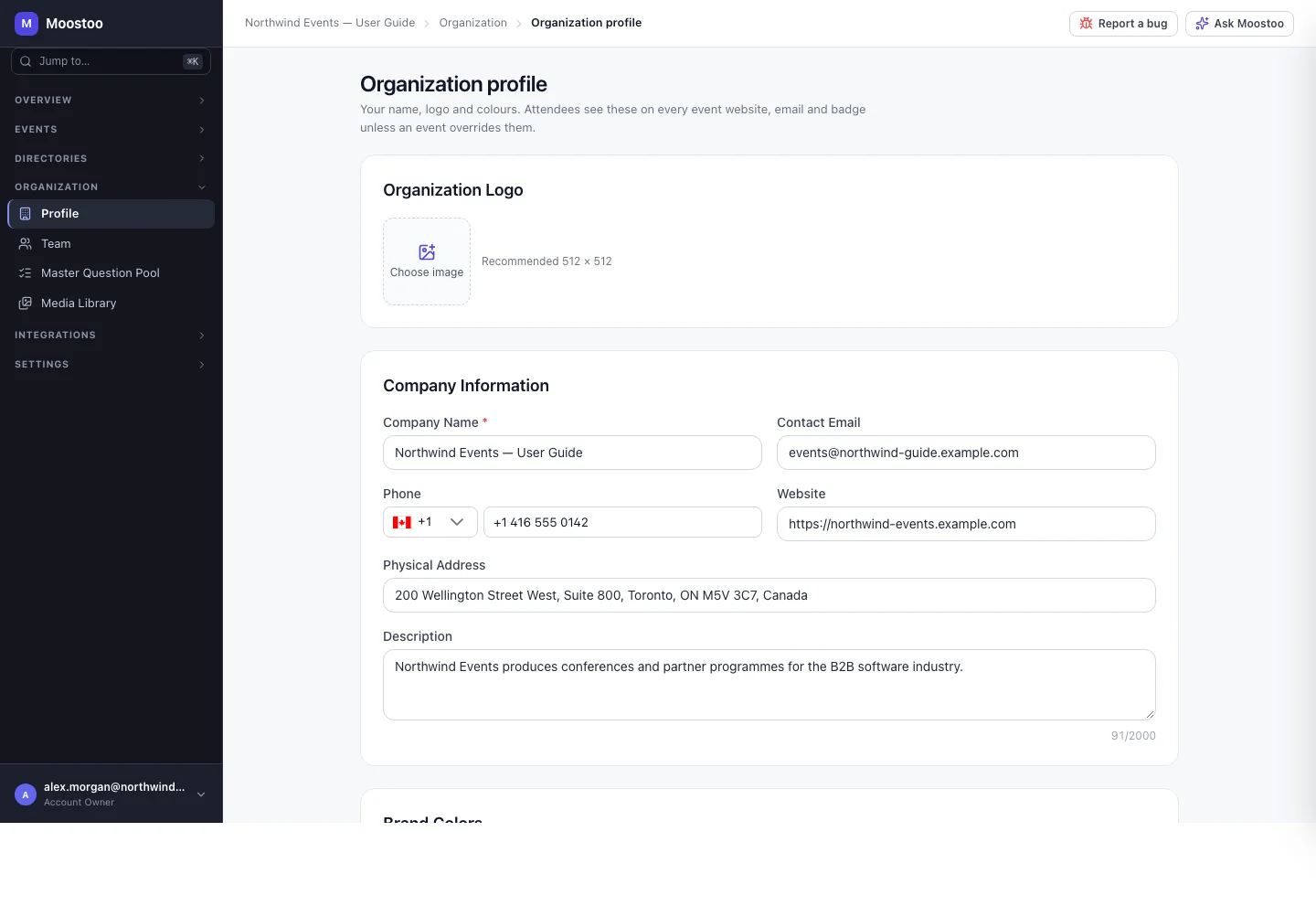
Organization Logo Chosen from, or uploaded into, your Media Library. An event can show it instead of its own logo.
Company Information Company Name (required, the name your team and invitees see — "Alex invited you to join …"), Contact Email, Phone, Website and Physical Address.
Brand Colors Primary, Secondary and Accent. They are the defaults for your attendee app and event websites; the Live Preview shows them on a sample header and card.
Data location Read-only: the region your organization is hosted in, chosen when it was created. What this means expands the full data residency statement.
Brand colours are defaults, not overrides. A new event's colours start as Inherit from organization; an event that sets its own keeps them when you change the organization's later. Changing the organization's colours therefore updates every event that still inherits, and no other.
Step by step
Open Organization → Profile.
Under Organization Logo, choose a logo from the Media Library or upload one.
Use a transparent PNG or SVG with some breathing room; it is shown small in headers.
Check the Company Name and fill in the contact details.
If you signed up with a personal mailbox, the name was derived from your first event ("… Organization") — this is where you give it its real name.
Set the Primary, Secondary and Accent colours and check the Live Preview.
Click Save Changes.
The button is enabled only once something has changed.
What attendees see
In the attendee app
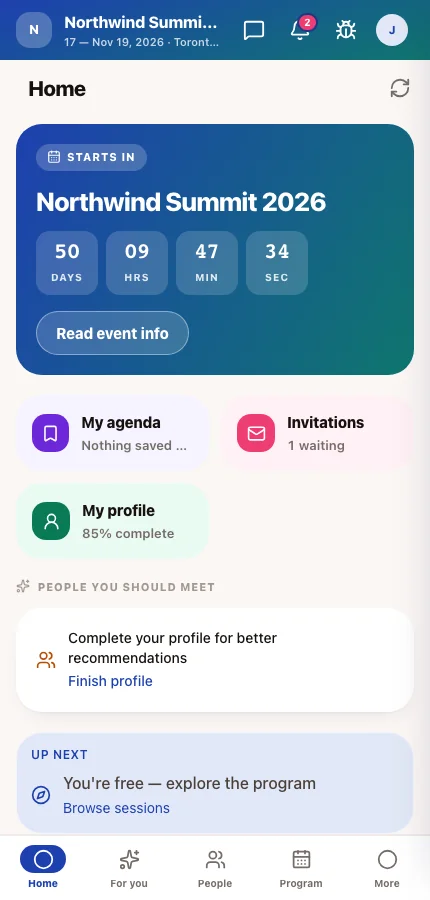
Attendees see your brand colours and logo wherever an event inherits them — in the attendee app's header and buttons and on the event website. Events that set their own colours or logo are not affected.
Tips
- Pick a primary colour with enough contrast for white text — it is used for buttons.
- The Data location cannot be changed; if a customer needs the other region, that is a separate organization. See Where your data lives.
- Only Account Owners and Super Users can edit the profile.