
The App Designer
Every event gets its own attendee app, and no two events need the same one. A trade show wants Exhibitors and the venue map up front; a leadership retreat may hide the attendee list altogether. The App Designer is where you make those choices: which pages exist, what they are called, where they sit, what the home screen shows, and how the Attendees and Exhibitors pages are laid out. Nothing here changes your data — it changes how attendees find it.
How it works
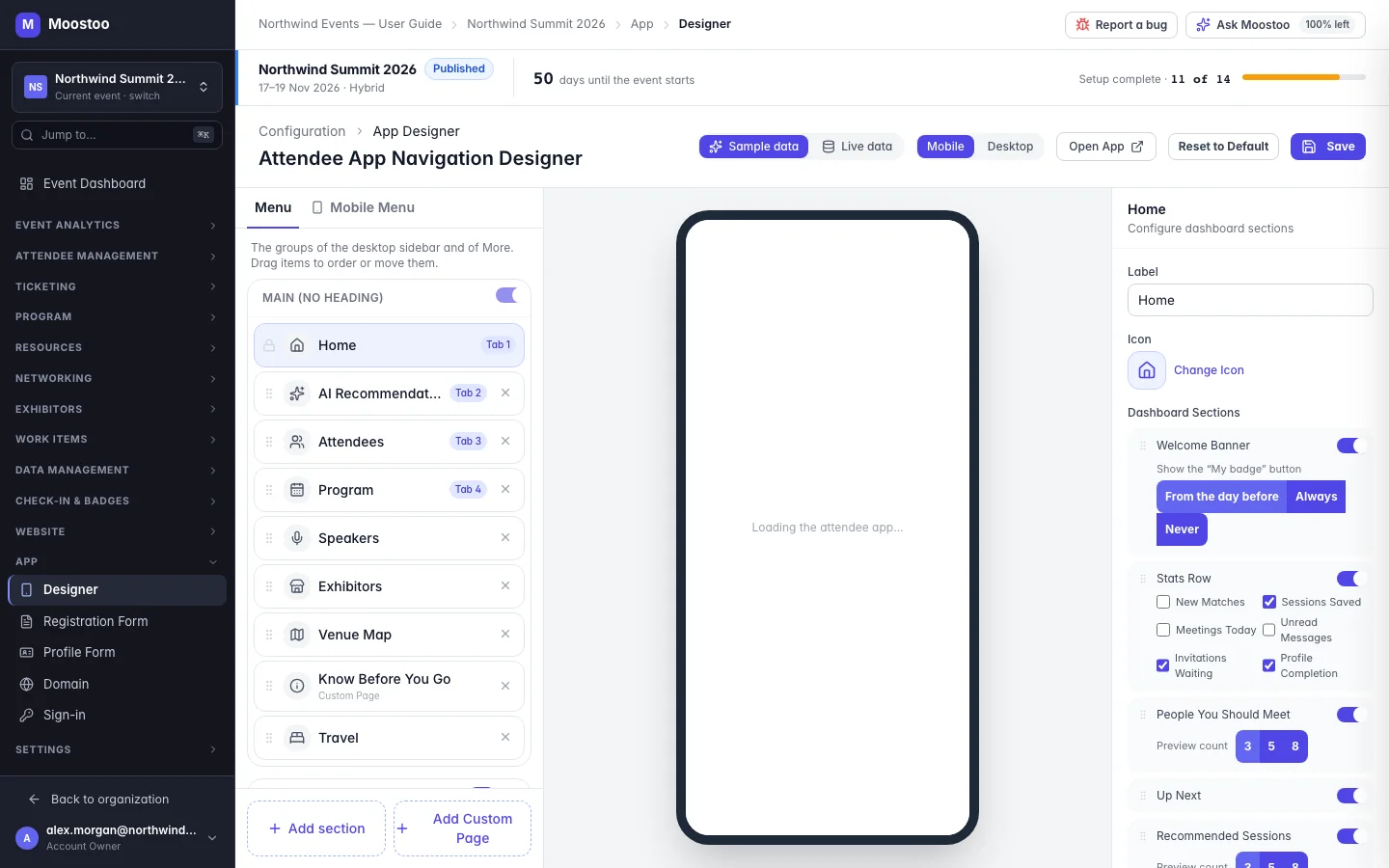
Open App → Designer in the event sidebar. The screen has three columns: the menu on the left, a live preview of the real attendee app in the middle, and on the right the settings of whichever page you select. The header holds the preview controls, Open App, Reset to Default and Save.
| Page | Settings in the right panel |
|---|---|
| Every page | Its Label (the name attendees see in the menu and as the screen title) and its Icon. |
| Home | Which home-screen sections show, in what order — see Home screen. |
| Attendees | Whether the number of attendees is shown, and Design the attendee card — see Directory card. |
| Exhibitors | The page's everyday options, plus Exhibitor page groups under Advanced — see Exhibitor page groups. |
| Custom pages | Edit Page Content and Delete Page — see Custom pages. |
- Everything you change is a draft until you click Save. The dialogs for the attendee card and the exhibitor groups apply their changes to that draft; Save publishes the lot together.
- Save is live. There is no separate publish step: attendees get the new app as soon as it is saved, and apps that are already open update themselves straight away.
- Two pages cannot share a name. Save is refused until you rename one.
- Reset to Default puts the menu, the home screen and every module setting back to the defaults for your event type — including the attendee card design, the exhibitor page groups, the attendee count switch and the event-wide meeting room branding. It takes effect as soon as you confirm, with no Save. Your custom pages are kept.
Step by step
Open App → Designer. If the event has no navigation yet, click Load Defaults to start from the defaults for your event type.
Arrange the menu on the left: move pages between sections, take pages out, choose the phone's bottom tabs.
See Navigation for how sections, Not added and the Mobile Menu work.
Click a page to open its settings on the right. Rename it, change its icon, and set its options.
Watch the preview as you go — switch between Mobile and Desktop, and between Sample data and Live data.
See Preview.
Click Save. Use Open App to see the live app at your event's address.
The rest of the App group sets up the app around the menu: Registration Form, Profile Form, and the app's address and sign-in buttons.
What attendees see
In the attendee app
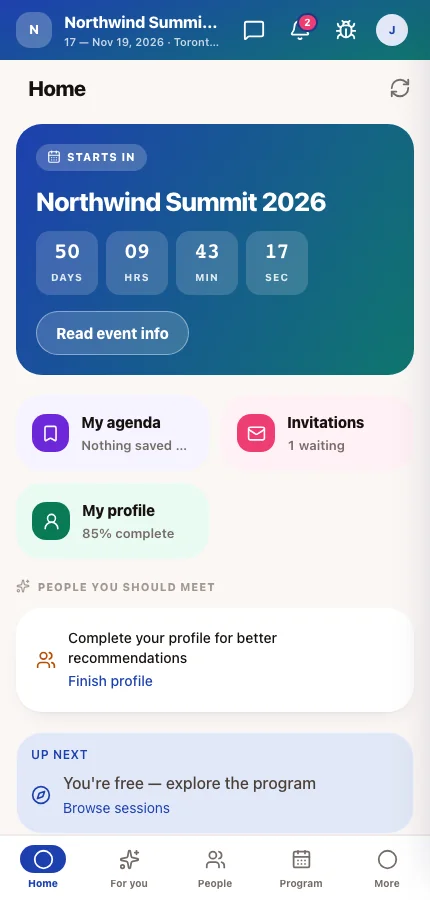
Attendees see exactly the menu, names, icons and home screen you saved — on a phone as bottom tabs plus a More menu, on a computer as a sidebar. A page you leave out is simply not in their app.
Tips
- Rename pages in your event's own words — Agenda can be My Schedule, Exhibitors can be Expo Hall. The screen titles follow the menu names.
- Design the app before you invite attendees, then keep changes small once people are using it — a moved tab is a tab people cannot find.
- Some options in the Program, AI Recommendations, Exhibitors and Venue Map panels (such as a page's default view or sort) are saved but not yet used by the attendee app. The home screen, the attendee card and exhibitor groups are.