
Device updates
Kiosks and print hubs sit at venues, often far from anyone who could reinstall them. When a new version is published, you can send it to the devices you choose from Printer Management or Kiosk Setup, and each device installs it itself — at a moment when nobody is using it. Because you pick the devices, you can try a version on one door before trusting every door with it.
How it works
The kiosk and Print Queue Manager apps are a small installed app plus replaceable screens. A published version replaces the screens; the device downloads it, checks that it is genuine, swaps it in and restarts into it. You decide when. A device never updates itself on its own schedule, and there is no "check for updates" button on the device — Moostoo is the only place an update is started. In a Ticketing & Check-in Console event this screen stays locked — Choose where your attendee data comes from first — until the event has an attendee data source.
- You choose the devices. The update dialog opens with nothing selected and has no "update the whole event" option. Select all N is a separate click that names how many devices it will touch. Updating every door at once, minutes before the doors open, is how an entrance is lost.
- Devices never update mid-job. A hub with badges queued or printing, or a kiosk anywhere but its Welcome screen, waits until it is idle. Nobody's check-in is interrupted.
- A device that fails to start the new version goes back to the last version that worked, and reports Update failed. A door is never left on a blank screen.
- Versions only move forward. A device already on a newer version cannot be selected (Already on a newer version — updates only move forward). To go back, reinstall an older build from Download apps.
- Some versions need a full install. They are listed with needs a full install; choose one and no device is selectable, with a note sending you to Download apps. Install that build on each device by hand — once reinstalled, the device reports the new version by itself.
- A newly connected device starts on the latest version that can be sent over the air, so a new laptop joins at the current release.
Reading the Version column
Kiosk Setup and Printer Management each show a Version column with one version number per device — the same number the device shows in its own settings and About box. Under it:
| Shown | Means |
|---|---|
| confirmed just now / 3m ago | The device is reporting in, and this is what it runs. |
| last known · 2h ago | The device is offline — still installed, but not reporting. The version is what it said last. |
| Unknown | The device has never reported a version. |
| Update queued → 1.0.84 | You asked for an update; the device collects it on its next check-in. |
| Downloading / Installing | The update is in progress. The device shows an "updating" screen while it happens. |
| Updated | The new version is running. |
| Update failed | The device went back to its previous version; hover for the reason. |
| Needs a new installation | This version needs a newer installed app — reinstall from Download apps. |
| In the dialog: · already on this | The device already runs the chosen version; it cannot be selected. |
| In the dialog: Needs a newer installation of the app / Has never reported its app version — install the latest build on it | The device's installed app is too old for this version, or has never said which it has. Reinstall from Download apps. |
An offline device keeps its version, labelled last known. A disconnected device (you used Disconnect device) loses its version and any pending update, because the next machine connected in its place may be a different one on a different version.
Step by step
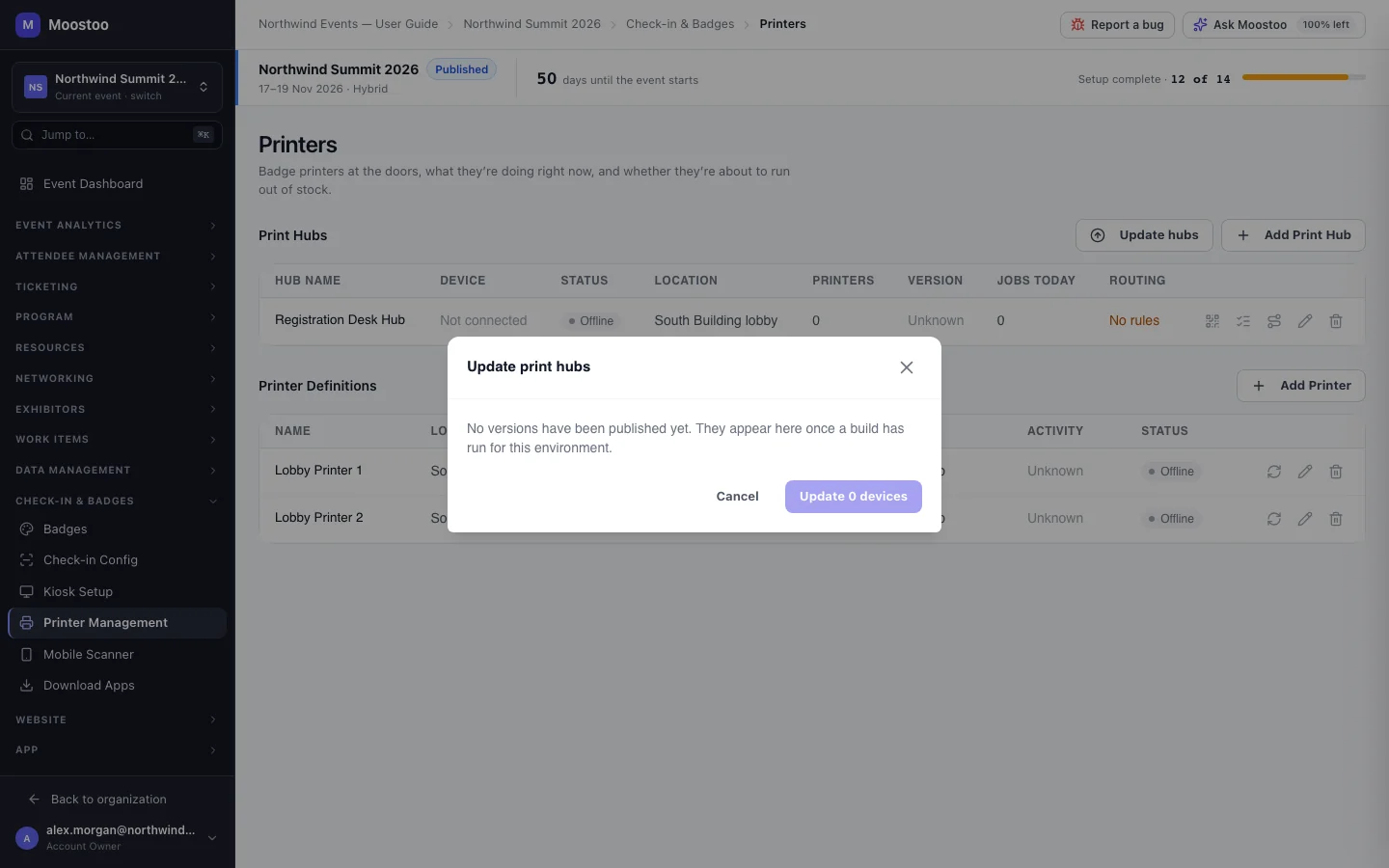
Open Check-in & Badges → Printer Management and click Update hubs — or Kiosk Setup and click Update kiosks.
Pick a Version. Each is listed with its size, and needs a full install where it cannot be sent from here.
If nothing has been published yet, the dialog says so.
Tick the devices to update. Start with one door.
Click Update 1 device (or Update N devices).
A confirmation says how many will update when idle.
Watch the Version column move through Update queued, Downloading, Installing and Updated. When that door is working, repeat for the rest.
What attendees see
Attendees are not affected by the update itself, because a kiosk only installs on its Welcome screen with nobody using it. If someone walks up during the few seconds it installs, the kiosk shows an "updating, restarting" screen and then a short notice naming the new version before returning to Welcome.
Tips
- Update before doors open or during a quiet session, not in the morning rush.
- A device marked not reporting can still be selected: the request waits, and it collects the update when it comes back online.
- If a device shows Update failed, it is already running its previous version safely. Hover the message for the reason before trying again.
- To check which installer is on a machine, ask for the version in the app's settings — it matches the number here.