
Go live
A new event starts as a draft: you can build everything, but attendees cannot open it — its join and sign-in screens answer as if it did not exist. Publishing is the switch that opens it to people. The pre-launch checklist on the event dashboard stands between the two and checks the things that make an event unusable if forgotten, so that the first attendee does not discover them for you.
How it works
The Pre-Launch Checklist sits on the right of the Event dashboard. Moostoo works it out from the event's actual configuration — you never tick items by hand — and groups it into categories, each showing how many items are complete. Every item that is not met says exactly what is missing and has a Fix or Configure button that takes you to the right screen.
Blocker A red item. While any blocker remains, Publish Event is disabled and its tooltip says how many to resolve.
Warning A yellow item. It is recommended, never required.
Ignored An item you decided does not apply to this event. It stays on the checklist, greyed, with your reason and who ignored it, and no longer counts — an ignored blocker stops blocking.
| Category | Blockers | Warnings |
|---|---|---|
| Event Setup | — | — (name, dates and format are always set) |
| Attendee Types & Registration | No attendee types; a registration form that asks nothing beyond name and email; no ticket types | — |
| Sessions & Program | — | Empty programme; sessions without a location; no session with a speaker |
| Networking | — | No experience rules set |
| Communications | — | Welcome email off; dropout-recovery email off |
| Website & Legal | No published website page | No privacy policy |
| Venue & Check-in (on-site and hybrid only) | Venue map with no zones | Check-in not configured |
- In the Ticketing & Check-in Console, items for features that edition does not have are left out, so the count describes work you can actually do.
- An online event has no Venue & Check-in category at all.
- Only an Account Owner or Super User can ignore items or publish. Other team members see the checklist read-only.
- The server checks the blockers again when you publish. If something became a blocker since the page loaded, publishing is refused with New issues found — please resolve before going live.
Step by step
Clear the checklist
Open the event's Event Dashboard and read the Pre-Launch Checklist.
For each red item, click Fix, complete the configuration and return. The item turns green as soon as you save.
Work through the yellow items you care about with Configure.
If an item genuinely does not apply — an invitation-only event with no public website, say — click Ignore, add a reason for your colleagues and confirm.
Changed your mind? The ignored item keeps a Restore action.
Publish the event
When no blockers remain, click Publish Event in the dashboard header.
Confirm Yes, Publish in the Publish Event? dialog.
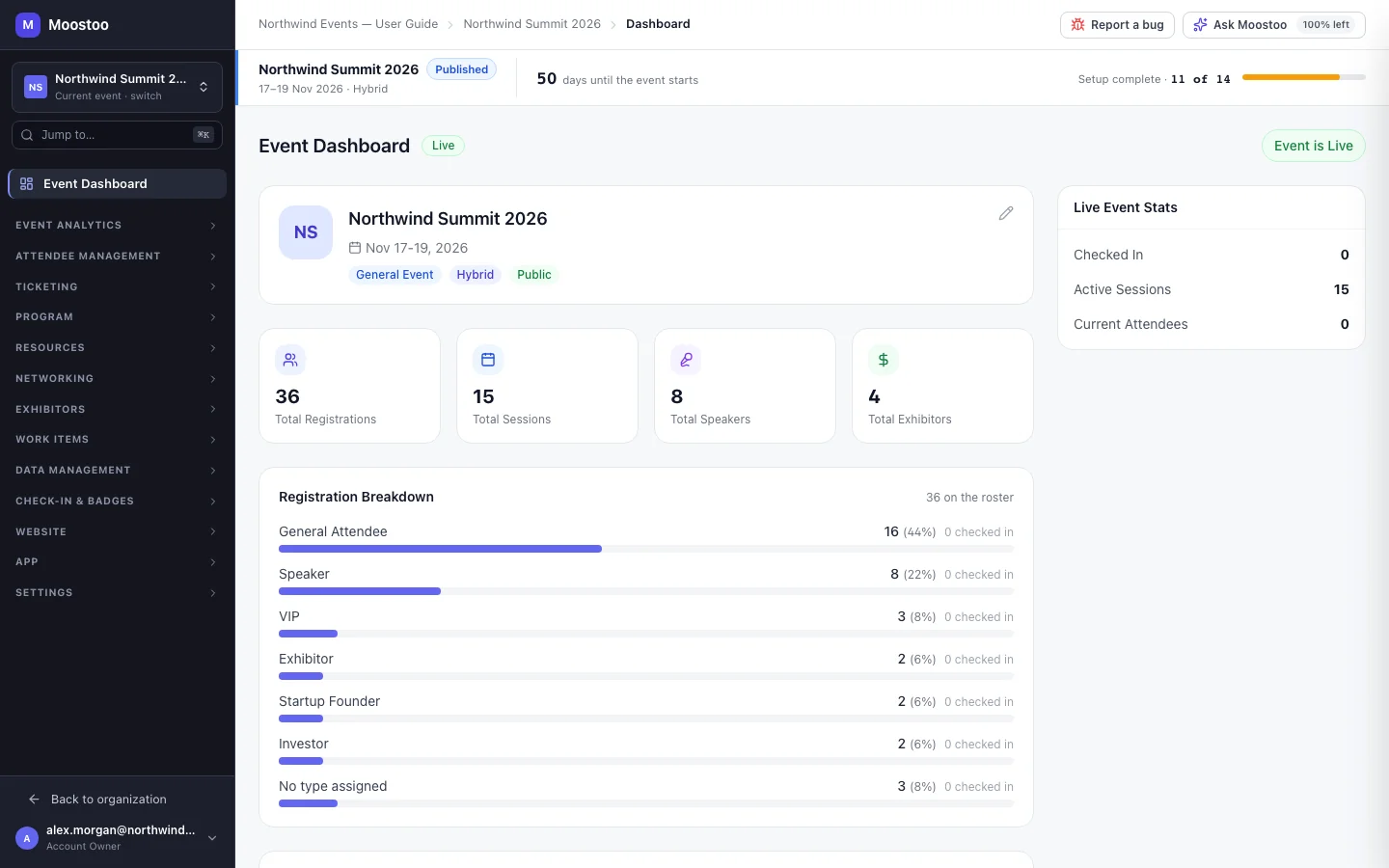
You will see Event is now live! The button becomes an Event is Live badge, and the checklist is replaced by live stats: checked in, active sessions and current attendees.
Publishing the event is not publishing the website
The confirmation mentions your event website, but publishing the event does not publish any website page: pages are published from the website builder, and at least one published page is a checklist blocker. Publishing the event opens the event itself — its app, sign-in and registration — to attendees.
What attendees see
In the attendee app
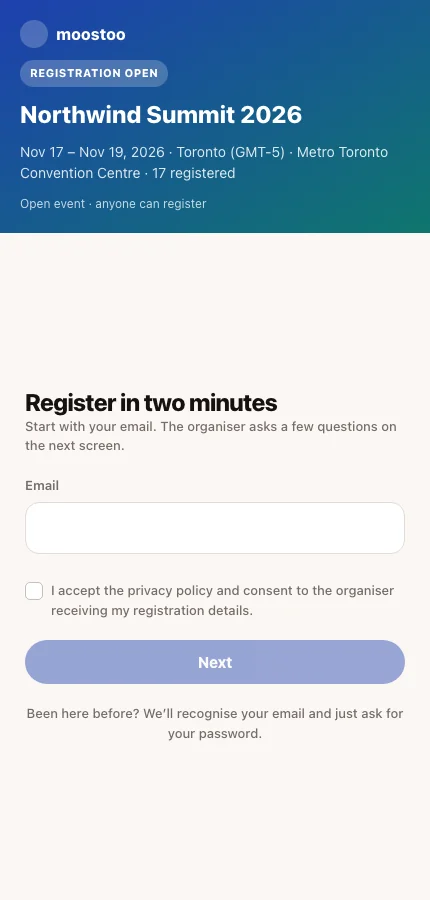
Until you publish, anyone opening the event's join or sign-in screen is told the event cannot be found. Once it is published, attendees can enter their email, sign in or register, and invitation emails you send lead somewhere.
Tips
- Ignore with a reason. Six months later "No public website — tickets sold by the partner" explains a skipped item better than a bare Ignored.
- An ignored item that later passes shows as a normal pass; your decision comes back into force only if it regresses.
- There is no un-publish button. Build and test in a draft — or in a sandbox event — before you publish.
- Invite attendees after publishing: an invitation to a draft event leads to a screen saying the event cannot be found.