
Ask Moostoo
Much of event setup is dozens of small, structured actions: a track here, a ticket type there, twelve meeting tables, a speaker on a session. Ask Moostoo turns a sentence into those actions, filling in the forms for you and asking only for what is missing. It works inside the same rules as the screens — your organization, your open event, your permissions — and never changes anything until you press confirm.
How it works
Click Ask Moostoo in the top bar to open the assistant beside whatever screen you are on. It knows who you are, your organization, the event you have open and the page you are looking at, so "add a table to this session" means this event and this session.
Reads run at once Questions such as "which sessions are on day 2?" or "how many VIPs have registered?" are answered straight away, in cards on the chat.
Writes ask first Anything that creates or changes something appears as a confirmation card listing exactly what will be done. Press the action button to go ahead, or Cancel — "Cancelled — nothing was changed".
Names, not ids Refer to people by email or name, sessions by title, rooms and types by name. If a name matches nothing, or matches more than one thing, the assistant asks you which you meant rather than guessing.
Missing details are asked for If an action needs something you did not say — a meeting session's slot length, a ticket's price — the assistant asks for it before showing the confirmation card.
AI credits Each event has a budget for what the assistant spends, in dollars — $5 by default, $50 when your organization has a paid subscription. The badge on Ask Moostoo shows how much is left and the meter at the top of the chat shows what has been used. From 80% the assistant warns you and the organizer is emailed once; at 100% it stops answering for that event (floor-plan analysis on the venue map uses the same budget and stops too). Recommendations and matchmaking never use credits. Anyone who can edit the event's settings can click Raise limit — a limit can only be raised, not lowered.
Its boundaries are enforced by Moostoo, not by the AI
- Your organization only. The assistant can see and change nothing outside the organization you are signed in to — and only the event you have open, never another customer's.
- Your permissions only. It is offered exactly the actions your role and event permissions allow. A Member without Can Edit Program cannot have it add sessions; only Account Owners and Super Users can have it create events or add team members. Volunteers and Partners cannot act through the assistant at all.
- Through the same rules as the screens. Every action goes through the same checks as the form it replaces — a speaker clash, a room conflict or a full meeting slot is refused just as it would be on screen.
- About your events, nothing else. Unrelated requests get "I can only help with managing your events in Moostoo."
- It never sees the answers. Records the assistant reads are shown to you, not handed back to the AI.
- Your region. For an EU organization the AI runs in the EU, and the panel says "AI for this organization runs in the EU."
| Area | Can create or change | Can look up | Needs |
|---|---|---|---|
| Events | Create a draft event from a description | Your organization's events | Account Owner or Super User to create |
| Programme | Sessions (and edits to them), locations, tracks, speakers, a speaker on a session | Sessions, locations, speakers | Can Edit Program |
| Networking | Meeting sessions, meeting tables | Meeting sessions | Can Edit Program |
| Pre-arranged meetings | Arrange a meeting, send an invitation on an attendee's behalf | Meetings and invitations | Can Pre-Arrange Meetings |
| Attendees | Attendee types, invite attendees | Attendees, registration counts, attendee types | Can Manage Attendees |
| Questions | Question Pool questions | The Question Pool | Can Edit Event Settings |
| Exhibitors | Companies, booth representatives | Companies | Can Manage Exhibitors |
| Ticketing | Ticket types, promo codes | Ticket types | Can Manage Financials |
| Check-in | Print hubs, printers, kiosks | — | Can Manage Check-in |
| Communications | Post or draft an announcement; turn an automated email on or off | — | Can Send Emails |
| Team | Add someone to the event team | — | Account Owner or Super User |
The Needs column is for creating and changing. Looking things up is lighter: anyone on the event's team can ask about its sessions, locations, speakers, attendee types, meeting sessions, questions, ticket types and companies. The attendee list and registration counts need Can Manage Attendees, and the list of meetings and invitations needs Can Pre-Arrange Meetings. Account Owners and Super Users can do everything in every event.
Some screens are yours alone
Visual builders and whole matrices — the registration and profile forms, the website, the venue map, badge designs, check-in configuration, experience rules and privacy documents — have no assistant action. Ask about them and the assistant points you to the screen.
Step by step
Open the event you want to work on, then click Ask Moostoo in the top bar.
Outside an event the assistant can still list and create events; for anything event-specific it asks which event you mean.
Type what you need in Describe what you need…, or pick a suggestion under Try asking.
Enter sends and Shift+Enter starts a new line. For a long brief, switch to the multi-line box with the toggle beside the send button — there Enter starts a new line and Ctrl+Enter (⌘+Enter on a Mac) sends.
Answer any follow-up question about details it needs.
Read the confirmation card carefully and press its action button to go ahead, or Cancel.
Where it helps, the result links to the record it created.
What attendees see
The assistant itself is invisible to attendees. What it creates is exactly what the equivalent screen would create — an announcement it posts, a meeting it arranges or an invitation it sends reaches attendees as if you had done it by hand.
Tips
- Be specific about dates and times — "day 2 at 14:00" or "14 November 2026"; times are on the event's clock.
- Batch similar work: "add tables A1 to A12 to Partner Speed Meetings" is one confirmation, not twelve.
- Check the confirmation card as you would check a form: it is the last point before the change is made.
- Ask Moostoo is not part of the Ticketing & Check-in Console.
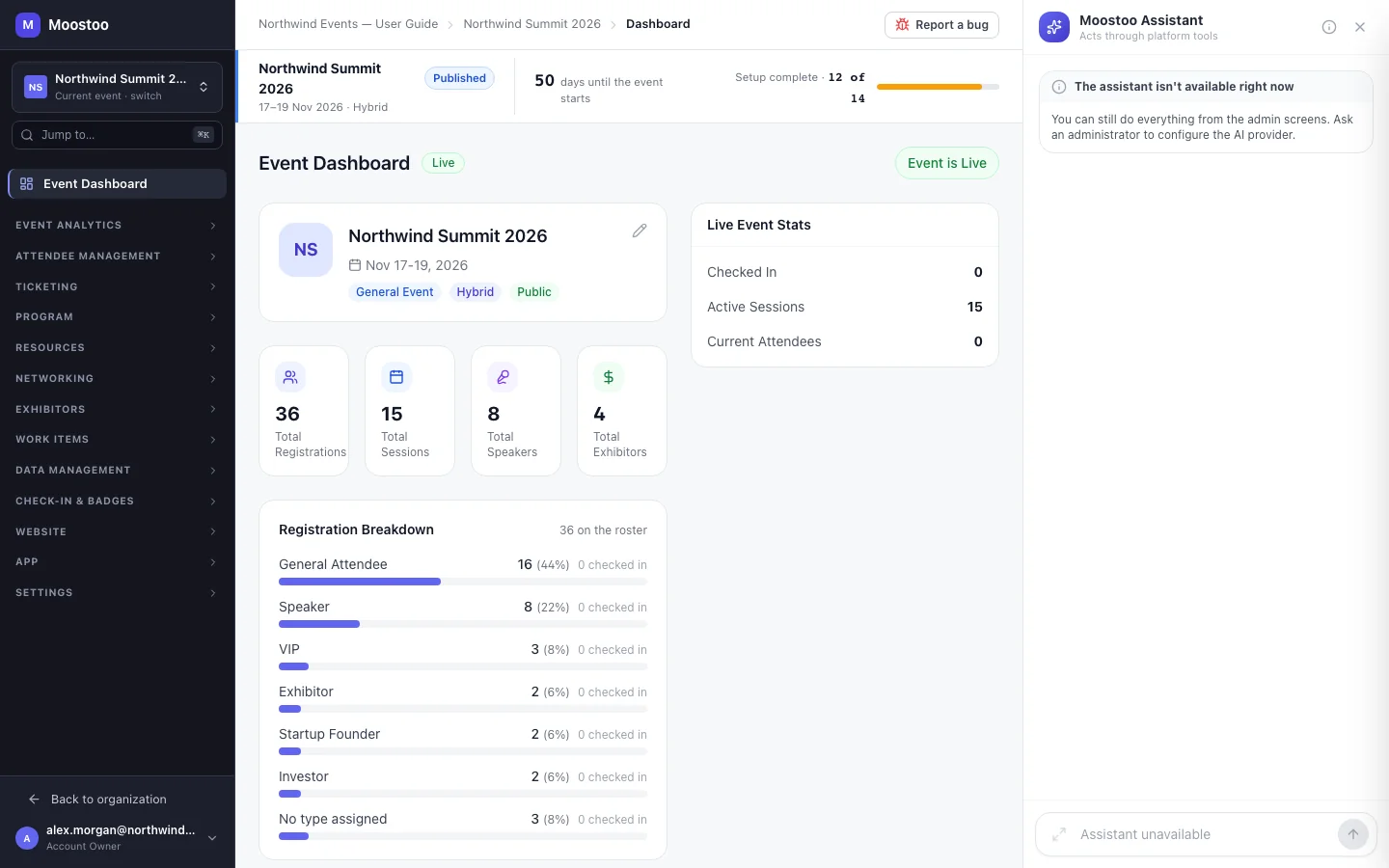
- If the panel says Assistant unavailable, the AI service is not set up for your organization's region — the rest of Moostoo works as usual; use the screens directly.
Ask Moostoo
A sample across the areas above — each prompt names the action that fulfils it.
Create a one-day on-site summit called Northwind Leaders Forum on 22 April 2027 in Toronto.
Which events are we running this year?
Add a track called AI & Data in purple.
Put priya.raman@northwind-guide.example.com on the 'Scaling Customer Success' panel.
Create a Partner Speed Meetings block on day 2 from 13:00 to 16:00 with 15-minute slots, a 5-minute break and 12 numbered tables.
Add six more tables to Partner Speed Meetings.
Arrange a meeting between jamie.chen@northwind-guide.example.com and priya.raman@northwind-guide.example.com at 13:15 on day 2 of Partner Speed Meetings.
Send an invitation from jamie.chen@northwind-guide.example.com to omar@harborcloud.example.com and let Omar pick any free slot.
Which meetings are still waiting for an answer?
Create an attendee type called Media.
Invite these three people as VIPs: lena@acme.example.com, omar@acme.example.com, wei@acme.example.com.
How many Investors have registered so far?
Add a single-choice question 'Company size' with 1–50, 51–250, 251–1000 and 1000+.
Add Cobalt CRM as a Gold sponsor.
Add dana@cobaltcrm.example.com as a booth representative for Cobalt CRM.
Create an Early Bird ticket at 299 CAD for General Attendees, 200 available.
Make a promo code PARTNER20 for 20% off, valid until 31 October.
Create a print hub called Registration Desk in the Main Lobby.
Add a printer called Front Desk Left to the Registration Desk hub.
Set up a kiosk called Lobby Kiosk 1 that prints on Front Desk Left.
Post an announcement that the opening keynote now starts at 09:30.
Turn off the dropout recovery email.
Add alex.kim@northwind.com to this event's team as a member.
List our exhibitors and sponsors.