
AI matchmaking
Most attendees come to meet the right people and have no time to read a directory of two thousand names. AI matchmaking reads what each attendee offers and seeks and suggests who they should meet, which sessions to attend and which booths to visit — each with a short reason. You don't run it by hand: it works from what you set up elsewhere. The profile form decides what the AI has to read, the meeting sessions and experience rules decide who can actually meet, and two profile settings decide whether AI writing help and company data are used. Knowing those levers is how you get good matches instead of empty ones.
How it works
Every attendee gets recommendations, whatever the state of their profile — a thin profile gives thinner results, never a locked screen. To be recommended to others, though, an attendee must give the AI something to match on.
Matchable An attendee is suggested to other people once they have Offers, Seeks, at least one answered profile question, company information Moostoo found for their work email, or a confirmed Networking Summary. Someone with none of these still sees their own suggestions, but appears in nobody else's.
How people are paired Needs come first: one person's Seeks against another's Offers, in both directions, then against what the other's profile and company say. Two people who both offer the same thing are never paired — they are competitors. Colleagues are never matched: same company, same booth or same company web domain.
Match score and Recommended Each suggested person has a score. At 50 or more the person is Recommended — badged in the Attendees directory and shown in its Recommended strip. Whether the score number itself is shown on cards is your choice in the attendee card design.
Only people they can meet Someone an attendee cannot book a meeting with — no meeting session still to come is open to both of their types, or your experience rules don't allow the pair to request meetings — is ranked lower and never among the ten People to meet.
Networking Summary At the end of the profile form, the AI drafts four short sections from the attendee's answers — About me & my company, What I offer, What I'm looking for, Topics & sessions I'm interested in. The attendee edits, asks for a revision or regenerates it, and confirms it; from then on matching reads the summary instead of the raw fields. It is private: other attendees never see it; you can read it on the attendee's Profile tab. It is offered only where an AI model is available in your event's region.
Company data For an attendee who left their company blank but signed up with a work address, Moostoo can show their company's name and logo and use what the company does to improve matches. Personal addresses such as Gmail are never looked up.
| Setting | Where | Effect on matchmaking |
|---|---|---|
| Offers and Seeks on the profile form | App → Profile Form | The main thing matched on. Moostoo warns you when you save a form that leaves out both. |
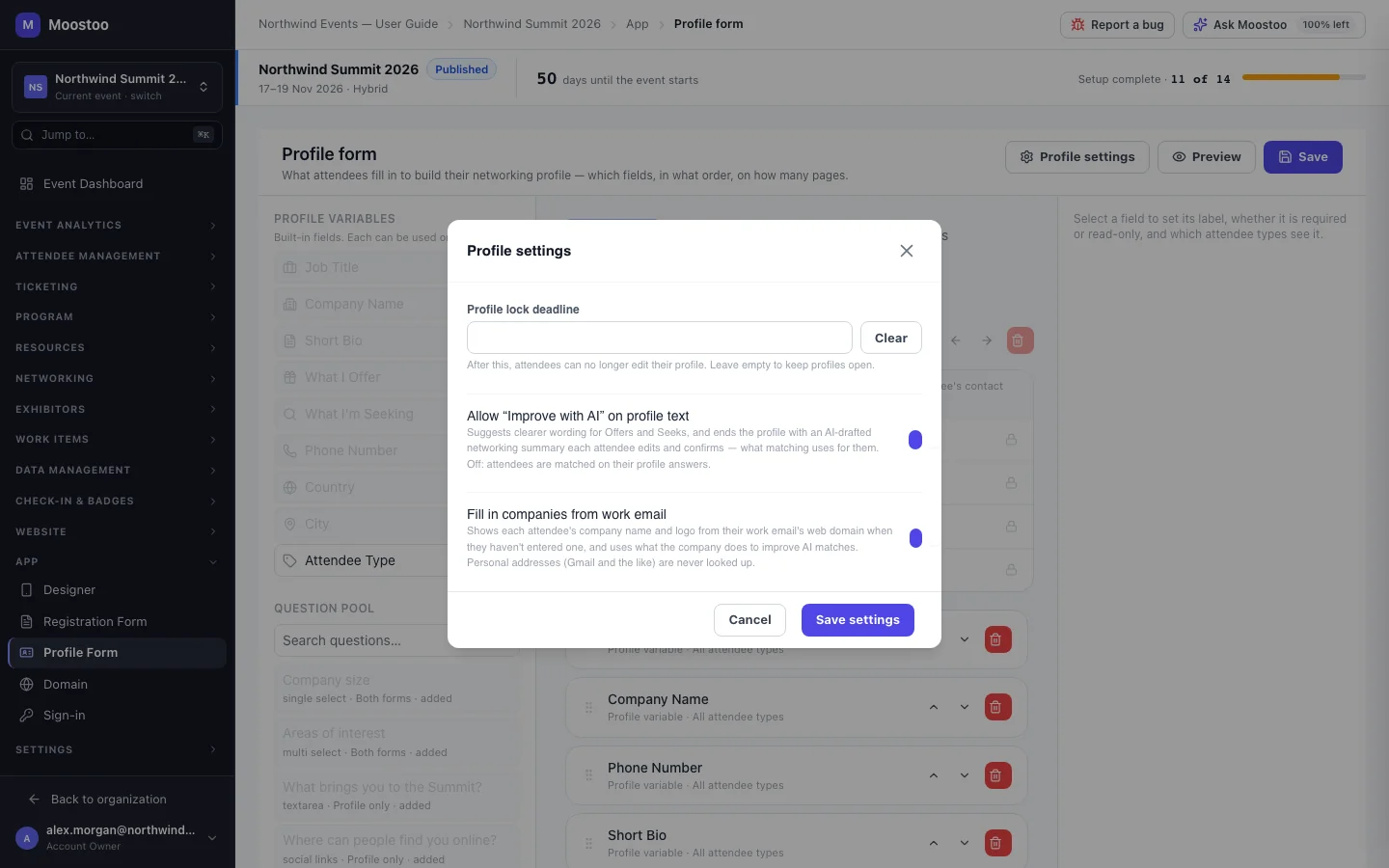
| Allow “Improve with AI” on profile text | App → Profile Form → Profile settings | Also turns on the Networking Summary step and Suggest a message on meeting requests. Switched off, everyone is matched on their plain answers. |
| Fill in companies from work email | App → Profile Form → Profile settings | Adds company data to matching and fills blank companies on cards. Switched off, existing company copies are cleared. |
| Meeting sessions and eligible types | Networking → Meeting Sessions | Decides who can meet, which ranks people you can't meet lower. |
| Experience rules | Attendee Management → Experience Rules | Who may see and request meetings with whom, by attendee type. |
| AI Recommendations in the menu | App → Designer | Where the Discover screen sits in the app, or whether it is shown at all. |
- Recommendations refresh on their own. When attendees edit their profiles, only what changed is recomputed; a change to sessions or companies refreshes the whole event. It can take a while after a burst of registrations, and nothing is recomputed once the event has ended.
- Invisible attendees are left out. Someone who made their profile invisible is never recommended, and sees no people suggestions themselves — see Profile visibility.
- Explanations never quote. A match reason may paraphrase someone's summary but never repeats it word for word.
Step by step
Set up an event for good matches
On App → Profile Form, make sure the form asks for Offers and Seeks, and add the pool questions that matter for your audience (industry, company size, what they're buying).
See Profile form.
Click Profile settings and decide on Allow “Improve with AI” on profile text and Fill in companies from work email, then Save settings.
Create at least one meeting session open to the types who should meet, and check the experience rules allow those pairs to request meetings.
In the attendee card design, choose whether the match score is shown on cards.
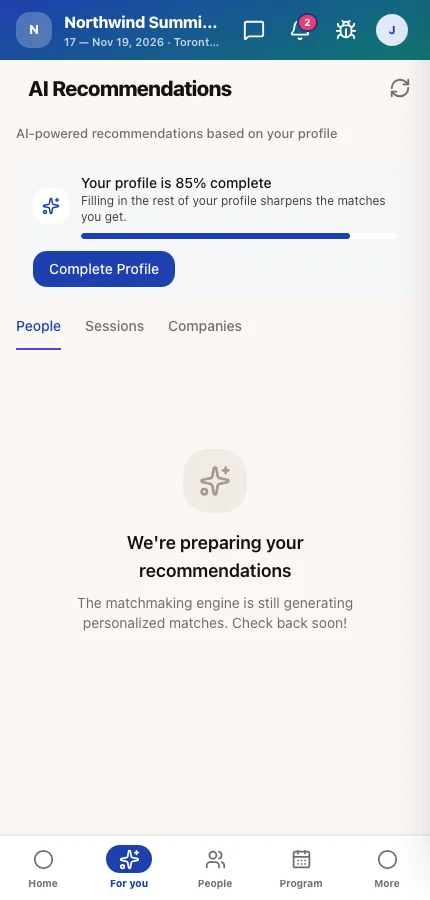
Encourage attendees to finish their profile — the Discover screen already nudges them with their completion and the fields that would sharpen their matches.
What attendees see
In the attendee app
The AI Recommendations screen has tabs for People, Sessions and — when the event has exhibitors — Companies, each suggestion with a reason. People cards offer Request Meeting and can be dismissed; sessions can be added to the agenda; companies bookmarked or visited. In the Attendees directory, recommended people carry a badge and lead the default Best match order.
Tips
- Imported attendees usually arrive without Offers and Seeks — send them to the profile form early, or they won't be suggested to anyone.
- Write your Offers and Seeks hints in the profile form with examples from your industry; vague answers make vague matches.
- If people complain their best matches can't be booked, look at the eligible attendee types on your meeting sessions first.
- Nudging attendees to confirm their Networking Summary is the single best way to sharpen matches — it turns scattered answers into a clear offer and ask.