
Orders
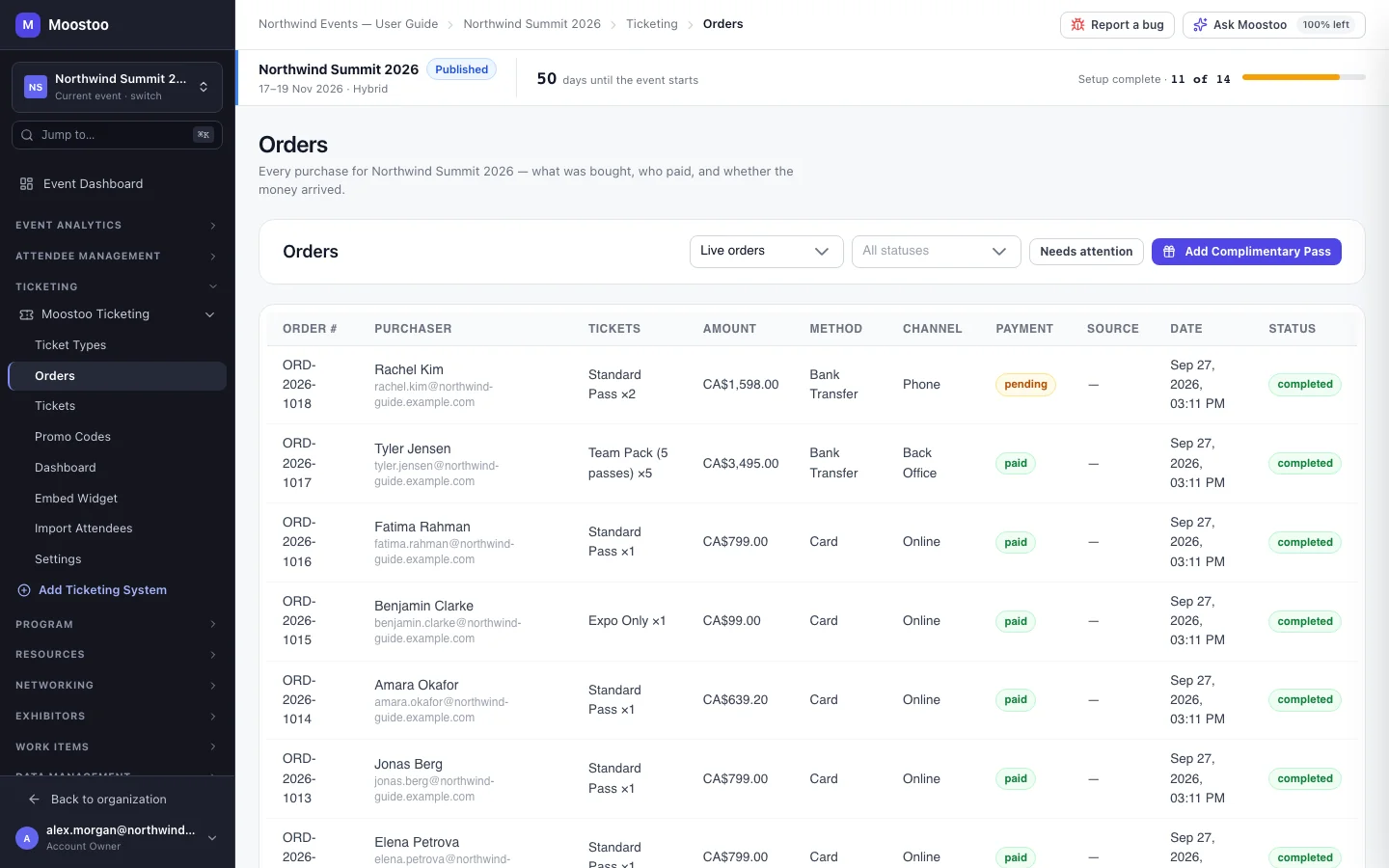
An order is the purchase; its tickets are the entries. This screen is where finance questions get answered: who still owes you, which bank transfers arrived, which orders were refunded. It is also where you act on a purchase — resending the confirmation, issuing a refund, cancelling it, or giving someone a complimentary pass.
How it works
Every purchase creates one order and one ticket per seat bought. The purchaser is not necessarily an attendee — a company's office manager can buy ten passes for colleagues. An order is described along three separate axes, and the list shows each as its own column so an unpaid transfer never looks like a paid order.
| Axis | Values | What it tells you |
|---|---|---|
| Channel | Online, Back office, Phone, Mail order | Where the order was taken |
| Method | Card, Bank transfer, Cash, Cheque, Invoice, Complimentary, Free | How the money moves (or that none is due) |
| Payment | Not required, Pending, Partially paid, Paid, Partially refunded, Refunded, Failed | Whether the money has arrived |
Not required is not Paid
A free order is Not required; a paid one is Paid. Both are admitted at the door, but only the second is revenue. Every other payment state — including Refunded and Partially refunded — is refused at the door.
- Status is separate again: Completed, Pending, Refunded or Cancelled. Filter by it with the status dropdown.
- Needs attention narrows the list to orders with money outstanding — pending, partially paid or failed.
- The footer totals what has been Collected and what is Outstanding across the orders shown.
- Live orders / Test orders / All orders: orders placed in test mode are kept apart and excluded from reports.
- Click an order to open its drawer: purchaser, line items and totals, payment details (received, outstanding, reference, date paid, who recorded it — Stripe for a card payment), and its tickets with how many are assigned. Click a ticket there to open it on the Tickets screen.
Step by step
Work on an order
Open Ticketing → (your Moostoo system) → Orders and click an order.
Record payment when money arrived outside Moostoo — see Record a payment.
Download Invoice gives you the invoice PDF; an order that has no invoice number yet is given the next one.
Resend is also on the drawer, but in the current release it does not deliver an email. To send a purchaser their order link again, open one of their tickets and use Send the purchaser their link.
Issue Refund refunds all of the order (leave the amount blank), or the amount you enter, with an optional reason.
Card payments are refunded through Stripe. For any other method Moostoo only records the refund — return the money yourself. The order's payment becomes Refunded or Partially refunded, and its tickets are then refused at the door.
Cancel Order marks the order Cancelled, optionally with Also refund the paid amount and a reason. This cannot be undone.
The purchaser's console then says the order was cancelled and becomes read-only.
Give someone a complimentary pass
Click Add Complimentary Pass at the top of Orders.
Enter the recipient's email (and name), choose the ticket type and add an internal note if you like.
Click Send Pass. A zero-value order is created with one ticket already assigned to the recipient, and they are emailed a link to confirm their registration.
If that address already holds a ticket for this event, the pass is still issued and you are warned.
What attendees see
In the attendee app
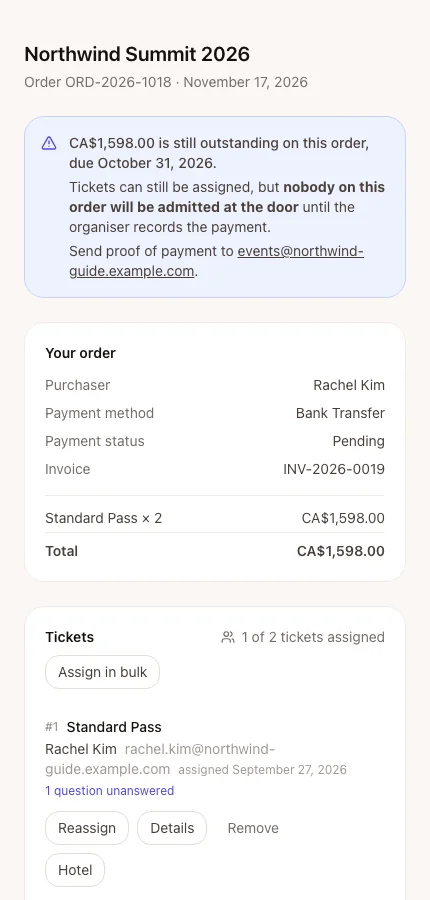
Every purchaser can open their own order in the purchaser console from the link in their confirmation: what they bought, what they paid, what is still owed, and who each ticket is for.
In attendee emails
A complimentary pass emails its recipient, and recording a payment emails the purchaser. Refunds and cancellations send no email by themselves — let the purchaser know.
Tips
- Start each day with Needs attention during a transfer-heavy sale — it is your list of people who cannot get in yet.
- What refuses a ticket at the door is its order's payment, not its status. Cancelling a paid order without refunding it leaves the payment Paid — tick Also refund the paid amount (or issue a refund) so its tickets stop scanning.
- The order's Source column shows which sales source link brought the buyer, when the purchase recorded one.