
Attendee card and People directory
The Attendees directory is where networking starts: attendees scan cards to decide whom to talk to. The card should show what matters at your event — what a founder is raising, which markets an investor covers, what a buyer is looking for — and nothing that clutters it. What you place on the card also decides which filters attendees get, so designing the card is designing how people find each other.
How it works
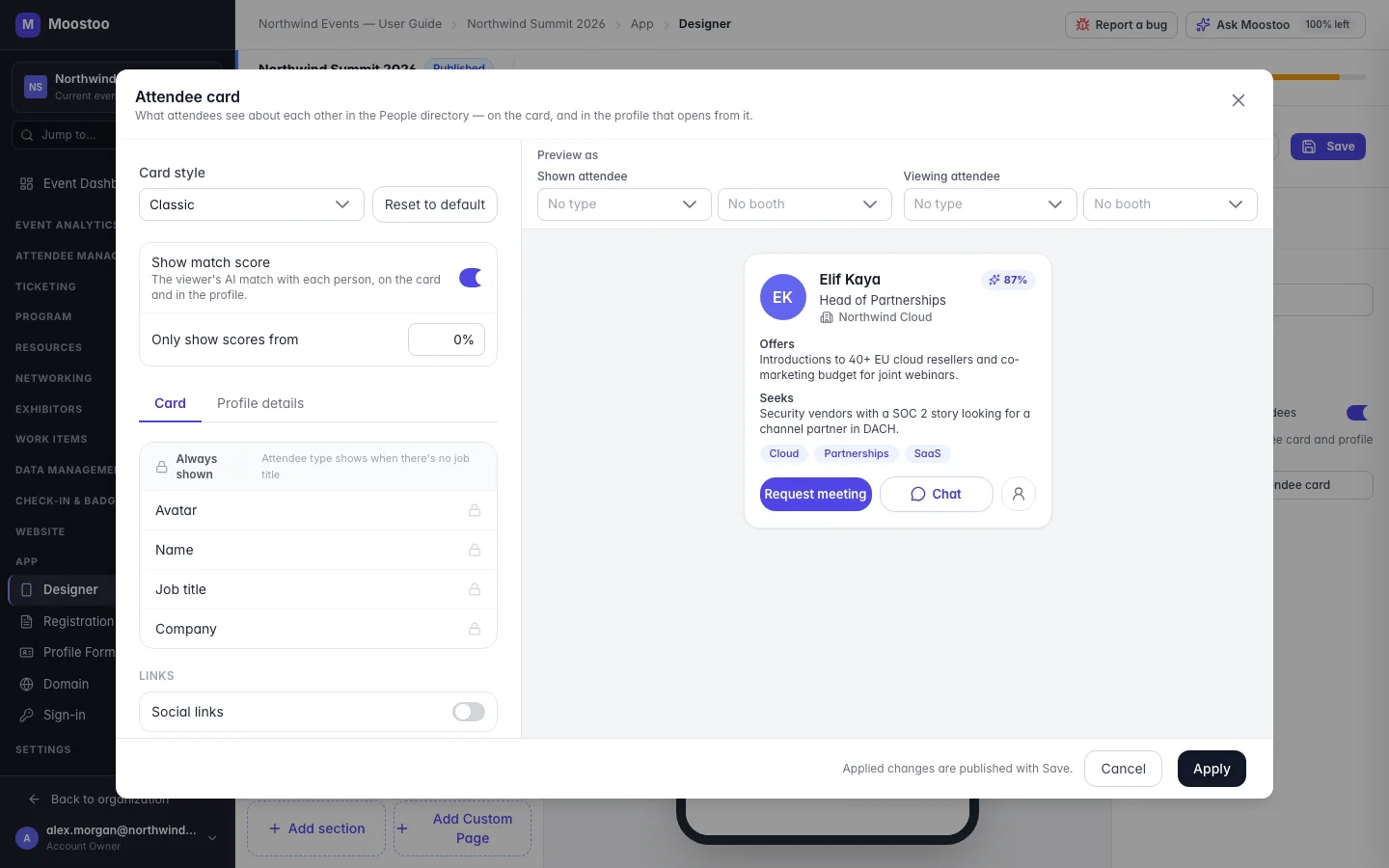
In App → Designer, click Attendees in the menu. Its panel has Show the number of attendees and Design the attendee card, which opens the Attendee card designer over the Designer. The designer has two tabs — Card (the grid of people) and Profile details (what opens when someone taps a card) — with a live preview on the right.
Always shown Photo, name, job title (or the attendee type when there is no job title) and company, the Recommended badge and the action buttons. These are fixed on every card.
Links Two switches: Social links and Website, drawn as icons. Each can carry the same visibility conditions as a field.
Fields, in order Anything else, in the order you set: Short bio, Offers, Seeks, Shared interests, Attendee type, Country, City, Phone, Email, and any profile question from your Question pool. Each field can show or hide its label, and up to three fields can sit side by side in one row.
Visibility By default a field shows to Everyone. Click its visibility chip to add conditions — about the Shown attendee (whose card it is) or the Viewing attendee (who is looking): their attendee type, whether they run a booth, the booth's type or tier, whether a profile field is filled in, a country, or a question's answer. Choose whether all or any of the conditions must match.
Show match score Shows the viewer's AI match percentage with each person on the card and in the profile. Only show scores from hides low scores. Hiding a score never changes the order or the Recommended badge (given at 50 or more).
- The card never overrides privacy. A field only shows for people whose experience rules let the viewer see their full details, and a visibility condition can only narrow who sees a field — never widen it.
- Filters follow the card. The directory's filters are the choice questions you place on the Card (as long as attendees are actually asked them on a form) plus Country and City when they are on the card. Search reads the names and companies on every card and, for people the viewer may see in full, the fields you placed.
- Attendees see their own card first-hand. Their own card shows every field you placed, with not added yet where they have not filled one in — a nudge to complete their profile.
- Show the number of attendees switches the head-count on the directory (and on other attendee screens) on or off for the whole event.
Step by step
Open App → Designer, click Attendees in the menu, then Design the attendee card.
On the Card tab, switch Social links and Website on or off.
Click Add field, search for a field or question and add it. Reorder fields with the arrows, and untick Show label where the value speaks for itself.
Between two fields, click Put side by side to share a row (up to three), or Stack below instead to split them again.
To restrict a field, click its visibility chip (it reads Everyone), add conditions and choose whether all or any must match.
For example: show Investment focus only when the Viewing attendee is a Startup Founder.
Set Show match score and its minimum. Use Preview as to see the card through a particular attendee's eyes.
Repeat on the Profile details tab, then click Apply — and Save in the Designer header to publish.
What attendees see
In the attendee app
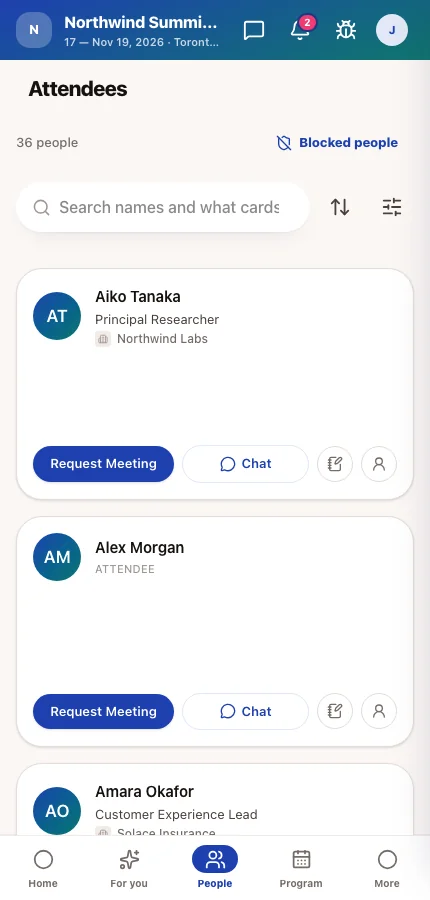
The Attendees page shows every person the viewer may see, as cards laid out your way, with the filters your card makes possible and a Recommended for you strip on top. Tapping a card opens the profile details.
Tips
- Put Offers and Seeks on the card at networking events — they are what people scan for.
- Keep the card to three or four fields and move the rest to Profile details. Every card in the grid is the same height, so one long field makes all of them tall.
- To make a question a filter, ask it on the registration or profile form and place it on the card.
- Apply only changes the Designer's draft. If attendees don't see your design, you haven't clicked Save.