
Create an event from its website
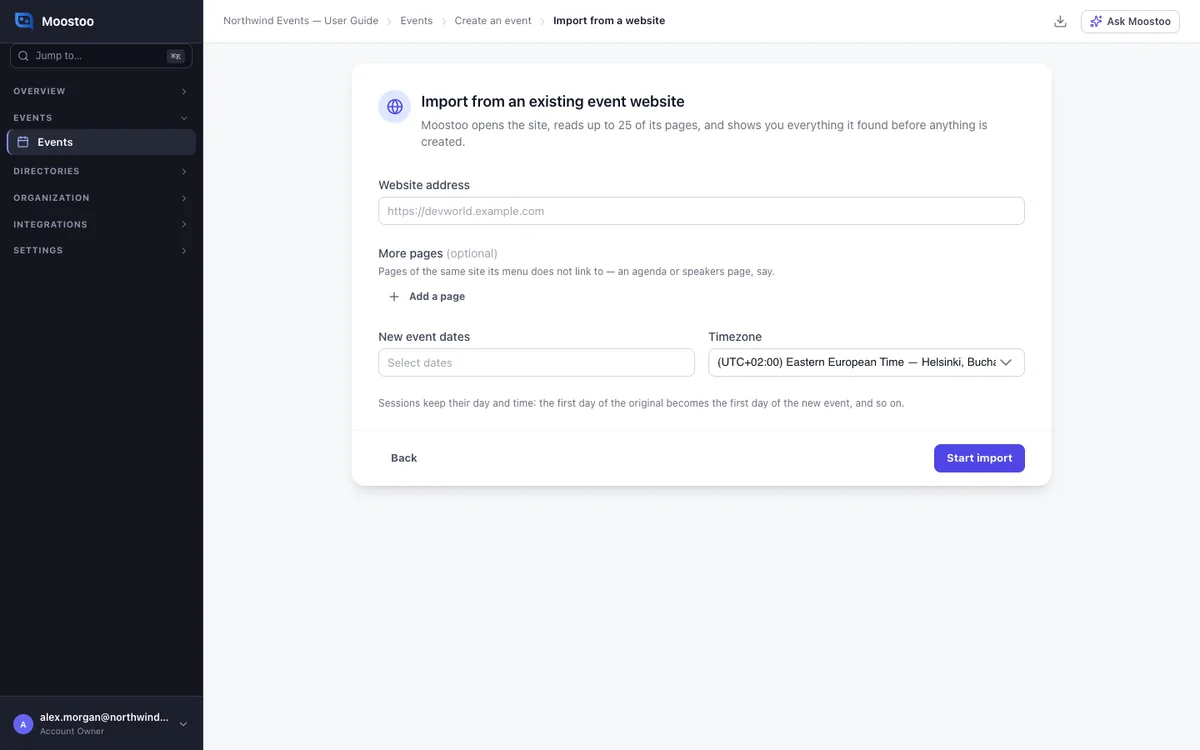
Most events are a new edition of one that already has a website. Copying its agenda, speakers and pages by hand takes days. Here you paste the address and set the new dates. Moostoo builds a draft event and a draft website that looks like the original, and creates nothing until you have reviewed it.
How it works
What you give Moostoo
- The website's public address.
- Up to five more pages of the same site that its menu does not link to, such as a separate agenda page.
- The new event's dates and timezone.
Moostoo reads up to 25 pages in the background. You can leave and come back. When it is done, you see a review of everything it found.
What becomes what
| On the website | In the new event |
|---|---|
| Name, description, venue, social links | The event's details |
| Logo, favicon, banners, colours, fonts | Event branding and the website's colours and fonts |
| Agenda with times, tracks, rooms and speakers | Programme sessions on the new days |
| Speakers with title, company, bio and photo | Speakers on the event |
| Sponsors, exhibitors, partners | Event companies, matched to your company directory first |
| Ticket types and prices | Ticket types, inactive, so nothing goes on sale |
| Hotels | Hotel deals, hidden until you show them |
| Pages, menu, footer and their content | A draft website with the same pages in the same order |
| A band repeated on several pages | One saved section, linked from each page |
Each part of a page is rebuilt with the website builder's own blocks, so you can edit it like any other page. A part showing speakers, the agenda or sponsors becomes the matching live section.
Day 1 stays day 1
The original's first day becomes the new event's first day, and so on. Each session keeps its time of day. If the new event has fewer days, sessions on the missing days are listed on the review and not created.
Matching the look
After reading the site, Moostoo compares its rebuilt pages with pictures of the original and corrects them. It does this up to three times per page. The progress screen shows which page and round it is on.
On the review, the Branding tab lists the site's colours and fonts. The Website tab lists the pages, shared sections, and anything that could not be carried over, such as animations or background videos.
Good to know
- Speakers need an email, and websites rarely show one. A speaker already in your directory is linked by name. You can type an email for others on the review.
- A speaker left without an email gets a placeholder address that never receives mail. Replace it later.
- Companies are matched by website, then by name. A match only gains what it is missing.
- Nothing is sent to anyone. The event and its website are drafts.
- It is all or nothing. If anything cannot be created, nothing is, and the review names the problem.
- Attendees, orders, payments, check-ins and anything behind a sign-in are never imported. Only YouTube and Vimeo videos are kept from embedded content.
- Make sure you have the right to reuse the website's text and images.
Step by step
Import an event
Open Events → Create Event and choose Import from a website.
Enter the website's address, and add any pages its menu does not link to.
Choose the new event's dates and timezone, then click Start import.
You can leave the page. Its address brings you back to the import.
Go through the review tabs and change what you need.
Click Save changes to keep your edits. Leave out anything you do not want.
Click Create event and confirm.
Images are copied first, into the Media Library folder Imported from the site.
Open the event or the website builder to finish the site, and publish it when ready.
What attendees see
Attendees are not affected. Everything is created as a draft: ticket types are inactive, hotels hidden and nobody emailed. Attendees see the event only once you publish it.
Tips
- Use the Compare with original tab to check each rebuilt page before you create anything.
- Sessions shown without a time are placed at 09:00–10:00 and marked. Correct them on the review or later.
- A page that could not be read is named on the review with the reason. Add its content afterwards.
- Cancel import stops the import at any point before the event exists. Images already copied stay in your Media Library.
- This is not available in the ticketing console, which has no website builder or programme.
Ask Moostoo
Ask Moostoo can start an import for you. You still review and create the event yourself.
Import last year's event from https://devworld.example.com as a new event on 3–4 March 2027.