
Messages and notifications
Messages and notifications are how your event reaches people between sessions, and how they reach you. Knowing what attendees see helps you place Contact organiser, word announcements well, and answer why didn't I get a notification?
Messages
Messages lists the attendee's conversations, newest first, with filters and search. Pinned at the top is the conversation with your team, tagged Event team. Every attendee has one from the start.
Your team's replies appear under your organization's name. The Contact organiser item in the app's menu opens the same conversation.
Direct chat A private conversation between two attendees. Your Experience rules decide who may write to whom. Direct chats are private, even from organizers.
Group chat A named group with at least two other people. The creator decides who can post and who can add members, and can make others admins. Anyone can leave.
Files and links Attendees can send pictures, videos, PDFs and documents up to 100 MB. Before any link or file opens, the reader sees where it leads and confirms.
Translate Each conversation has a Translate switch for the reader. It works when your organization has translation on. See Languages.
Read marks A conversation counts as read once its messages are on screen. Unread counts show on the Messages menu item.
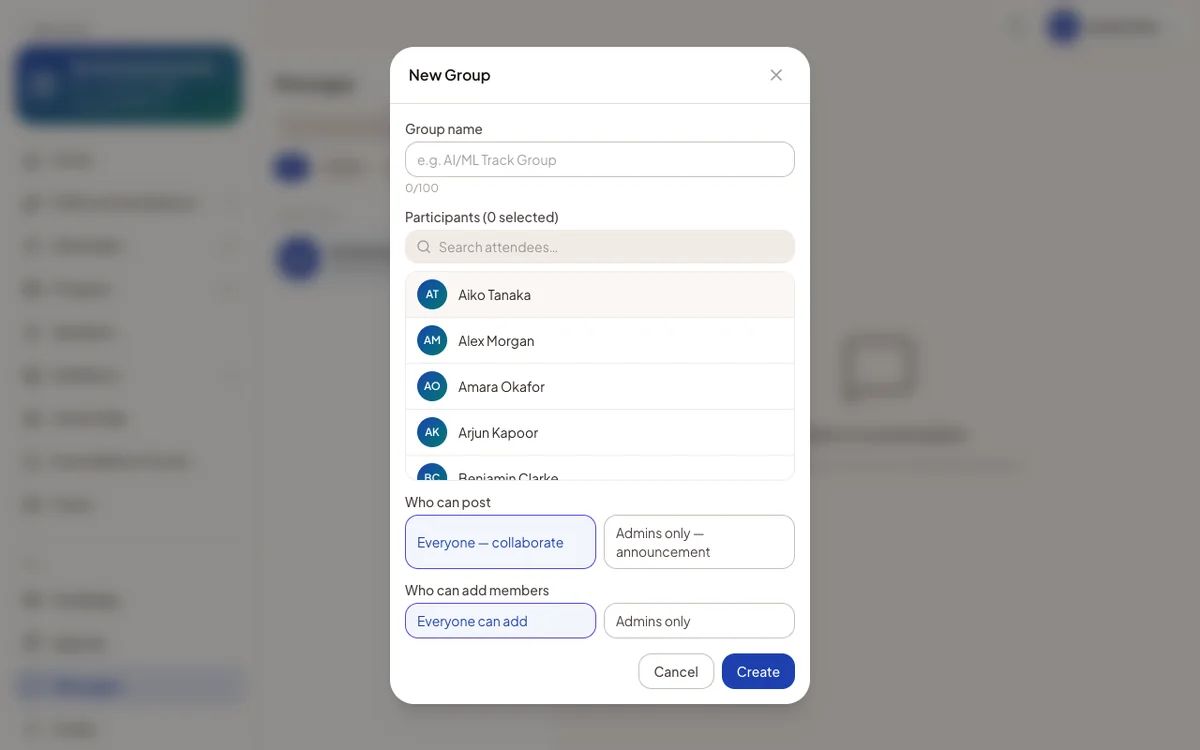
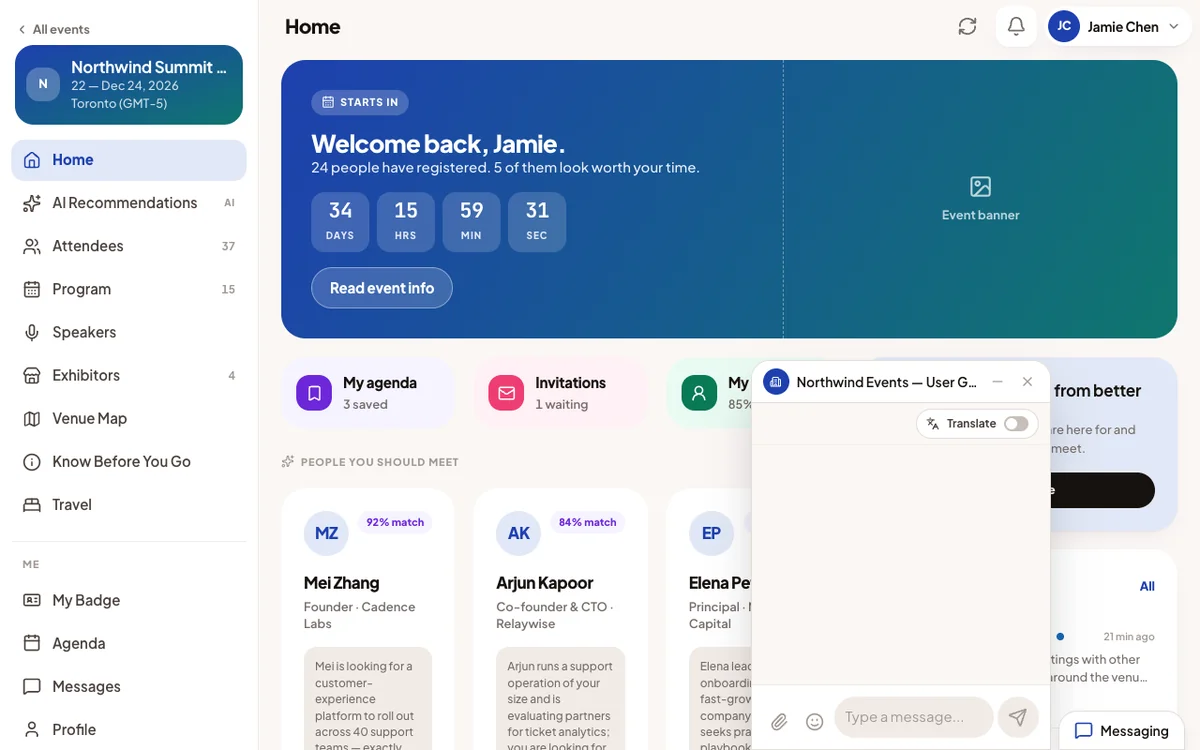
On a computer, a Messaging launcher sits at the bottom-right of every screen. Conversations open as small windows along the bottom, so attendees keep their place. On a phone, conversations open on the Messages screen.
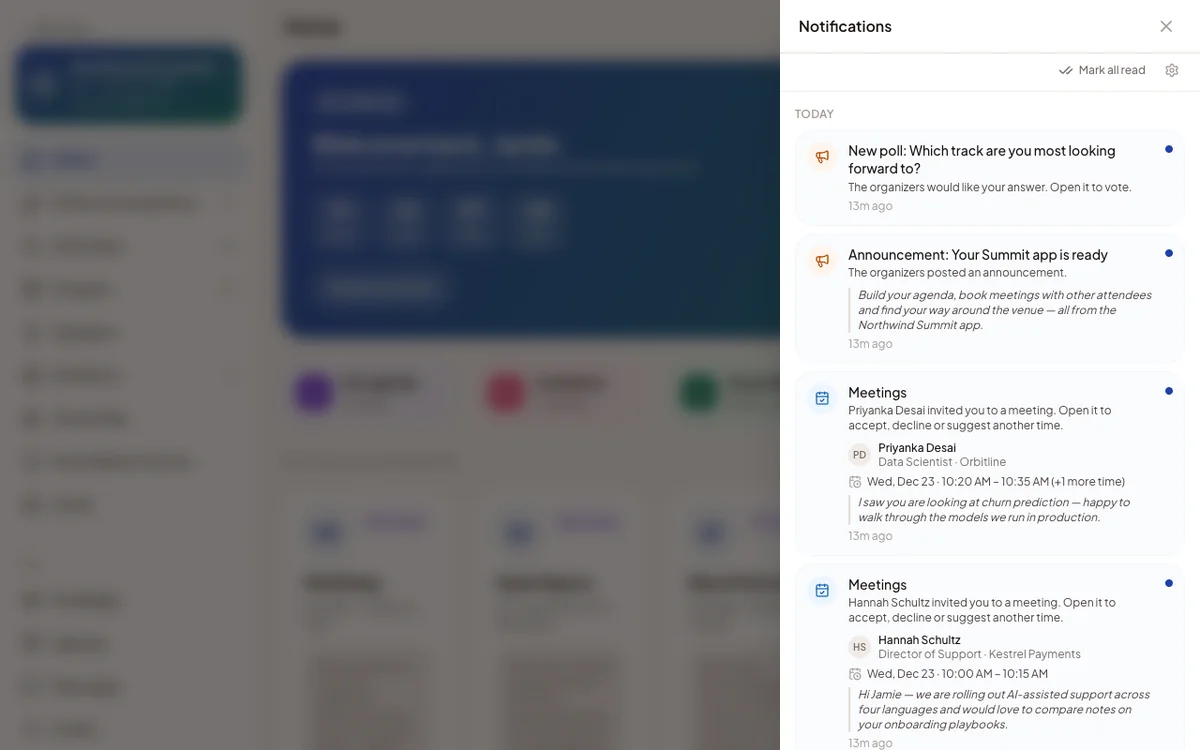
The notification bell
The bell shows how many notifications are new. Opening it clears that number. Each item stays unread until it is opened, or until Mark all read.
A notification says what happened. Where it helps, it also shows who, when and where, on the attendee's own clock.
| About | Opens |
|---|---|
| A meeting request, answer, new time or cancellation | That meeting in Invitations |
| An announcement | The event home, with that announcement open |
| A poll | The event home, at that poll |
| A session | The Program, with that session open |
| A booth meeting request | My booth → Meetings |
| A work item | That work item |
| The badge | My Badge |
New chat messages do not appear in the bell. They show as unread counts on Messages, and are pushed to the phone or browser.
Notification settings
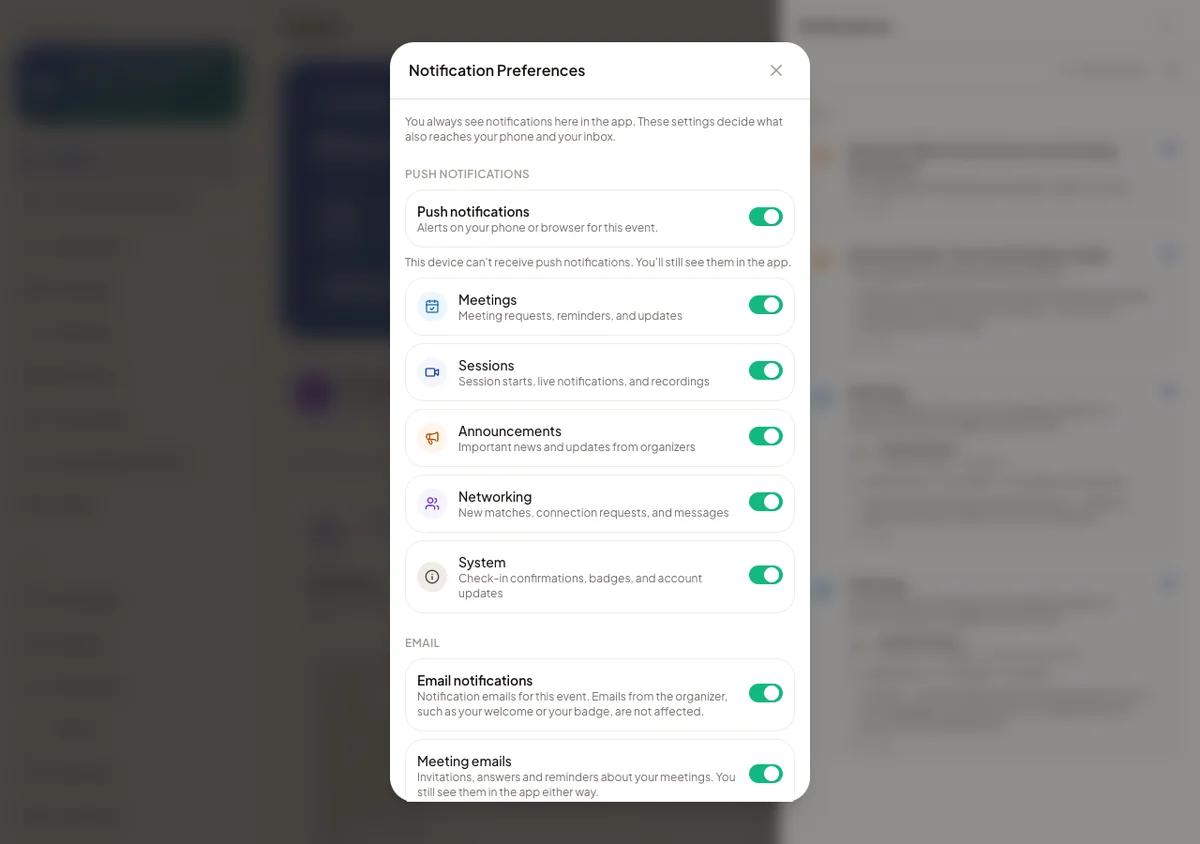
The gear in the bell's panel opens Notification Preferences, kept separately for each event. In-app notifications always arrive. The settings decide what also reaches the device and the inbox.
Push notifications One switch for the event, then one per kind: announcements, meetings, networking, sessions and system. The screen also says whether this device can receive pushes.
Email notifications One switch for notification emails, then meeting emails and other notifications. Your own emails, such as welcome or badge emails, are not affected.
Good to know
- Push permission is asked in context, never when the app opens. A card on Home offers Turn on notifications or Not now.
- A browser push arrives even with every Moostoo tab closed, as long as the browser runs.
- Meeting emails carry an unsubscribe link. It turns off meeting emails for that event only.
Announcements and polls
Your announcements and polls appear on the event home. Each also arrives as a notification, and as a push where allowed. Attendees vote in a poll right on Home.
Why didn't I get a push?
Check three things in order. Is the push switch on for this event and this kind? Has the browser or phone allowed Moostoo? Has the attendee opened the event on that device since allowing it?