
Payment settings
Before paid tickets go on sale, set up the money side once for the whole ticketing system. You choose where card payments go, which payment methods buyers see, what buyers can do at checkout and which taxes apply. Every ticket type, the checkout and the invoices then follow these settings.
How it works
The Payment Settings screen
The screen has four parts, from top to bottom:
- Card payments: where the money goes and which payment methods buyers see.
- Checkout options: what buyers can do at checkout.
- Tax Types: the tax rates your ticket types use.
- Test orders: shown only while the event has some.
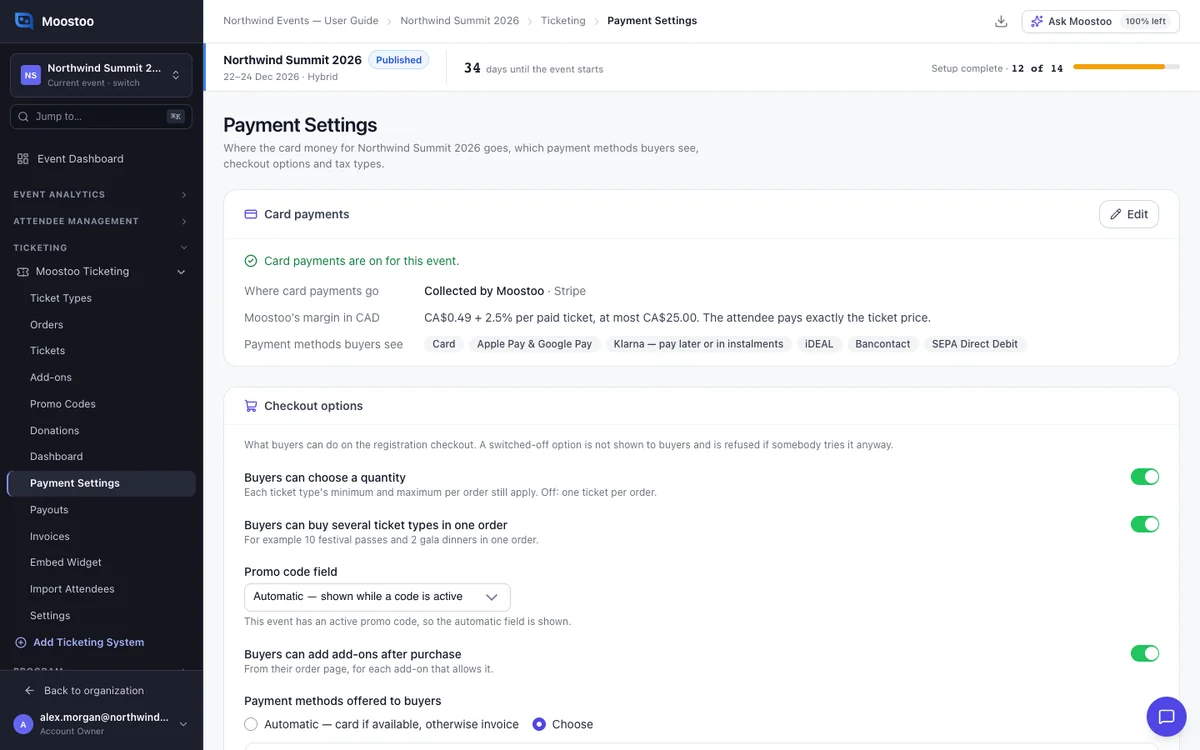
Where card payments go
Card payments are set up once for the event, never per ticket. The money can go to:
- Collected by Moostoo: Moostoo takes the payments and pays you by bank transfer after the event.
- One of your organization's own payment accounts.
- A new account you connect here for this event only.
If there is more than one option and none is chosen, card sales wait until you choose. You can change it until the event takes its first real card payment.
The card also shows the margin Moostoo keeps. Under Collected by Moostoo, it shows when you will be paid.
Payment methods buyers see
Card is always on. You can switch off Apple Pay, Google Pay, Klarna and local methods for this event. You receive the full amount whichever method a buyer uses.
Test payments
There is no test switch. Test payments follow where the money goes. Choose a test account, badged Test account, or choose Test payments under Collected by Moostoo.
Every new order is then a test order. It is marked [TEST], kept apart on Orders, and never counted in figures or payouts. Buyers pay with the provider's test cards.
Only a draft event can take test payments. An event cannot be published while it does.
Checkout options
Buyers can choose a quantity When off, each order holds one ticket.
Buyers can buy several ticket types in one order Needs quantity to be on.
Promo code field Automatic shows it while the event has an active promo code. You can also choose Always or Never.
Payment methods offered to buyers Automatic offers card when the event can take cards, otherwise invoice. Or choose from Card, Bank transfer, Cash, Cheque and Invoice.
Each offline method can have Instructions for buyers and a Minimum passes. For example, offer invoice only for orders of 10 or more passes.
Good to know
- The default settings allow one ticket per order, paid by card when possible and otherwise invoiced.
- A buyer who tries something you switched off is refused, and nothing is registered.
- Minimum passes counts seats. A table of 10 counts as 10 passes.
- Orders you enter yourself are never limited by these options.
- When the event cannot take cards, the Card row says why.
- Changing card payments needs the Manage financials permission.
Step by step
Choose where card payments go
Open Ticketing → Payment Settings.
Under Card payments, click Choose from your organization, or Edit if it is already set up.
Choose where card payments go and the payment methods buyers see.
Click Save.
To connect a new account for this event only, choose Add a new account for this event.
You come back here after the provider's sign-up. An organization admin is asked whether to add it to the organization too.
Try the checkout with test payments
Choose a test account, or Test payments under Collected by Moostoo.
Register through your form and pay with the provider's test card. For Stripe, that is 4242 4242 4242 4242.
Try check-in and badge printing with the test tickets too.
Before publishing, switch to a real account or Real payments.
Click Delete Test Orders.
This removes the test orders, their tickets and the people they added. Ticket and promo counts are given back.
Set checkout options
Under Checkout options, choose quantities, several ticket types, the promo code field and the payment methods.
Click Save checkout options.
Add a tax
Under Tax Types, click Add Tax.
Enter a name, rate and description, such as HST 13%, and click Save.
Pick the tax on each ticket type it applies to.
What attendees see
In the attendee app
Buyers see only what you switch on. The total at checkout includes discounts and tax, exactly as the order will be. A refused promo code says why. With an offline method, the buyer ends on an Order placed screen with your instructions and the amount due. A test checkout tells the buyer no real money is taken.

Tips
- Choose where card payments go before the first sale. It cannot change after the first real card payment.
- Add your taxes before you create ticket types.
- Kept test orders stay listed as
[TEST], but their tickets never let anyone in at the door.