
Live sync & import history
Sales do not stop after your first import. Live sync means a new registration, a changed name or a cancelled ticket on the platform reaches Moostoo within moments, without you pressing anything. When something looks wrong — a person missing, a wrong attendee type — Import History is where you find out what the platform sent and what Moostoo did with it.
How it works
Live sync
When you choose the external event, Moostoo asks the platform to notify it whenever a registration changes. A notification is only a nudge: Moostoo then re-reads the tickets it names from the platform and imports them through the same rules and mapping as a full import. A burst of changes during an on-sale moment is gathered into one update rather than hundreds.
Live sync is on Changes are arriving. The line shows when the last update was received.
Setting up live sync… The notification is being registered with the platform.
Live sync couldn’t be set up The platform refused; the reason is shown. Reconnect checks the credentials and tries again.
Live sync is off No notification is registered — for example after Disconnect.
Live sync isn’t available in this environment Shown on a local or test installation that the platform cannot reach; imports still work, only the automatic updates do not.
Reconnect (Settings → Connection) is the one repair action: it re-checks the stored credential, re-creates the notification, and — if you have imported before — catches up on anything missed while it was down. It never creates a duplicate subscription on the platform.
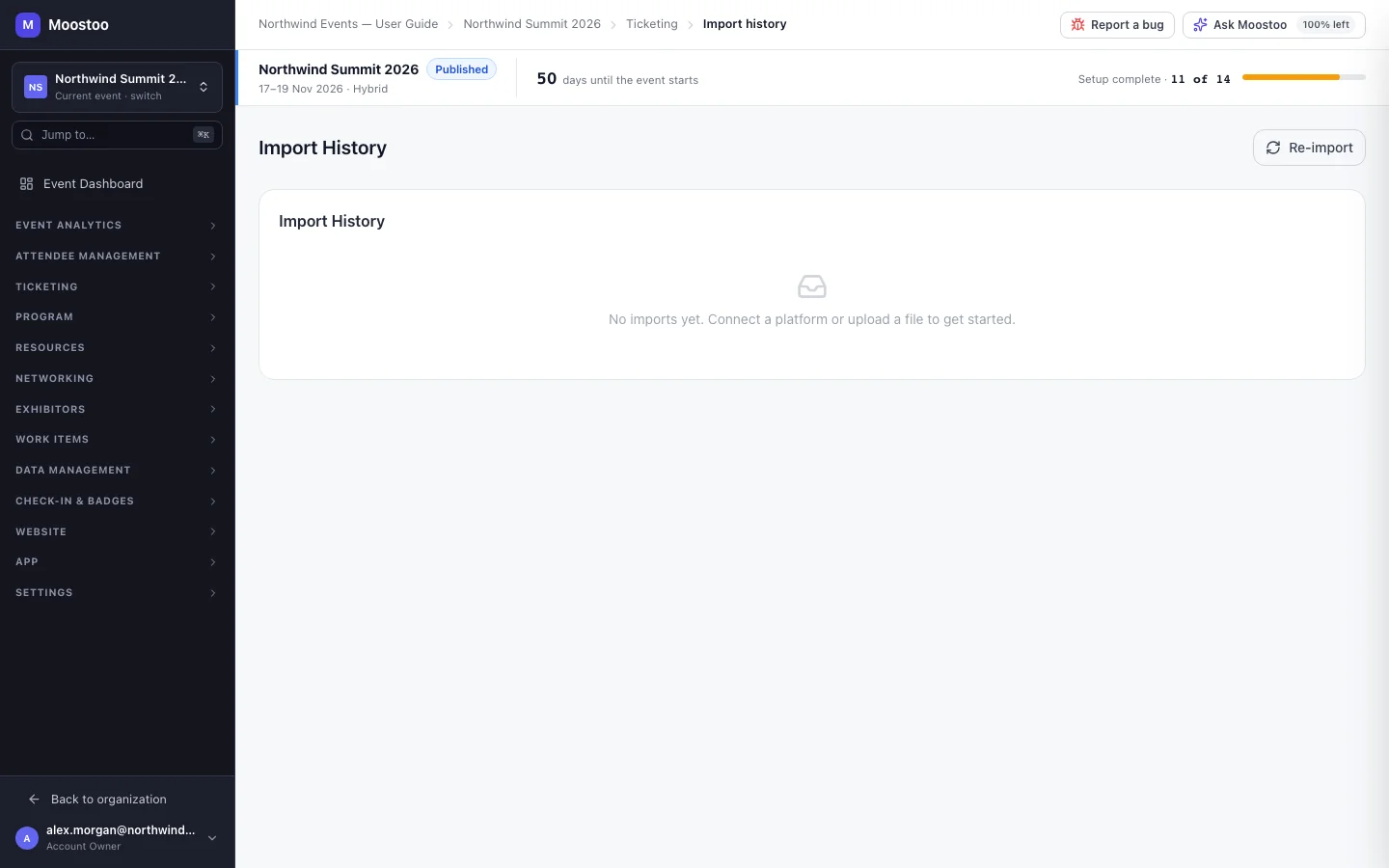
Import History
- The run panel at the top says what is happening now — queued, importing (120 of 1,226 tickets processed), paused while the platform's rate limit resets, or finished — and how many tickets could not be imported.
- Show all runs (or Show run detail when there is only one) opens every run with its source — manual import or live sync — and its imported, skipped and failed counts. Click a count to see up to 50 of the people behind it, and open a failed run's errors. The number of runs waiting is shown on the button.
- Live sync appears as one standing row, labelled most recent sync. Its counts describe the latest sync only, not a running total.
- The records table lists every ticket this connection has seen — ticket ID, name, email, ticket type, when it was imported and last updated, and the reason it was skipped. Search, filter by status and sort any column.
- Expand a record to see exactly what the platform sent for that ticket (its raw data). A ticket first seen through live sync has no stored payload until the next full import.
- For an external platform, the Import Filter lets you leave out tickets by condition on email, first or last name, ticket type (name or ID), order ID or badge ID — for example staff or test registrations.
Why did a sync report hundreds of skipped tickets when only one changed?
A skipped ticket is usually No change: Moostoo re-read it, found it identical to what it already had, and wrote nothing. Imports are counted as updated only when something actually changed.
Why does a run list fewer people than its count?
A later import that covered the same tickets now owns them in the list. The panel states the difference when it happens.
Why is my import still queued?
Imports for one event run one at a time, so a run waits while another is working. The number waiting is shown on the run-list button. A run can also read paused while the platform's rate limit resets; the reason is shown under it.
A run failed. Do I need to start again?
Usually not. A failed run is retried automatically a few times from where it stopped; if it gives up, the message names the last error. Fix the cause and click Re-import.
Step by step
Run an import again
Open the system's Import History and click Re-import.
It uses the connection, event and mappings you already have — nothing is asked again.
Follow progress in the run panel. Open Show all runs for the detail of each run.
Repair live sync
Open the system's Settings and look at the live-sync line under Connection.
If it says live sync could not be set up, or changes have stopped arriving, click Reconnect.
What attendees see
Attendees do not see these screens. Through them, people who register on the platform appear in Moostoo shortly afterwards and can sign in to the app; changes they make on the platform reach their attendee record the same way.
Tips
- A person missing from Moostoo? Search Import History for their email — the reason column almost always explains it (an unmapped type, a cancelled ticket, a filtered-out registration).
- Imported people whose ticket is later cancelled or voided on the platform are recorded as skipped but not removed from your attendee list; remove them yourself if they should go.
- Disconnecting keeps the history and mappings, so reconnecting later picks up where you left off.