
App address and sign-in
The address is what you print on invitations, badges and slides, so it should be short and recognisably yours: northwind-summit reads better than a string of numbers. The sign-in buttons decide how much friction stands between an attendee and the app — a Sign in with LinkedIn button spares a business audience yet another password, while a closed community event may want email only.
How it works
The event address
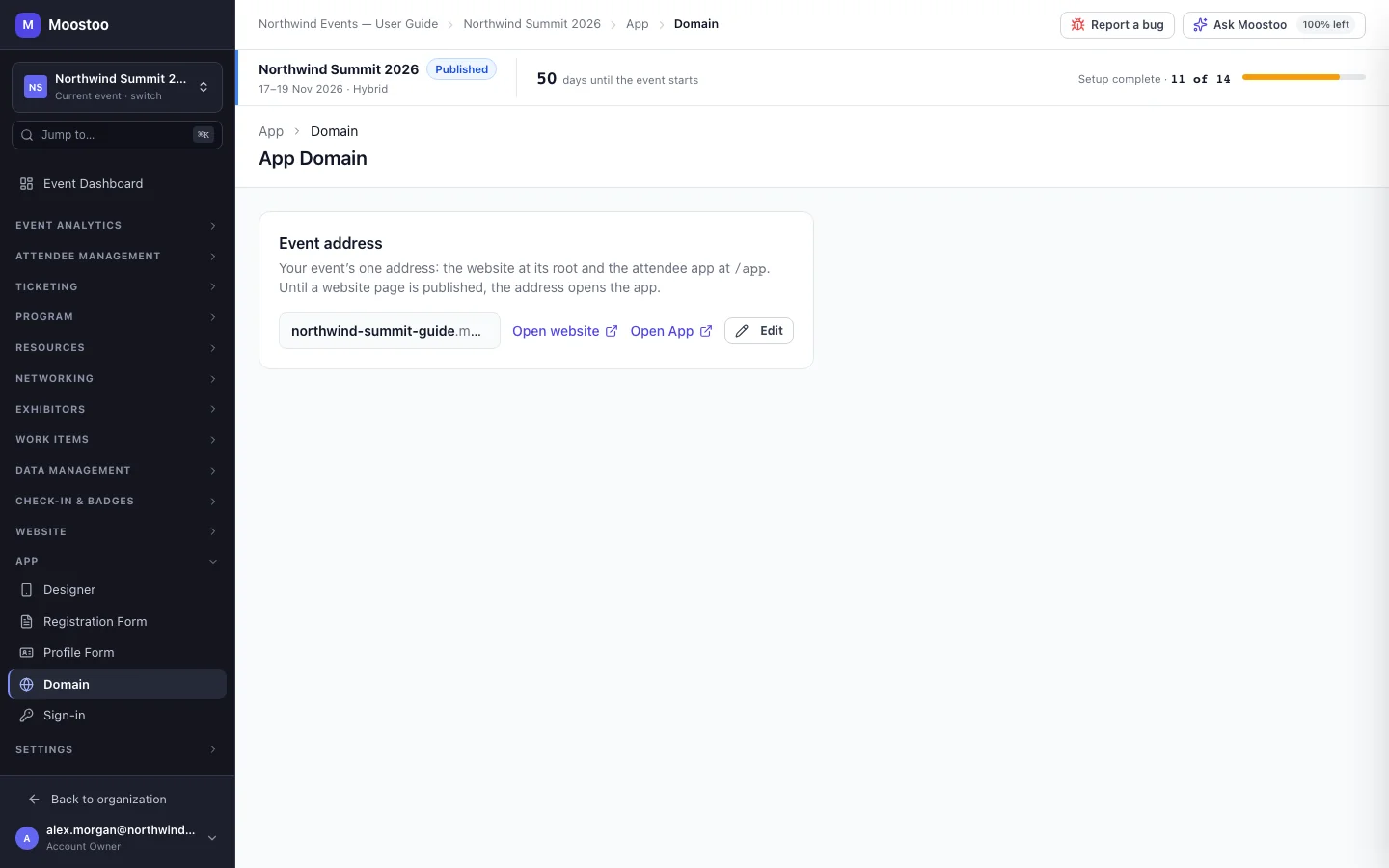
Every event has one address, for example northwind-summit.moostoo.com — a label of your choice on your Moostoo domain (the screen shows the exact address). Your public website is at its root and the attendee app at /app on the same address. Until a website page is published, the address opens the app. The same address is shown on Website → Domain & Publishing; changing it on either screen changes both.
- A new event gets an address automatically. Change it whenever you like — the editor checks that the new one is free as you type.
- Saving a new address frees the old one at once. The old one stops working and another event may claim it, so update any links you have shared.
- A draft event's address already works and shows your event, but visitors see a not open yet notice instead of the sign-up form until you publish the event.
Sign-in methods
Email and password is always available. On top of it you can offer Google, LinkedIn and Microsoft buttons, per event. An event follows your organization's default until you save a choice for it here.
- Following the organization default means the event shows whatever buttons your organization's sign-in settings offer attendees — see Sign-in and security. Saving here sets a choice for this event only; Reset to organization default goes back to following it.
- Switching every button off is a real choice: the event then offers email and password only, even if the organization default changes later.
- A provider marked not configured on this deployment shows no button until Moostoo has set it up, whatever you choose.
- A button signs people in; it does not register them. At an invitation-only event, someone who is not invited is turned away after signing in with a provider, exactly as with a password.
Step by step
Change the event address
Open App → Domain and click Edit.
Type the new address. Moostoo tells you whether it is free.
Read the note about the old address being freed, then click Save address.
Choose the sign-in buttons
Open App → Sign-in.
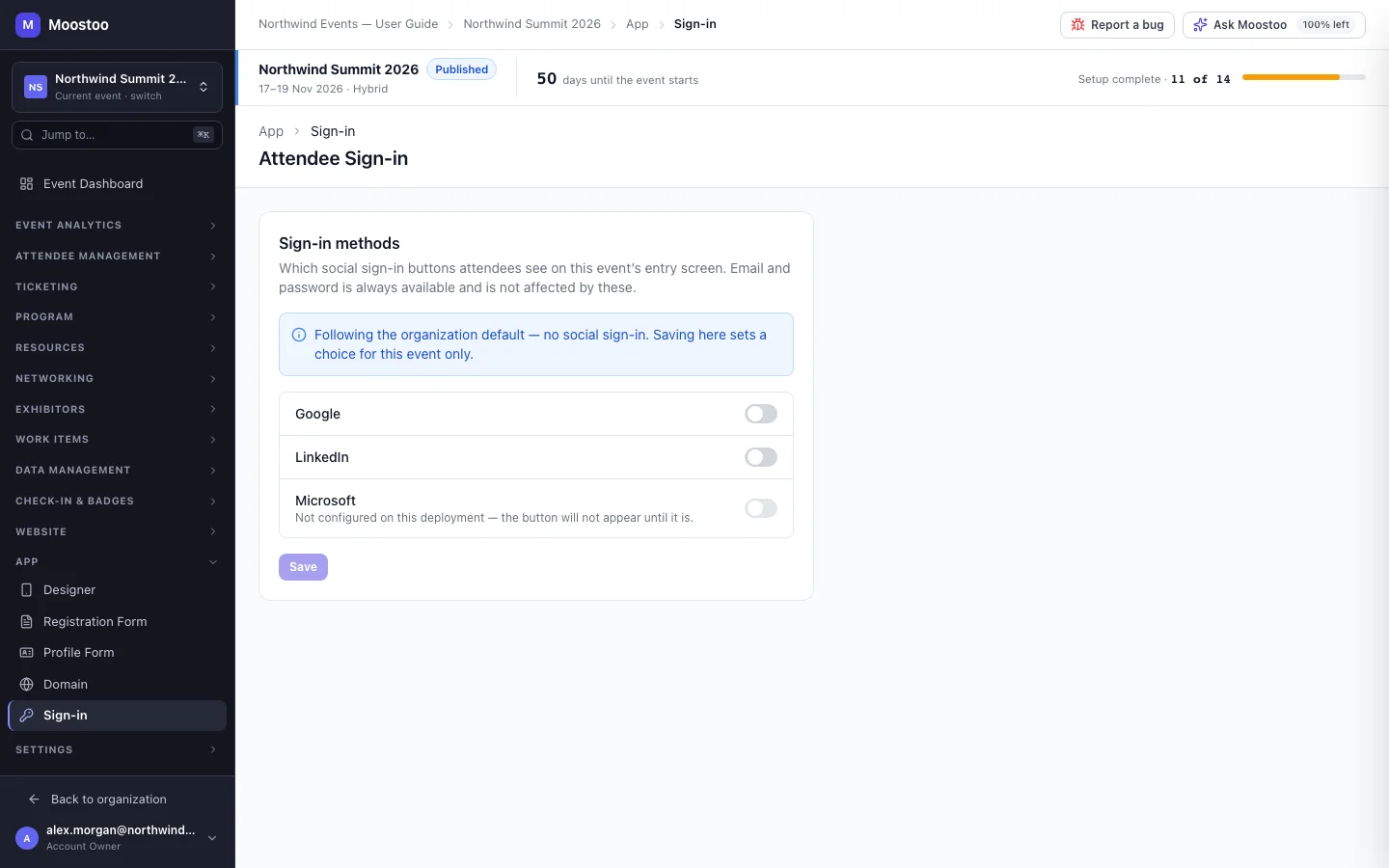
Switch Google, LinkedIn and Microsoft on or off.
Click Save. To follow the organization's choice again, click Reset to organization default.
What attendees see
In the attendee app
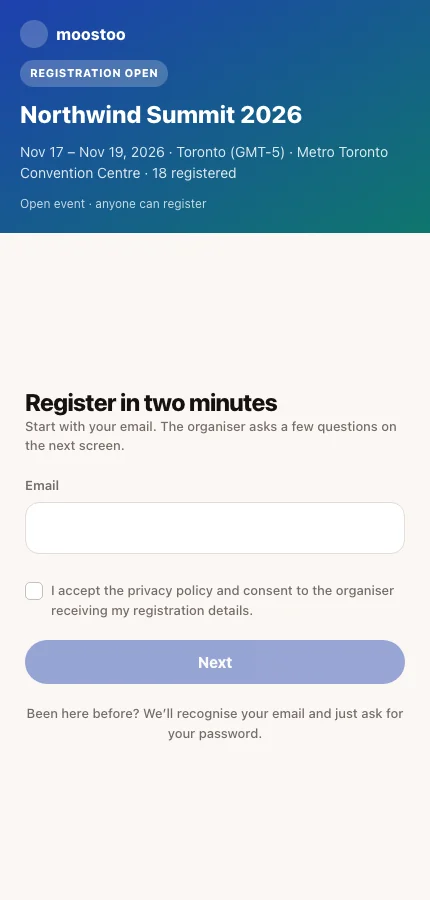
Attendees reach the event at its address and see its entry screen with the event's branding, the sign-in buttons you chose and the email and password option.
Tips
- Settle the address before you print anything. Changing it later breaks every printed QR code and link that uses the old one.
- Offer LinkedIn at B2B events: attendees sign in faster, and it is the account they use for work.
- People who signed in with a provider can still set a password later with Forgot password?, so they are never locked out if the provider is unavailable.