
People and AI recommendations
Networking is often the reason people buy a ticket. Most networking questions start on two screens: the Attendees directory and AI Recommendations. What they show depends on settings you make elsewhere, so knowing them lets you explain why a button is or is not there.
The Attendees directory
Attendees shows everyone the viewer is allowed to see, as cards. Your experience rules decide three things:
- Whether the screen opens at all for an attendee type.
- Which attendee types each type can see.
- How much of each card the viewer receives.
People who made their profile invisible are not listed.
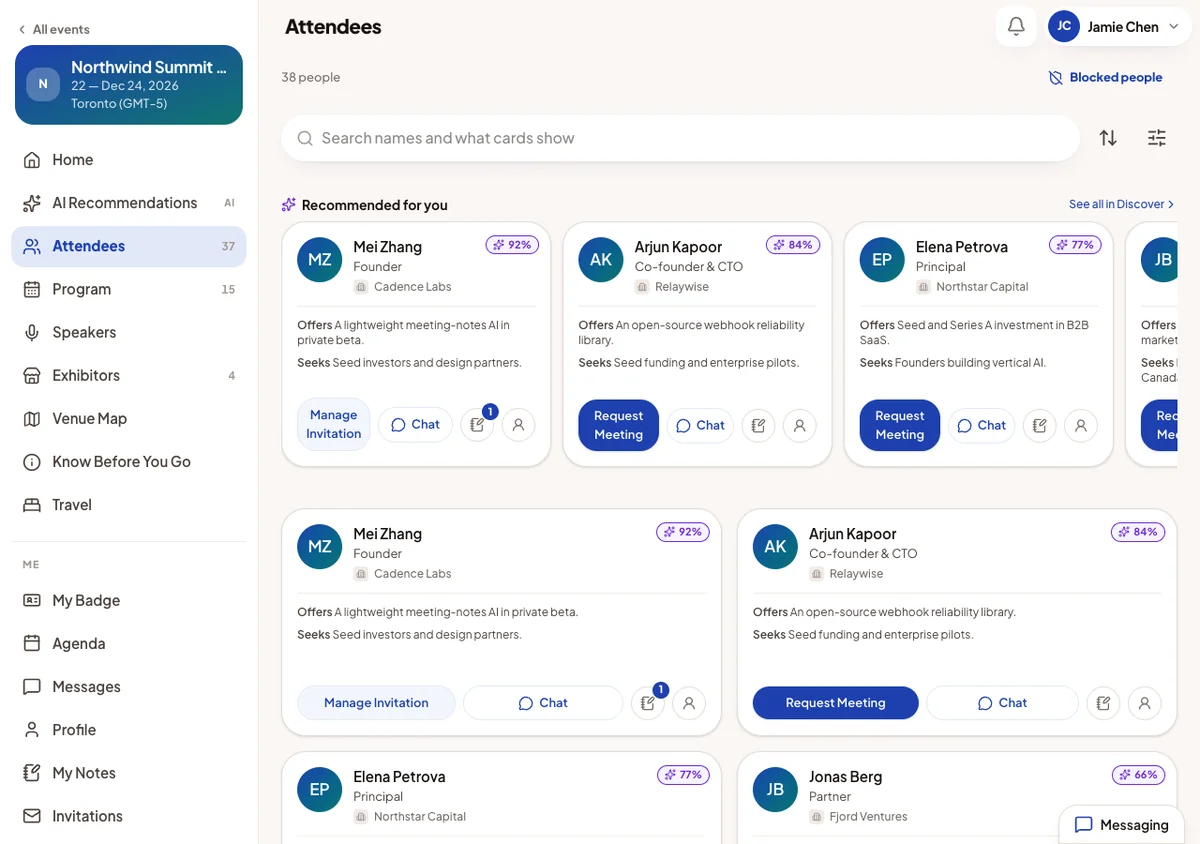
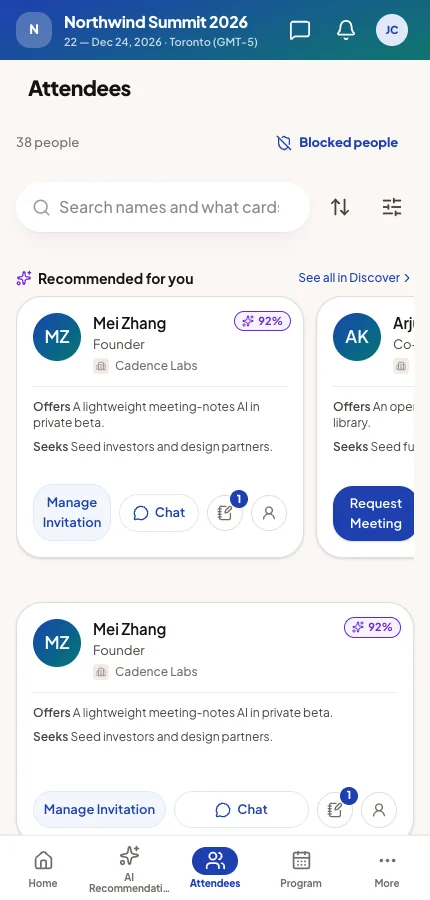
Below the name, job title and company, a card shows what you placed with Design the attendee card. An empty field is not shown, except on the viewer's own card.
Search, filters and sort
- Search reads the name and company. For people shown in full, it also reads the job title and the fields on their card, including offers and seeks.
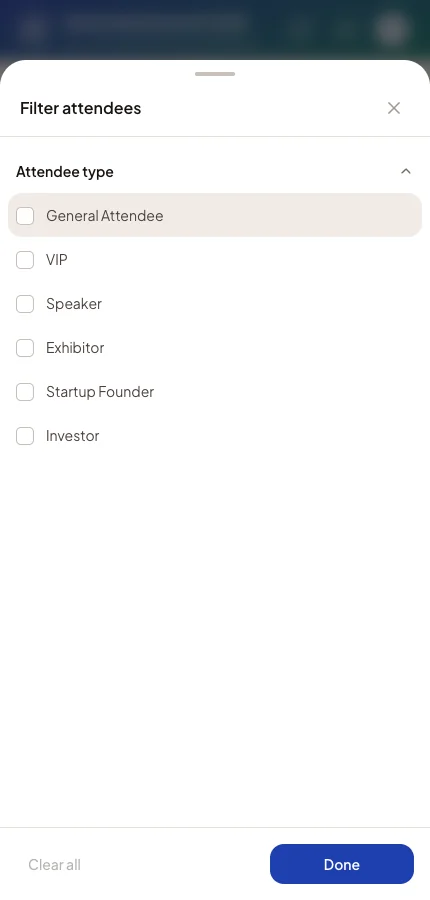
- Filter attendees offers attendee type, the choice questions placed on the card or profile, and country and city when placed.
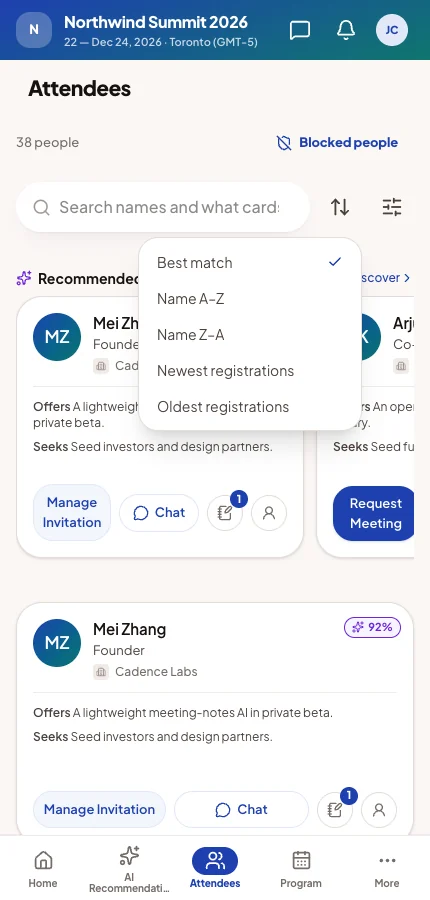
- Sort offers Best match (the default), name order and registration date. Best match lists recommended people first, then everyone else by name.
Recommended people and the match score
When there are recommendations, a Recommended for you strip opens the directory. Anyone scoring 50% or more gets a Recommended badge.
The score shows as a percentage if your card design includes it. Hiding the score never changes the order or the badge.
The viewer's own card
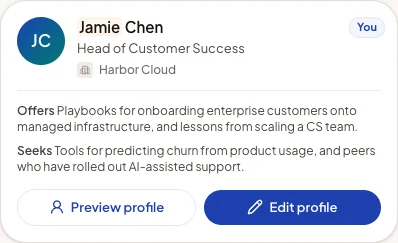
The viewer appears in the list too, marked You, with Preview profile and Edit profile. Empty fields read — not added yet, so they see what others would miss.
The buttons on a card
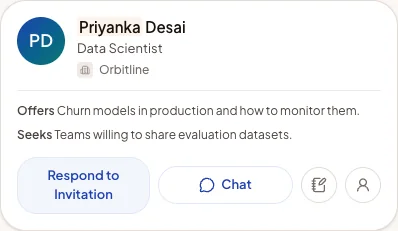
A card ends with up to three actions: a meeting button, Chat when the chat rules allow it, and the profile icon. The meeting button shows where the two people stand:
| Label | Means |
|---|---|
| Request Meeting | No invitation between them yet. See Meeting requests and invitations. |
| Manage Invitation | The viewer invited them and is waiting. |
| Respond to Invitation | They invited the viewer, who owes an answer. |
| Manage Meeting | A confirmed meeting. |
| Reschedule Requested / Reschedule Pending | One of them proposed a new time. |
| Join Meeting | Their online meeting starts within five minutes. |
The profile panel
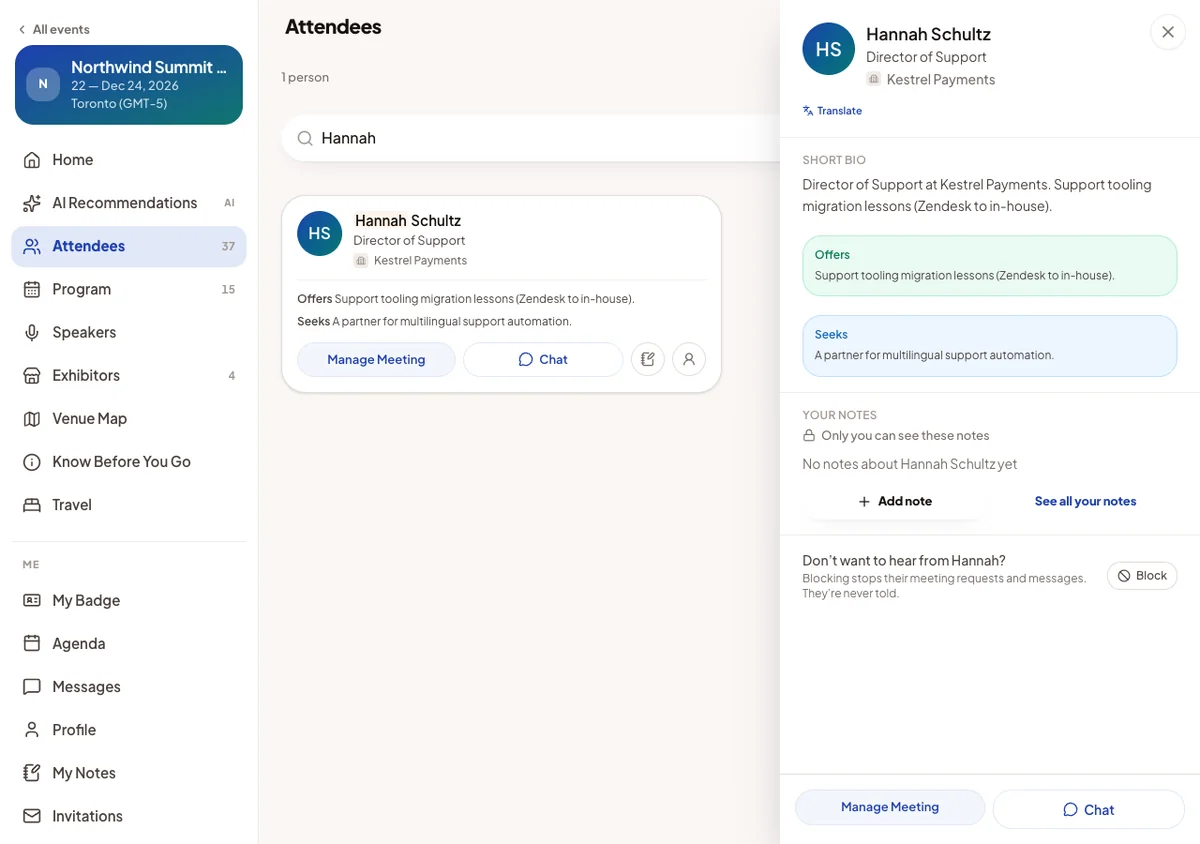
The profile icon or the name opens the person's profile beside the list. It shows their attendee type, Why you match when they were recommended, and the fields you placed on the profile.
At the bottom are the meeting button, Chat, private notes and Block. Blocking stops that person's requests and messages, and they are never told. Blocked people are listed under Blocked people.
Why Request Meeting is missing or greyed out
Attendees often ask why they cannot invite someone. The answer is the same on every screen. These are the reasons:
- No meeting session to book in. The button appears only while a meeting session still to come is open to both people's attendee types.
- Experience rules. Your rules may not let one type request meetings with the other. See Experience rules.
- A declined invitation. If someone declined the viewer's invitation, the button is greyed out and explains why. The person who declined can still invite them.
- Invisibility or blocking. An invisible attendee cannot be invited or invite others. A block stops requests silently.
- The other person's preferences. Attendees can accept requests only from chosen attendee types. Other requests are dropped without telling the sender.
When the viewer is invisible
An invisible attendee who opens the directory sees Your profile is invisible and Make my profile visible. While invisible, they cannot browse attendees, start chats or request meetings. Existing chats and meetings are kept. See Profile visibility.
AI Recommendations
AI Recommendations suggests people to meet, sessions to attend and companies to visit. It reads offers, seeks, profile answers, the networking summary and what the attendee's company does. It pairs people who can do business together, never colleagues from the same company.
Each list is a tab: People, Sessions and Companies. A tab appears only when it has something to show.
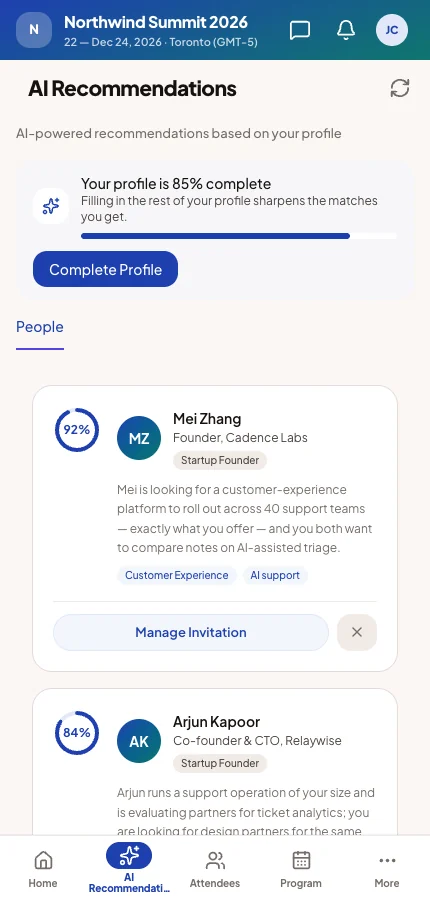
People Up to ten people, each with a score, a reason and the same meeting button as the directory. Not Interested removes someone. People the viewer cannot meet are left out.
Sessions Sessions worth attending, with the same agenda button as the Program.
Companies Exhibitors worth visiting, with Visit Booth, Schedule Meeting where the booth takes meetings, and Bookmark.
An incomplete profile shows a banner with Complete Profile. Completeness never hides recommendations. Recommendations are updated as profiles change, so new suggestions appear during the event.
In the attendee app
Attendees meet each other here. Your card design, rules and meeting sessions decide what each card shows and offers. Their profile answers decide who they are recommended to.
Questions you may be asked
"Why can't I find a colleague in the directory?"
They may be invisible, hidden by your visibility rules, or not yet registered. Check their row in Attendees.
"Why does someone's card show only their name?"
Their type shares little with this viewer, or they have not filled in their profile.
"I have no recommendations."
Recommendations need something to match on: offers, seeks or profile answers. Ask the attendee to complete their profile.