
QR code & links
Posters, badges and slides need one code that works on any phone. This code opens a small page with your event's name, logo and a button for each way in. The code itself never changes, so you can print it now and change where the buttons lead later.
How it works
The page
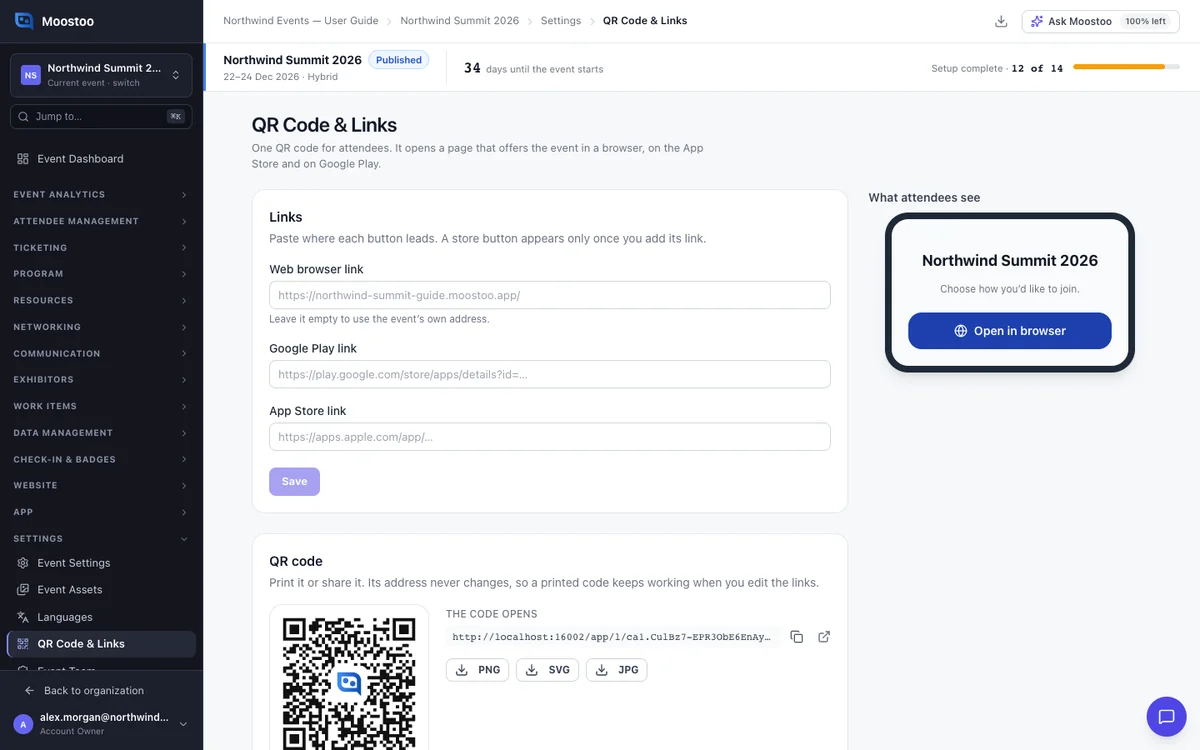
Open Settings → QR Code & Links. It has three parts: the Links, the QR code, and What attendees see, a phone preview that updates as you type.
The three links
Web browser link Where Open in browser leads. Leave it empty to use the event's own address. This button always shows.
App Store link Where Download on the App Store leads. The button shows only once you add a link.
Google Play link Where Get it on Google Play leads. The button shows only once you add a link.
Good to know
- Each link must be a full address starting with
https://. Save stays disabled until every link is valid. - The code holds the address of the links page, shown under The code opens. Editing the links never makes a printed code wrong.
- The page is not part of your website. People reach it only through the code or its address, without signing in.
- You can download the code as PNG or JPG for print, or SVG for any size. The Moostoo mark in the centre does not stop it scanning.
- Team members who cannot change event settings see the page read-only.
Step by step
Set up and print your QR code
Open Settings → QR Code & Links.
Paste the App Store link and Google Play link of the app attendees should install.
Use your own app's links if you publish one through Mobile app, or the Moostoo app's.
Leave Web browser link empty, or paste another https address.
Check the preview, then click Save.
Under QR code, click PNG, SVG or JPG to download it.
The copy button beside The code opens copies the address. The icon next to it opens the live page.
What attendees see
In the attendee app
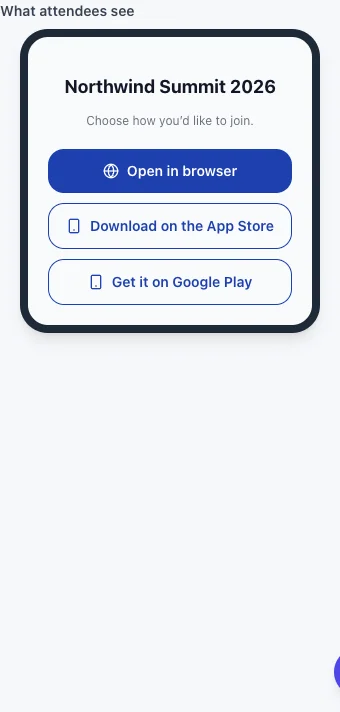
Scanning the code opens a page with your logo and event name and up to three buttons in your brand colours. A store button shows only when you added its link. If the event is deleted, the page says This link isn't available.
Tips
- Print the code at least 2–3 cm wide on a light background. Test it with a phone before printing many.
- Place the code where people have time to scan it, such as the registration desk or the first slide.
- Without your own app, the browser button is enough. The attendee app works in any phone browser.
- Changing the event's address in App address & sign-in changes where an empty browser link leads. The code stays the same.