
Program attendance
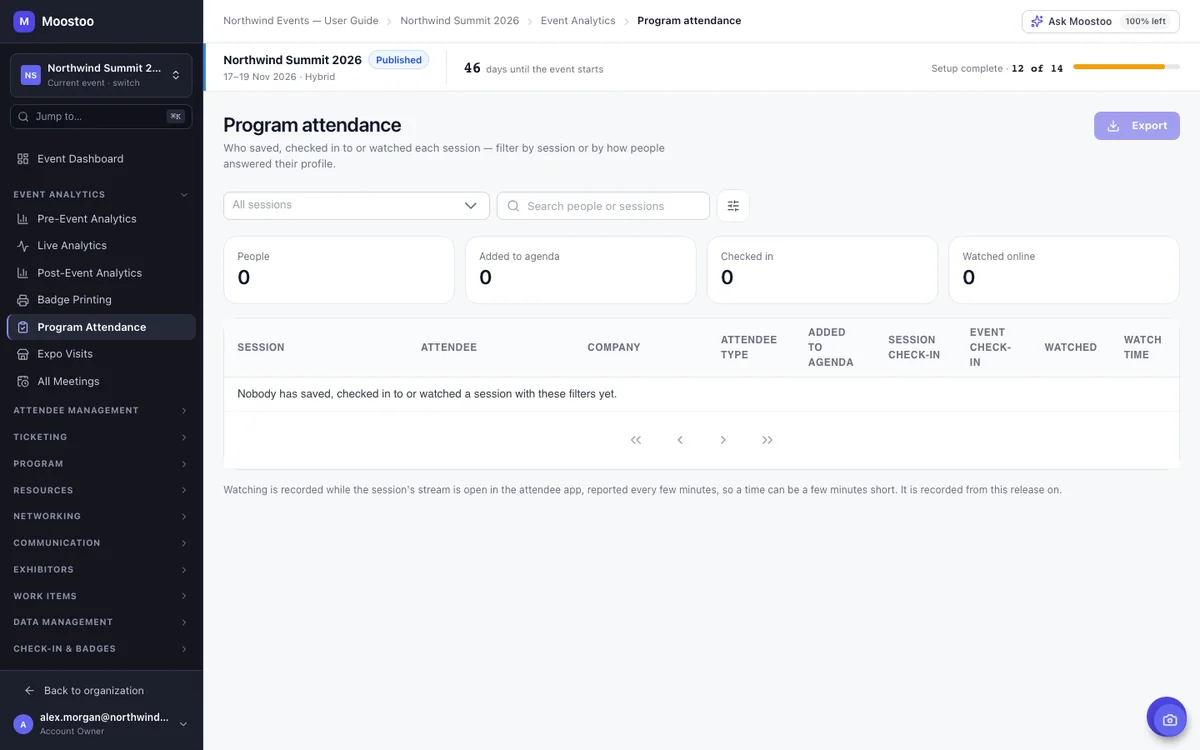
A session's headcount does not tell you who came. Sponsors of a talk want the names; you want to know who said they would come and didn't, and whether the people you invited a talk for — a buyer segment, a region, a job role — actually turned up. Program attendance lists every person against every session they showed interest in, with each kind of evidence in its own column, so you can answer those questions without combining exports.
How it works
Open Event Analytics → Program Attendance. There is one row per person and session. A person appears against a session when they did at least one of three things: added it to their agenda, checked in to it, or watched its stream. Someone who saved a talk and never came is therefore on the list — that is often the most useful row. Meeting/Networking sessions are not programme and never appear.
| Column | What it means |
|---|---|
| Added to agenda | They saved the session to their agenda in the attendee app. |
| Session check-in | They were checked in to the session, and how: badge scan, QR self check-in, manual, or Watched online (see below). |
| Event check-in | They came through the event's entrance. Entering the venue is not the same as attending a talk, so it has its own column. |
| Watched | Online and hybrid events only. They had the session's stream open in the attendee app while it was live. |
| Watch time | Online and hybrid events only. How long, in total. Watching in two tabs at once is not counted twice. |
Watched online (check-in) If a session's attendance settings include browser tracking with a number of minutes, a person who watches at least that long is checked in automatically — once, and never replacing a check-in they already have. See Credits & attendance.
Profile answer filter The filter button beside the search opens a side panel with every choice question; pick answers and only people whose answer is any of the picked values stay. Answers to different questions must all match. Your picks show as chips under the search — click a chip's × to remove it. It is the same rule an email campaign segment uses.
Step by step
Find who a talk actually reached
Open Event Analytics → Program Attendance.
Pick the session in the session list, or leave All sessions to see the whole programme.
Click the filter button beside the search and pick attendee types and/or answers to a question (for example Industry).
A person is kept when they hold one of the chosen types and match every question you picked from (any of its chosen answers). Only choice questions are offered — free-text answers cannot be matched reliably. The export uses the same filter.
Read the counts under the filters — they cover exactly the rows below — then the rows. Sort your follow-up by the columns: saved but not checked in, checked in, watched.
Click Export and choose CSV or Excel to download the whole report with the same filters — every row, not just the page on screen.
Watching is recorded from now on
Watch time is recorded by the attendee app while a live stream is open, reported every three minutes and once more when the viewer leaves, so a time can be up to three minutes short. Sessions streamed before this was released have no watch data.
What attendees see
Nothing changes for attendees. The attendee app notes when a session's stream is open, which is how watch time is known; nothing is shown to them and the report is visible only to your team.
Tips
- Session check-in only happens where you scan at the door or allow QR self check-in — an event that does neither will show agenda saves and watching only. See Session check-in.
- Use the same answer filter on Expo visits to compare how a segment used the programme and the expo.
- The export writes times on the event's clock.