
Import/Export Hub
Most events start life in a spreadsheet: a roster from last year, a programme drafted in Excel, a sponsor list from sales. The hub turns those files into real Moostoo records through exactly the same checks as the screens, so an imported session cannot land outside the event's dates and an imported attendee cannot receive a type that does not exist. It also tells you the truth before anything is written: the numbers you see on the check step are the numbers the import will produce. Exports go the other way — every row, in the format you chose — and a file you export can be imported again.
How it works
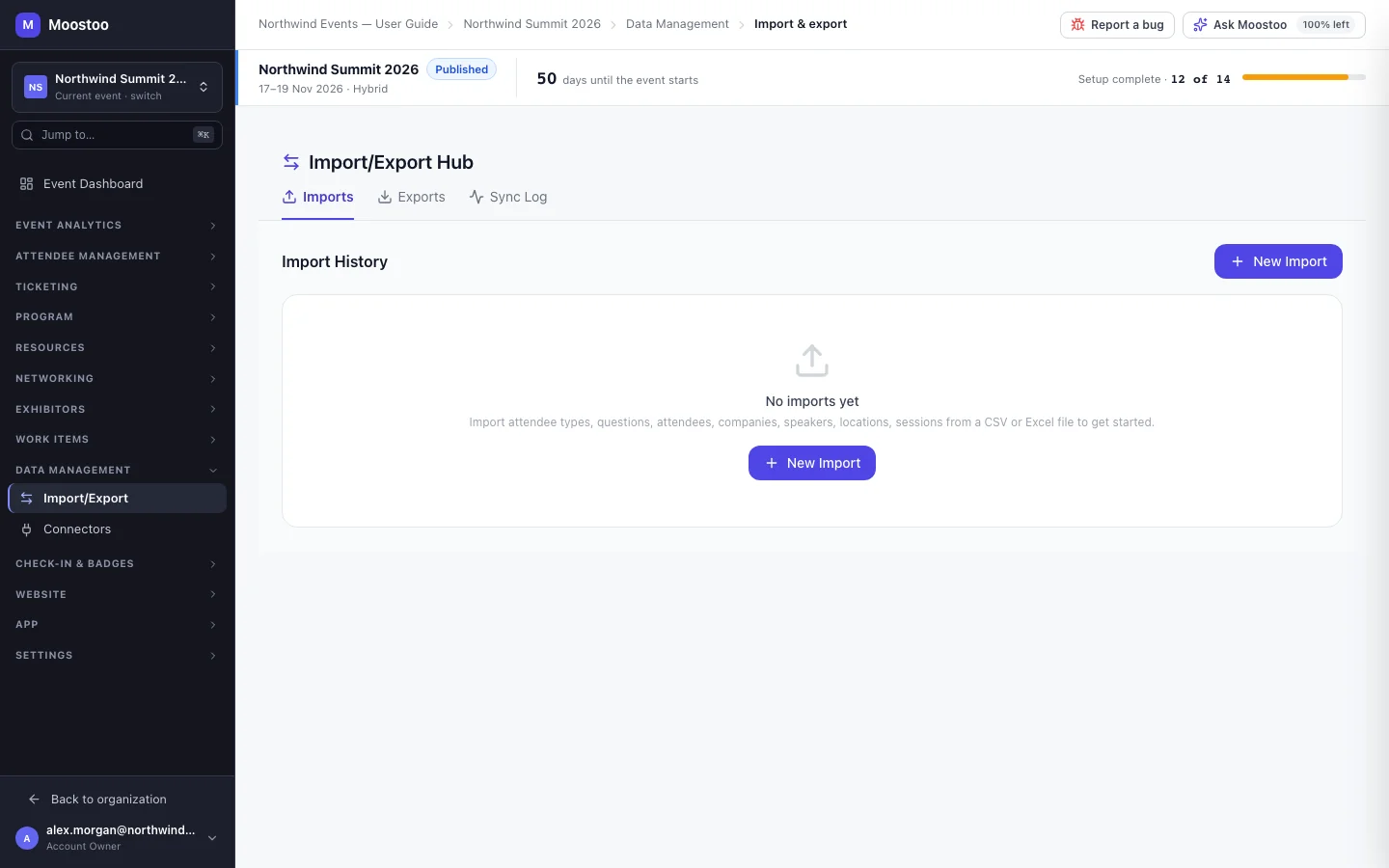
Open Data Management → Import/Export in the event's sidebar. The Import/Export Hub has three tabs: Imports (every import this event has run, with its counts and an error log), Exports (scheduled exports and the export history) and Sync Log (one timeline of imports, exports, webhook deliveries, API calls and CRM syncs, filterable by type, status, entity and date).
| Entity | How an existing record is recognised | Why it is in this position |
|---|---|---|
| Attendee Types | By name | Other rows refer to a type by its name, so it must exist first. |
| Questions | By label | Attendee rows can carry answers to your question pool questions. |
| Attendees | By ticket ID, then by email | The ticket ID survives an address change between exports, which is exactly when matching on email alone would create a second entry for one person. |
| Companies | By name | |
| Speakers | By email | |
| Locations | By name | Sessions name their room. |
| Sessions | By title + day + start time | Sessions name their location, track and speakers, so import those first. |
In the Ticketing & Check-in Console only Attendee Types, Questions and Attendees are offered — the other entities belong to features that edition does not have.
Two levels of mapping First each column of your file is paired with a Moostoo field (headers are matched automatically; you can change any of them or choose Skip this column). Then a column whose field only accepts certain values — an attendee type, a session type, a question's choices, a country — opens a value table under it, pairing every distinct value in your file with a value Moostoo accepts. Auto-map all fills the obvious pairs.
Must-map values For fields where a wrong value would change what the record is — attendee type, session type, access type, a location's type, and the settings of a type or question — every value must be mapped before you can continue. An attendee with no type is a person with no permissions, so Moostoo will not guess.
Dropped values For any other closed field, a value you leave unmapped is dropped for that row only: the rest of the row still imports, and the dropped value is counted and listed on the check step and in the report — never silently. Ticket type is free text, so it has no value table.
The check is the real check The Check step runs the same validation the import runs, against your file and the event as it is now: required fields, formats, value mapping, attendee types by name, speaker emails, dates inside the event, end after start, badge-code clashes. Only two things can still turn up afterwards: two rows of the same file clashing with each other, and someone else editing the event while the import runs.
| Choice | What happens to a row that matches an existing record | Adds new records? |
|---|---|---|
| Skip duplicates | Left alone. | Yes |
| Overwrite existing | The file's values replace the stored ones. | Yes |
| Merge | Only fields that are currently empty are filled. | Yes |
| Update | The file's values replace the stored ones. | No — rows that match nothing are skipped |
- A value identical to what is stored is not a change. A matched row whose values are all the same is counted as Skipped, not Updated — so Updated on the report means records that actually changed.
- Errors and skipped rows are different outcomes. The Imports table has separate Skipped and Errors columns: skipped is a duplicate deliberately left alone, an error is a row Moostoo refused. Error Log downloads the refused rows with their row number and reason.
- A bad row never fails the file. Valid rows are imported; refused rows are listed.
- An import never changes an attendee's email — it is their sign-in address once they have signed up — and a blank name in the file never erases a stored one.
- Answers merge. Question answers in the file are added to what the attendee already answered on the registration or profile form; they never wipe other answers.
Step by step
Import a file
On the Imports tab click New Import and pick what the file contains.
Each choice shows how existing records are recognised, so you know what counts as a duplicate.
Upload a CSV or Excel file (up to 50 MB).
New to this? Download the sample template for that entity in CSV or Excel. It is a starter file, not a required format — any file can be mapped by hand.
On Map Columns, check each column's Moostoo field. Required fields are marked with an asterisk.
Where a column shows N of M values unmapped, open it and pair the values. A red count must be mapped before Next is available; an amber one is dropped if you leave it.
On Check, read the four numbers: Ready to import, Already here, Need fixing and Values dropped, and choose how duplicates are handled.
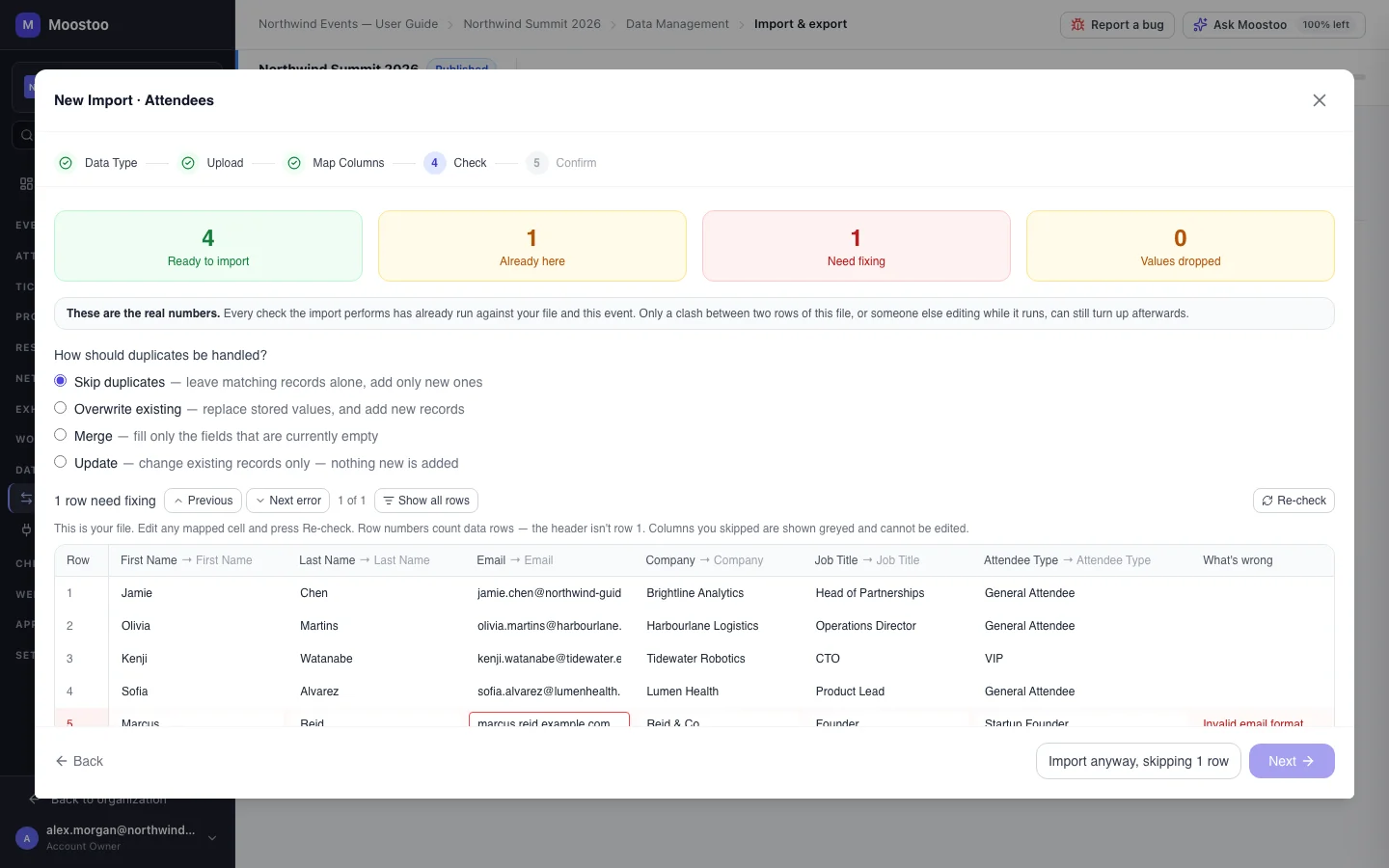
Fix failing rows in place: edit the marked cells in the grid and press Re-check.
Your edits go into a corrected copy of the file; the file you uploaded is never changed. Show all rows / Showing rows to fix switches between the whole file and only the rows with problems.
Click Next, or — if some rows still fail and you want the rest in now — Import anyway, skipping N rows.
Next stays unavailable while rows fail, so importing past them is always a deliberate choice that says what it costs.
Review the Import Summary and click Start Import.
The import runs in the background; the Imports table updates when it is done.
Export
On the Exports tab click New Export.
Choose the Entity Type, tick the Columns you want (all by default) and pick CSV or Excel (.xlsx).
Filter (optional) is a label for your own reference — for example VIP Ticket Holders. It does not narrow the rows: the export still contains every record of that entity.
Under Schedule choose One-time, Daily or Weekly (with the time, and the day for weekly), then click Export or Schedule Export.
A one-time export downloads straight away. A scheduled one appears under Scheduled Exports, where you can pause, resume, edit or delete it; each run adds a file to the export history. A run that fails is retried once ten minutes later; if that fails too the schedule is marked failed and paused, and the failure is recorded on the Sync Log.
An export contains every row
An export always covers the whole entity in the format you chose — not just the page you were looking at. Download links expire after seven days; Expired — regenerate? builds a fresh file. Every export is recorded for your data-protection audit.
What attendees see
In the attendee app
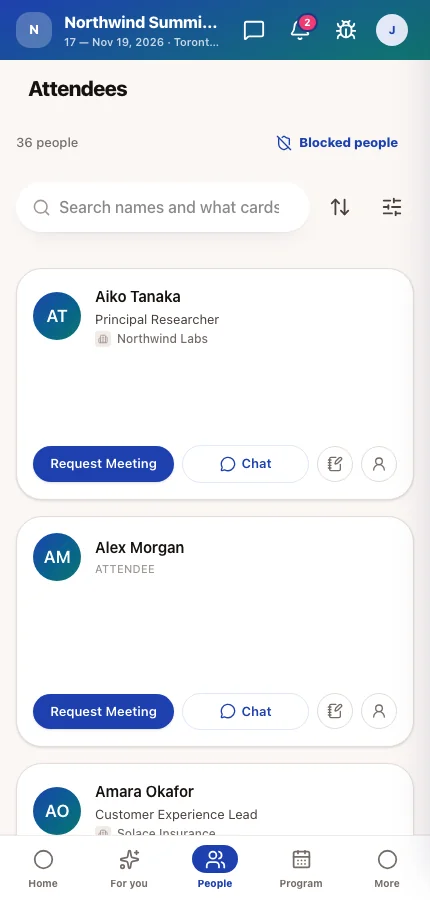
Imported attendees join the roster exactly as if you had added them by hand: they can sign in with their email, appear in the People directory (subject to your experience rules and their own visibility), and carry their imported attendee type, company, job title and answers. Imported sessions, speakers, companies and locations appear in the Program, Speakers, Exhibitors and venue map.
In attendee emails
Importing someone as invited sends them the Event Invitation email, if that automated email is switched on for the event — check Automated emails before a large import.
Tips
- Import in the wizard's order: attendee types and questions first, then people and rooms, then the programme.
- Keep the ticket ID column when you re-import a roster from a ticketing platform — it is what stops one person becoming two.
- Use Update when you only want to correct existing records from a file that also contains people you deliberately left out.
- A value mapped once applies to every row that carries it — fixing "VIP guest" → VIP on the value table is quicker than editing forty cells.
- If Already here is more than half the file, Moostoo warns you — check you picked the right file and the right duplicate choice.
- Only one import per entity runs at a time for an event; the Check step says so if another is still running.
Read next