
Tracks and session types
A programme of sixty sessions is only usable if attendees can narrow it down. Tracks are the themes that run through your event (at Northwind Summit: Product & Growth, Customer Experience, AI & Data); session types say what kind of session it is — a keynote, a panel, a workshop, a coffee break. Both become filters in the attendee app and on the website, colour the timeline you plan in, and feed the AI's session recommendations. Setting them consistently is what makes a large programme browsable.
How it works
Neither tracks nor session types have a screen of their own. You create them where you use them — inside the session form on Program → All Sessions — and each one then belongs to this event and is offered on every session you add after it.
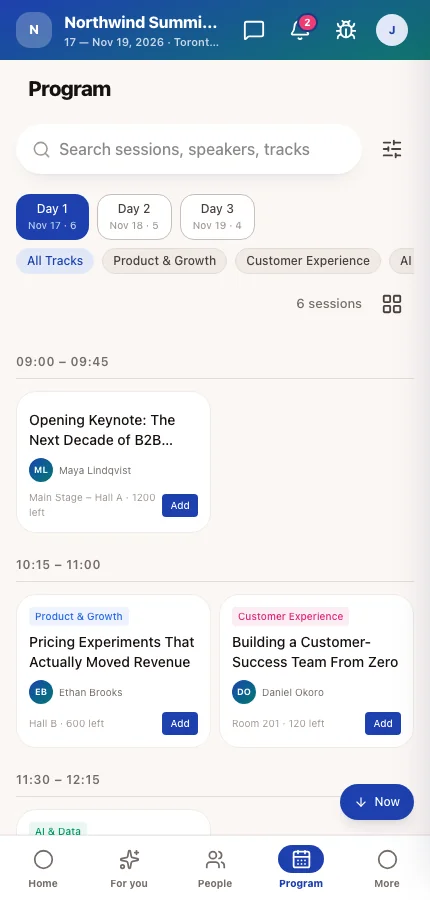
Track A named theme with a colour. A session belongs to at most one track. The colour paints the session's block on the timeline and its badge in the attendee app.
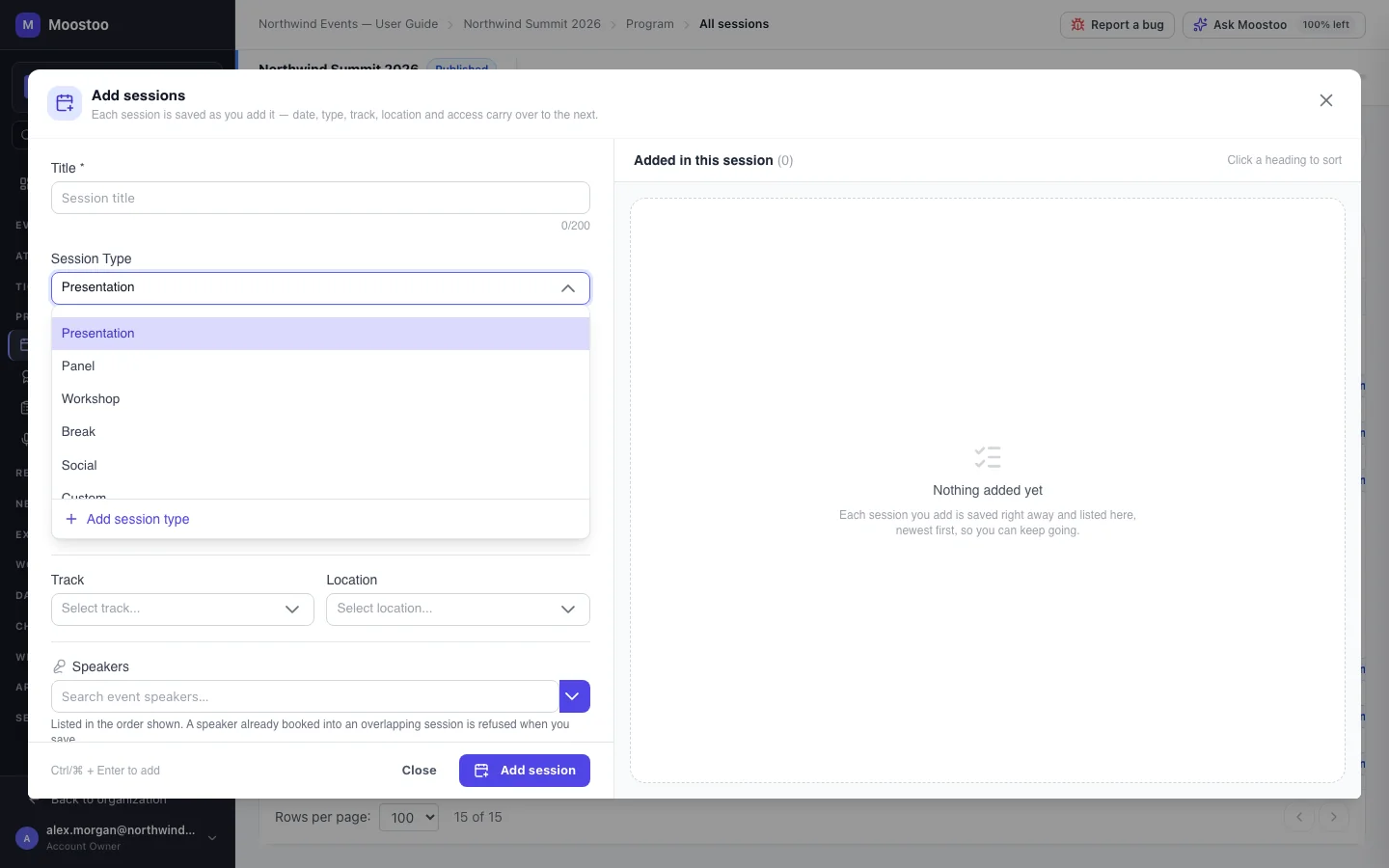
Built-in session type Presentation (the default), Panel, Workshop, Break, Social and Custom. Every event has them.
Your own session type A name you add for this event only, such as Keynote or Fireside chat. It is listed after the built-ins in the Session Type picker. A name that repeats a built-in or one you already have — in any spelling of upper and lower case — is refused.
Meeting/Networking Never offered as a programme session type. One-to-one meeting blocks are created on Meeting sessions and never appear in the programme.
| Where | Tracks | Session types |
|---|---|---|
| All Sessions table and timeline | Track column; timeline blocks coloured by track | Type column |
| Attendee app — Program | Track filter chips and a coloured badge on each session | Type filter |
| Public website — Schedule section | A Schedule section can be limited to chosen tracks | Shown on each session |
| Imports | A session row names its track; an unknown track name is created | An unknown type name is refused, not created |
Step by step
Add a track
On Program → All Sessions, add a session or open one and click Edit session.
Open the Track picker and choose Add new track at the bottom of the list.
Type the track's name, pick its colour, and click Create. The new track is selected on the session straight away.
Add your own session type
In the same form, open the Session Type picker and choose Add session type.
Type the name (for example Keynote) and click Create.
If the name already exists, the reason is shown under the field and nothing is created.
Save the session. The new type is offered on every other session of this event.
What attendees see
In the attendee app
In the Program, attendees filter by track and by session type, and each session card carries its track's colour.
On the event website
On the published website, a Schedule section can show the whole programme or only the tracks you choose — handy for a separate page per theme.
Tips
- Decide your tracks before you build the programme, and keep them few — three to six themes read well as filter chips on a phone.
- Pick clearly different track colours. They are the fastest way to read the timeline, for you and for attendees.
- Use Break and Social for coffee, lunch and receptions so attendees see the whole day but can filter them out.
- Add a Keynote type rather than a Keynote track: a keynote is a kind of session, while a track is a theme that spans the day.
- Tracks and your own session types cannot be renamed or deleted from the screen today, so check the spelling before you click Create.
Ask Moostoo
Create a track called Security & Compliance in dark green.
Add a 30-minute Keynote called 'The State of Customer Experience' on day 1 at 09:00.
Your own session types can be named; the track is then set on the session's form.