
Entrance check-in
The entrance scanner turns any phone, tablet or laptop your team already carries into a check-in desk. Staff open it inside the Moostoo attendee app, point the camera at a badge or ticket, and in a second know who is standing in front of them, whether they may come in, and whether their badge still needs printing. Every scan is recorded, so your live numbers and your post-event report are right without anybody counting heads.
How it works
The scanner is not a separate app. It lives in the attendee app — by default under Staff Tools → Entrance Scanner — and it only appears for people who are staff at this event. Staff sign in to the attendee app with their own account, open the event, and the Staff Tools section is there. (If you rearranged the app's menu in the app navigation, the scanner is wherever you placed it; moved to Not added, it disappears from the menu.)
Who counts as staff The Account Owner and Super Users of the organization that runs the event, and anyone on the event team as Admin, Member or Volunteer. That is all.
Who does not Partners and Service Providers on the event team are not staff — neither may see the attendee roster, which is what every scanner shows. Being staff at one event gives nothing at another: add each person to the event team of the event they work.
What the camera reads The badge code: the attendee's own QR code if you set one, otherwise their ticket ID, otherwise Moostoo's attendee ID — the same order the badge was printed with. Codes issued by an outside badging system or a ticketing platform therefore keep scanning. See Badge codes.
Someone who is not staff and opens the scanner's address directly sees Staff Tools aren't available to you at this event, and the server refuses every check-in they might attempt. The menu and the rule are decided by Moostoo, never by the phone.
| Result | Meaning | What staff do |
|---|---|---|
| Check-in Successful | The attendee is in. The time and the staff member are recorded. | Print the badge or send it to their phone, then Next Scan. |
| Already checked in | This badge was scanned before; the banner shows when and by whom. | Under Multiple Entry, Check In Again is offered. Under Timed Re-entry it is offered once the cooldown has passed, and until then the banner says Re-entry is not allowed — as it always does under Single Entry. |
| Registration status … Check-in not allowed | The organizer removed this person from the event. | Send them to the registration desk. |
| Check-in failed. Please try again. | The check-in did not go through. This is also what an unpaid ticket looks like on the scanner today — the scanner does not yet say that payment is outstanding. | Tap Retry once. If it fails again, look the person up in Orders — an outstanding payment has to be recorded first. |
| Attendee not found | No attendee at this event carries this code. | Try manual search by name, or send them to the desk. |
Unpaid tickets are not admitted
A ticket whose order has not been paid — a bank transfer that has not arrived, an unpaid invoice — is refused by Moostoo before anything is recorded, and its badge will not print. There is no override at the door. Record the payment (or mark the order complimentary) and the same badge scans through on the next try; no new code is needed.
People you added to the roster yourself, who never filled in a registration form, check in normally. Only people you removed from the event are refused.
Step by step
Get your door team ready
Add each person who will work a door to the event team as Volunteer, Member or Admin.
They need a Moostoo account with the same email address — an invitation is sent if they do not have one yet.
Set the re-entry policy and the scanner's default printer on Check-in setup.
Ask each staff member to open the attendee app on their device, sign in and open the event.
Check someone in
Open Staff Tools → Entrance Scanner.
The scanner opens full screen in a dark theme. The first time, the browser asks for camera permission — allow it.
Check the printer shown at the top right. Tap it to switch printer; each one says Online or Offline.
Point the camera at the attendee's badge or ticket QR code.
An unknown code flashes Unrecognized QR code and the camera stays ready for the next one.
Read the result: name, photo (if you turned photos on), job title, company, attendee type, ticket type, registration status, a preview of the badge, and any VIP, Speaker or Sponsor flag.
VIP appears when the attendee type or ticket type has VIP in its name; Sponsor marks an exhibitor's representative.
Tap Print Badge to print on the selected printer, or Send to Device to put the badge on the attendee's phone.
With Auto-print on scan turned on, the badge prints by itself when the printer is online.
Tap Next Scan for the next person.
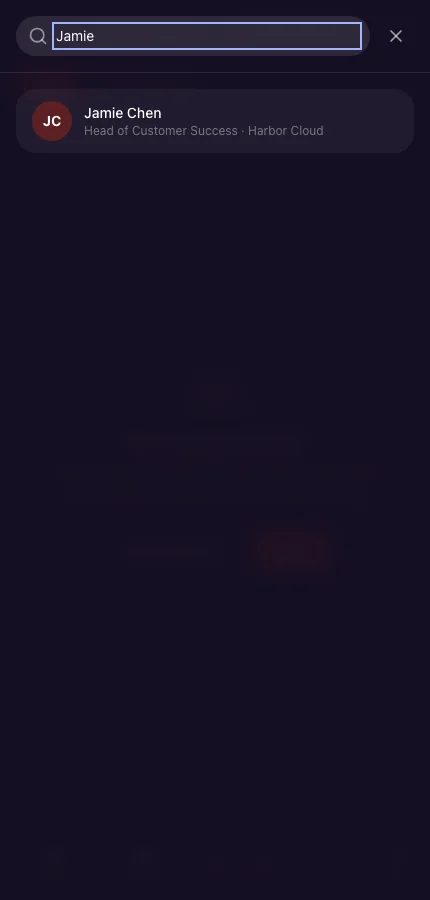
- Can't scan? Tap the search icon at the top left and type at least two letters of the attendee's name. Picking a result works exactly like a scan.
- Print Queue (the tab next to Scan) lists the badges sent from this scanner — Queued, Printing, Printed, Failed or Cancelled — with Retry on a failed one.
- The bar at the bottom shows Checked In, Registered and the Check-in Rate, updated live as your other doors scan.
What attendees see
In the attendee app
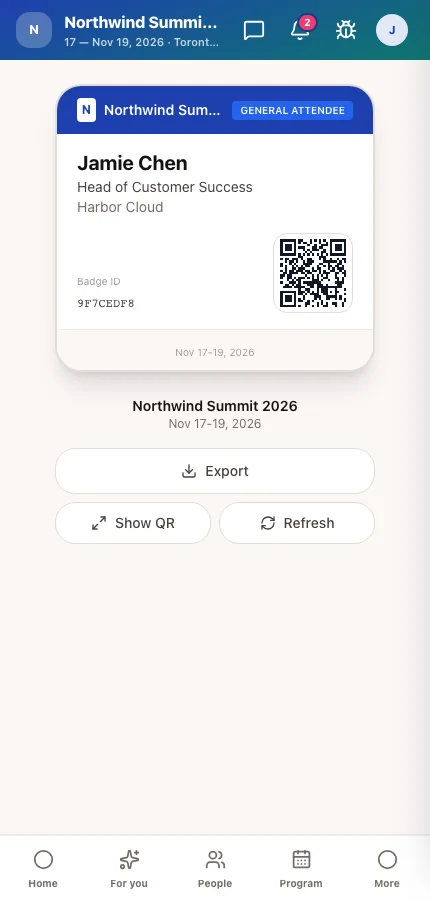
Once checked in, the attendee's My Badge screen stops saying visit the registration desk and shows their badge with its QR code — the same one the scanner and session doors read. Send to Device does the same without a check-in.
On the badge
A printed badge follows the badge design whose rules match the attendee — the VIP design for a VIP, the catch-all for everyone else.
Tips
- Put a separate Unpaid / Help desk beside the entrance. Anyone whose scan fails twice goes there, so the queue keeps moving.
- Check printers are online before doors open — Print Badge is disabled while the selected printer is offline, with Selected printer is offline. Choose another printer.
- Camera blocked? The scanner says Camera access required and explains where to allow it; manual search still works meanwhile.
- Self-service stands work the same rules without staff — see Kiosks.
Ask Moostoo
Ask Moostoo can look up the roster while you plan the door.
How many VIP attendees are registered for Northwind Summit 2026?
Give me registration counts by attendee type so I can staff the doors.