
Attendee types
An attendee type is the single most consequential setting in an event. It is the unit every other rule is written in: who can see and message whom (Experience rules), which meeting sessions someone may book, which fields their profile and registration form show, which sessions they may attend, which ticket they can buy, and how they appear on badges and reports. Define your types before you configure any of those, and give every attendee one.
How it works
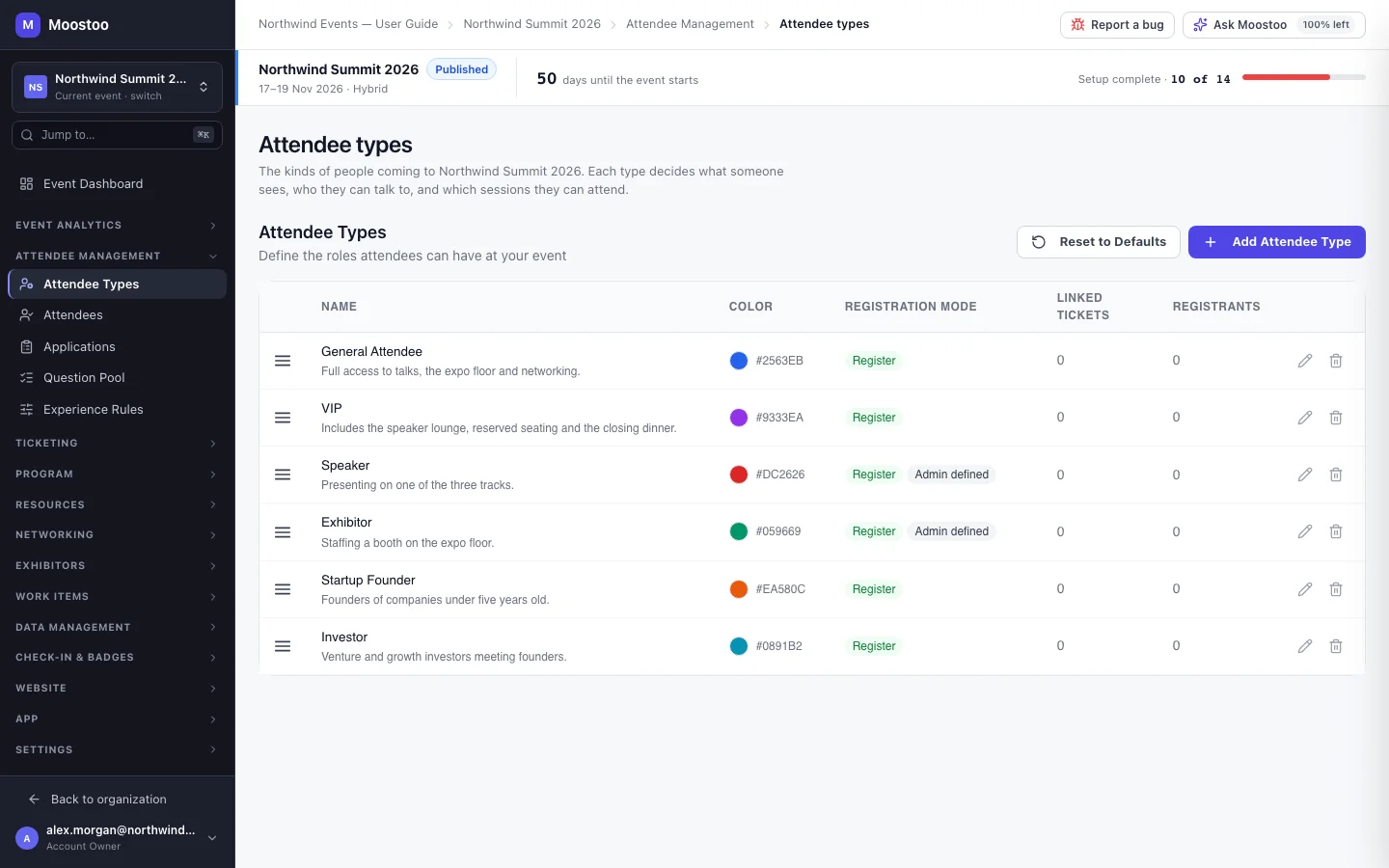
Each type has a name (unique in the event, up to 100 characters), an optional description, a colour used in lists, charts and badges, a registration mode, and an Admin defined switch. The order of the list is the order types appear everywhere else — on the registration form, in the experience-rules matrices and in reports. The list also shows how many ticket types are linked to each type and how many registrants hold it.
Register People who choose this type are confirmed instantly.
Apply People who choose this type apply and wait for your approval. Their applications arrive in Applications; switching a type from Register to Apply does not affect people already confirmed.
Admin defined Only organizers assign this type. Attendees who do not hold it never see it on the profile or registration form, and cannot pick it; attendees who hold it see it as their type and cannot change it. Use it for Speaker, VIP or Staff — any type that grants something you would not let people give themselves.
| Feature | What the type decides |
|---|---|
| Experience rules | Which features each type has, who they can see in the directory, chat with, send meeting requests to, and what contact details they share. |
| Meeting sessions | A meeting session lists its eligible types; a slot is offered only when the session is open to both people's types. |
| Profile form and Registration form | Every field can be shown to all types or only to specific ones, and the form re-resolves when the attendee picks a type. |
| Ticket types | Every ticket type belongs to one attendee type, so buying a ticket assigns the type. |
| Sessions | A session Restricted by attendee type is visible only to the types you tick. |
| Mapping console and imports | An outside ticketing platform's registration types are mapped onto your attendee types; an import names a type and must match one. |
Step by step
Add an attendee type
Open Attendee Management → Attendee Types and click Add Attendee Type.
On a brand-new event with no types you are offered Add suggested types (General Attendee and Speaker) or Create my own.
Enter the Name and, optionally, a Description attendees will understand.
Pick a Color Label from the swatch or type a hex code such as #0E7C66.
Turn on Admin defined if only organizers may give this type.
Choose the Registration Mode: Register for instant confirmation, Apply for approval.
Click Save. The type is added at the end of the list; drag it to where it belongs.
Edit, reorder or delete a type
Click a type's row to edit it, change the fields and click Save Changes.
Drag rows to reorder. The new order is used everywhere at once.
Use the delete action to remove a type. A type that still has linked ticket types or registrants cannot be deleted — the Cannot Delete dialog says which; reassign them first.
Reset to Defaults re-creates any missing default types for the event type and keeps your custom ones.
What attendees see
In the attendee app
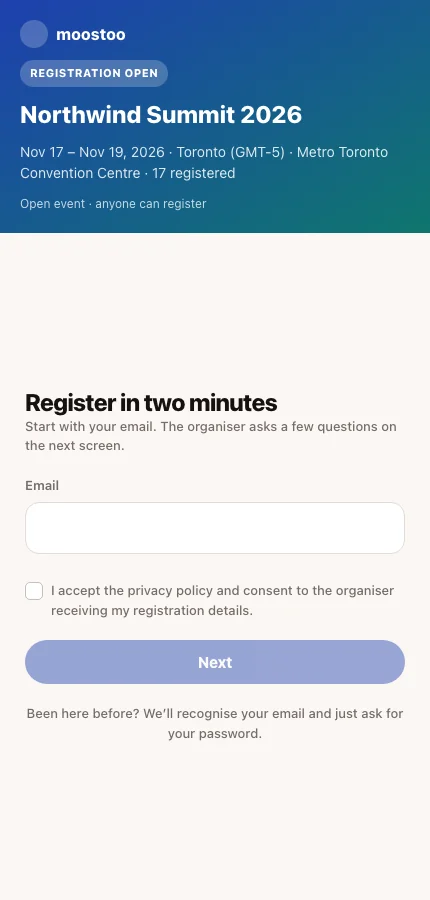
When the registration or profile form includes the Attendee Type field, attendees pick from every type that is not admin defined; the form then shows the fields meant for that type. Someone you gave an admin-defined type sees it fixed and cannot change it. Their type's colour appears on their card in the directory.
On the badge
Badge designs can print the type name and use its colour, so door staff can tell a VIP from a General Attendee at a glance.
Tips
- Keep the list short. Six well-understood types are easier to write rules for than fifteen near-duplicates; use a question for finer distinctions that grant nothing.
- Give the types that unlock something — speaker perks, investor meeting sessions — the Admin defined switch, so nobody can grant them to themselves.
- Anyone left with no type gets the Not Assigned fallback row in Experience Rules. Make sure that row is as restrictive as you want strangers to be.
- Types can be imported and exported in bulk through the Import/Export Hub — useful for copying next year's setup.
Ask Moostoo
Create an attendee type called Investor, colour #7C3AED, that people have to apply for.
Add a Press attendee type.
Which attendee types does this event have?