
Download apps
Kiosks and print hubs are apps installed on the machines at the venue. This screen is where whoever is setting up a door gets the right installer for the right machine, with its version clearly shown — so you can tell at a glance whether a laptop installed weeks ago is on the current build.
How it works
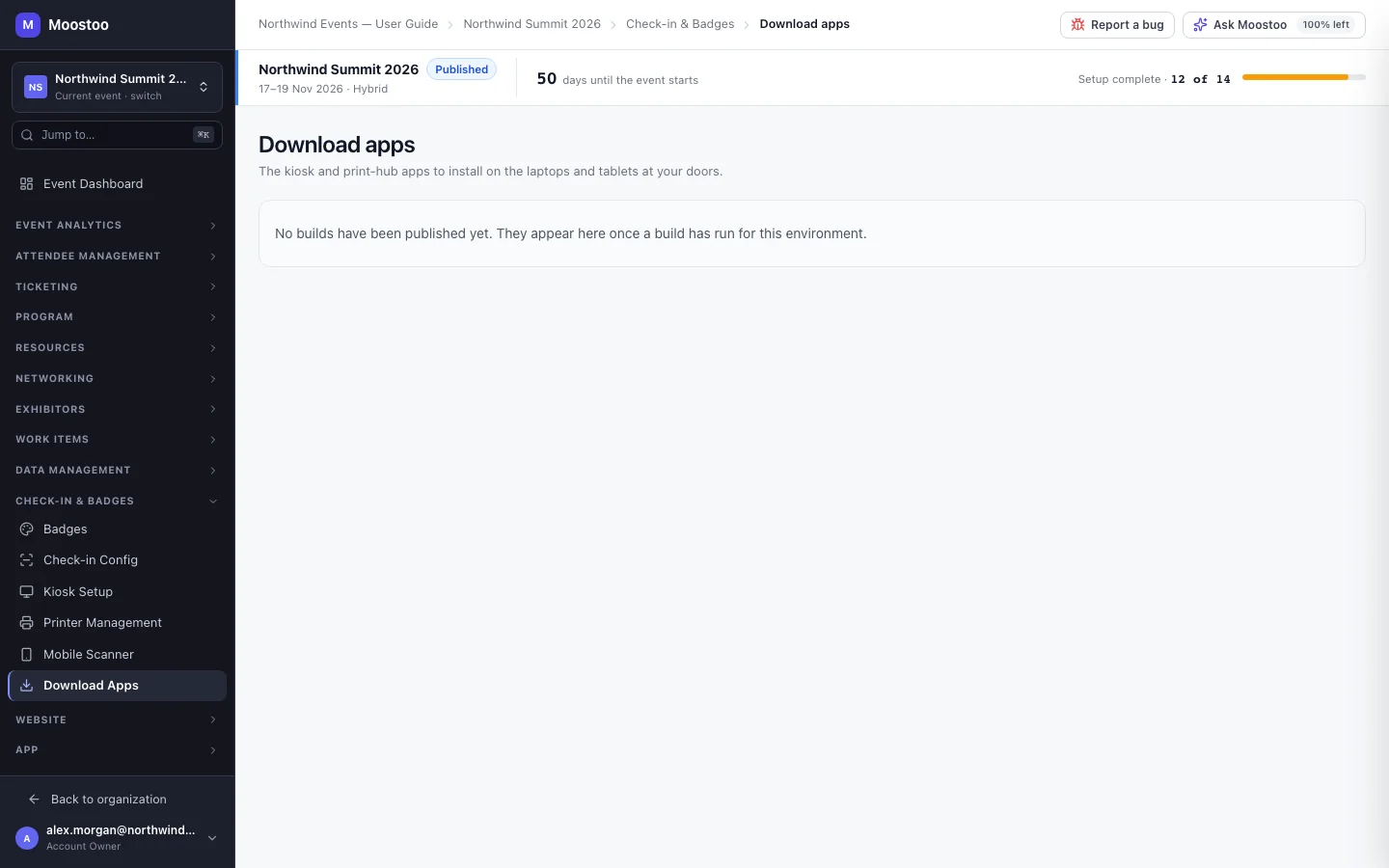
Open Check-in & Badges → Download Apps. Builds are grouped by app, and within each app by platform (Windows, macOS, Linux, Android), newest first. In a Ticketing & Check-in Console event this screen stays locked — Choose where your attendee data comes from first — until the event has an attendee data source.
Self-Service Kiosk Self-service check-in at a stand. Runs full-screen on a laptop or a locked-down Android tablet. Set it up on Kiosks.
Print Queue Manager The print hub app that drives the badge printers. A laptop can print to any printer installed on it; a tablet prints to network label printers. Set it up on Printers and print hubs.
Each row shows the platform, the version (for example v1.0.84, or version unknown for an older build), the file name, size, build date, and a one-line install hint for that kind of file. The version is the same number the app shows in its own settings, and the one Device updates shows for each device.
Step by step
Open Check-in & Badges → Download Apps on the machine you are setting up (or download and copy the file across).
Find the app and your platform, and click Download.
Each click creates a short-lived link for that one file, so do not copy and share the link — share this screen instead.
Install it following the hint on the row: run the installer; unzip a portable build and keep the folder somewhere permanent; install a Linux .deb package with your package manager; or, on an Android tablet, copy the file to the tablet, open it and allow installing from this source.
Open the app. It shows a QR code — connect it with Connect by QR on its row in Printers and print hubs or Kiosks.
Most later changes reach devices over the air from Device updates. A version marked needs a full install there, or going back to an older version, is done by installing the build from this screen.
What attendees see
Attendees are not affected by this screen. They only ever meet the apps it provides, as the kiosk at the door and the badges the print hub produces.
Tips
- Install and connect every door's machines the day before; an installer download over venue Wi-Fi on the morning is a risk you do not need.
- "No builds have been published yet" means nothing is available in this environment — not that something failed. A separate message appears if the list could not be loaded.
- On an Android tablet, download the file on the tablet itself and open it there.
- Older builds stay listed, so a device can be moved back to a known-good version by reinstalling it.