
Payments: get paid by card
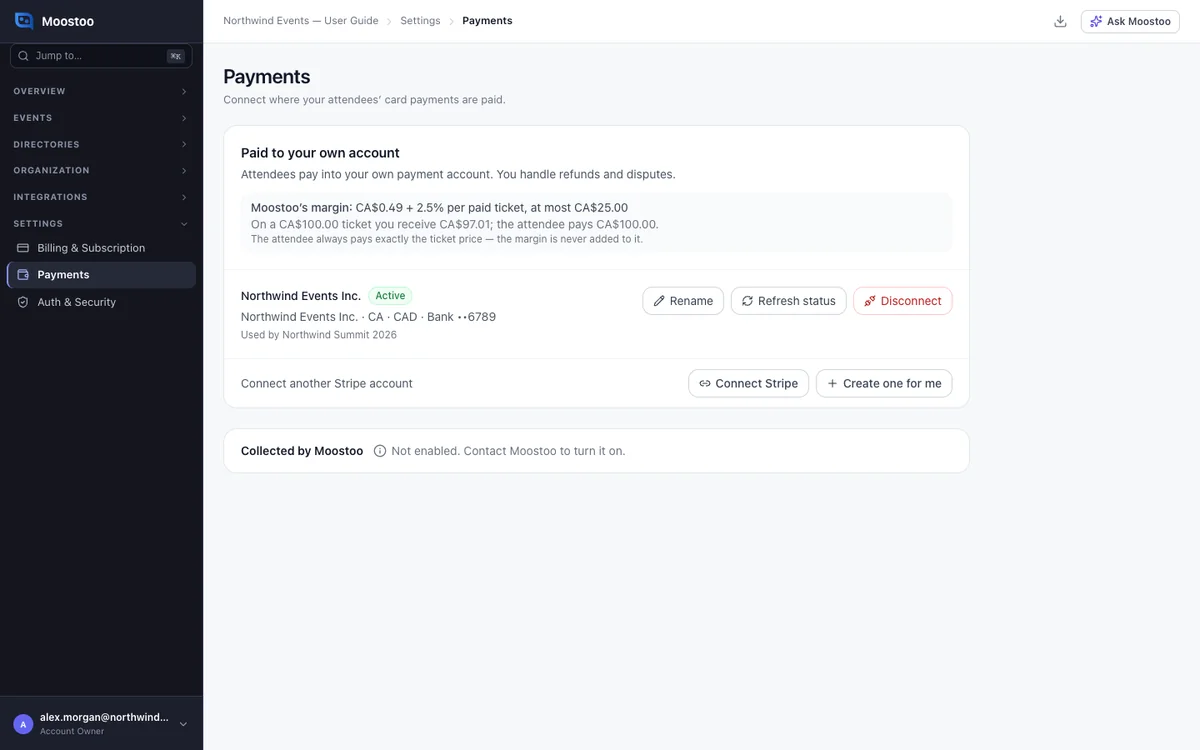
Before an event can sell paid tickets by card, the money needs somewhere to go. On this screen you connect a payment account and choose who collects the money. It also shows the margin Moostoo keeps. Attendees always pay exactly the ticket price: the margin comes out of your share, never on top.
How it works
Open Settings → Payments. Anyone in the organization can read it. Only Account Owners and Super Users can connect, rename or disconnect accounts.
The providers offered depend on your data region. For example, Stripe in Canada, and Stripe or Mollie in the EU.
Two ways to collect the money
Paid to your own account Buyers pay you directly through your own Stripe or Mollie account. You handle refunds and disputes, and the provider pays you on its own schedule. Moostoo's margin is taken from each payment as it happens.
Collected by Moostoo Buyers pay Moostoo, which collects on your behalf and answers disputes. You stay the seller and need no Stripe or Mollie account. Only offered once Moostoo has enabled it for your organization.
How Collected by Moostoo pays you
A set number of days after each event ends, Moostoo pays your share by bank transfer to the bank account you enter here. Its margin and any refunds are taken off first.
Each payout comes with a settlement statement and Moostoo's invoice for its fee.
The margin
The margin is what Moostoo keeps from each paid ticket. It is a fixed amount per ticket plus a percentage of the price, sometimes with a cap. Each option shows its terms and an example, such as "On a €100.00 ticket you receive €97.01".
Free and complimentary tickets carry no margin. A refund returns it in proportion.
Account status
Not connected No account yet.
Setup incomplete The provider still needs details. Resume setup takes you back.
Active Ready to take payments.
Restricted The provider has paused the account and says what it needs.
Disconnected Moostoo no longer has access to it.
Step by step
Connect your own account
Under Paid to your own account, click I already have a … account to sign in to the provider, or Create one for me to have one created.
Finish the provider's steps.
You return to Payments. The account shows its name, country, currency and Active, or what the provider still needs.
Selling under more than one business? Click Connect another … account and connect it the same way.
Use Rename to give each a clear name, such as Conference Ltd.
Add your bank account for Collected by Moostoo
On the Collected by Moostoo option, click Add bank account.
Enter the account exactly as your bank shows it: an IBAN, a Canadian or US account, or SWIFT details.
Only the last four digits are shown afterwards. Every Account Owner and Super User is emailed when it changes.
Choose an account per event
Each event chooses where its card payments go when it opens ticketing.
If there is only one option, events use it without asking.
To change it, open the event's Ticketing → Payment Settings — see Payment settings.
Disconnecting stops card sales
Disconnect removes Moostoo's access to the account. The confirmation names every event selling through it — they stop accepting cards at once. Past payments, refunds and payouts stay on each event's Payouts page.
What attendees see
In the attendee app
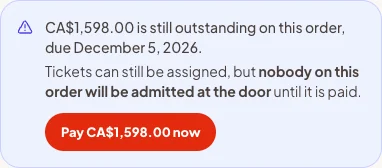
Once an event can take cards, buyers pay by card right after registering. Anyone with an unpaid order can click Pay now from their order link. The total is exactly the ticket price, and the payment step names who they are paying: your business, or Moostoo on your behalf. Apple Pay, Google Pay, Klarna or local methods appear where your account and event allow them.
Tips
- After an event takes its first real card payment, its account cannot be changed. Refunds and payouts stay with the account that took the money. Test payments do not count.
- Connect the account before paid tickets go on sale. Until then, buyers are asked to contact you instead of paying by card.
- Keep the provider's details up to date. A restricted account pauses card sales on every event that uses it.
- Which payment methods an event offers is set per event, in Payment settings.