
Email templates and layouts
Most events send the same kinds of email again and again — a welcome, a thank-you, a last-minute practical note — and every email should look like it comes from the same event. Email templates keep ready-written emails in the event, to copy onto an automated email when you want Moostoo to send them. Layouts are the frame every email is sent in: your header, footer, colours and logo, written once, with each email's own content in the middle — so changing the footer changes it on every email at once. And when an email already exists somewhere else — a flyer, a PDF from marketing, a draft pasted from a document — Ask Moostoo can turn it into a template or an automated email for you.
How it works
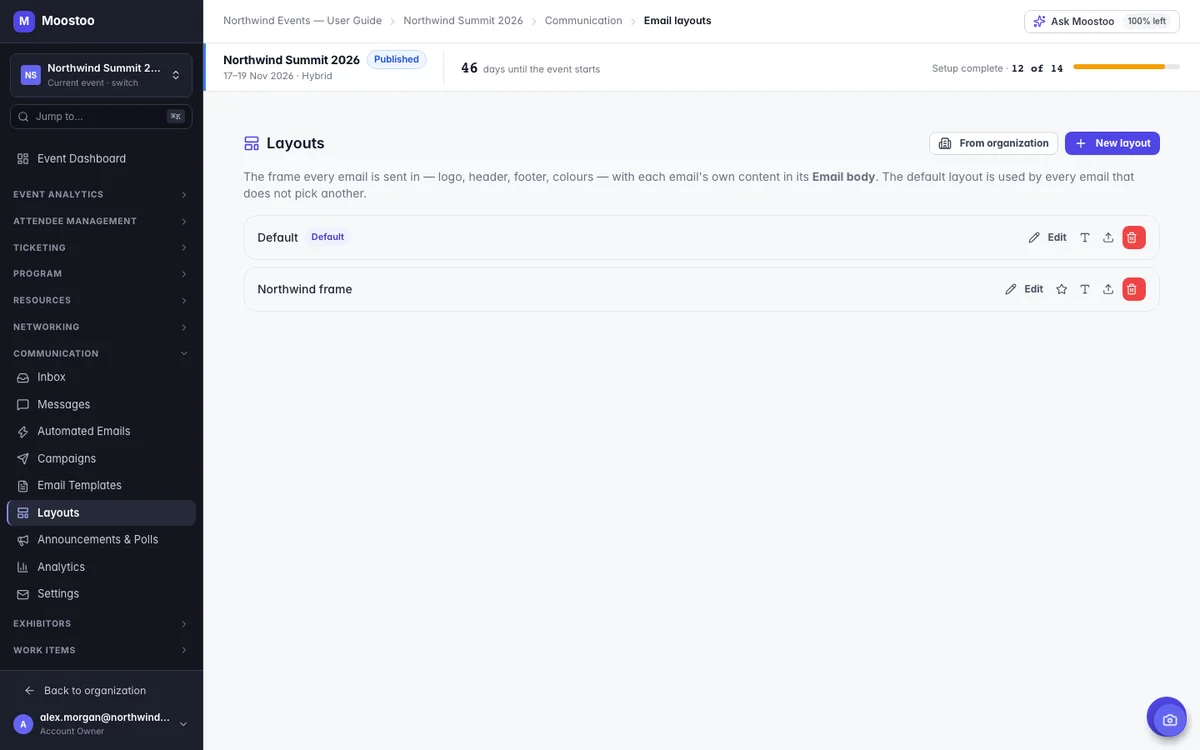
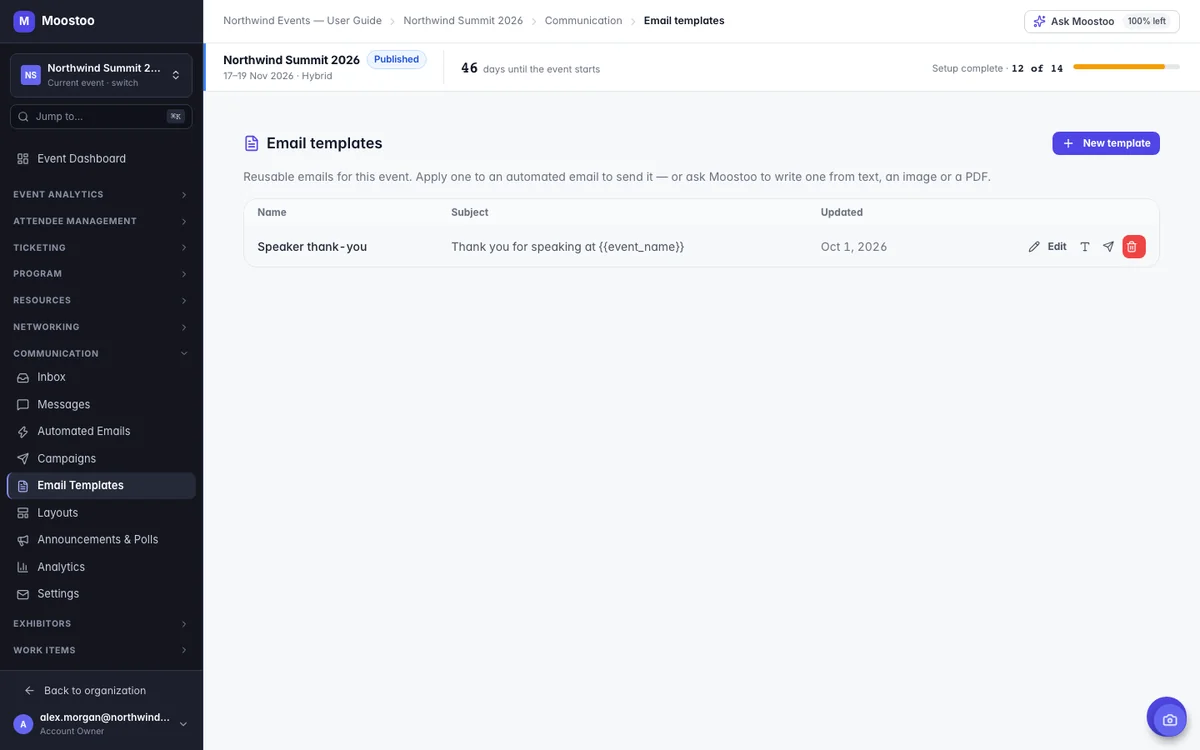
Both live in the Communication group of the event sidebar, as Email Templates and Layouts, just below Automated Emails and Campaigns. Templates and layouts belong to one event and are copied when you clone it (tick Automated emails, templates & layouts).
Email template A named email with a subject line and a body, edited in the same email editor as automated emails. A template is not sent by itself: Apply to automated email… copies its subject, body and layout onto one automated email, replacing what that email said. The automated email keeps its on/off switch.
Layout An email design with one special section, Email body. When an email is sent, its own sections take the place of the Email body — everything above and below it is the layout. A layout has no subject line.
Default layout Every event starts with a layout named Default, marked Default — a copy of Moostoo's standard layout: your event banner across the top, your logo, the Email body and the event footer. Every automated email, template and campaign uses the default unless you pick another layout for it with the Layout picker in its editor. Use Make default to make another layout the default; deleting the default hands the role to another layout. An event always keeps at least one layout, so the last one cannot be deleted.
Event › Banner and Event › Logo Two variables for an image's source. The Default layout's top image shows Event › Banner (your event's cover image) and its logo shows Event › Logo (the logo your attendee app shows), so they always follow what is set in Event Settings. To use one on any Image or Logo section, click Event › Banner or Event › Logo under its image field — the field then shows it as a chip, and Use an image instead goes back to a picture of your own. They are not in the Variables menu of a text. In the editor they appear as labelled placeholders; in a sent email they are the images' full web addresses. When the event has no banner, the banner image is simply left out.
Organization layouts Save to organization keeps a copy of a layout in your organization's library; From organization copies one from the library into another event. The copies are independent — editing one never changes the other.
- The layout is joined when the email is sent, so editing a layout changes every email that uses it from the next send on. A campaign is the exception: its layout is fixed into it the moment it starts sending, so every recipient gets the same email.
- Preview in layout in any email editor shows the email exactly as it is sent — inside its layout. The editor itself shows only the email's own sections.
- A layout's design settings are the base; an email's own settings win. If an email changes its button colour, that email keeps it; otherwise it uses the layout's.
- Each email offers only the variables it can fill. A Welcome email offers the attendee, the event and its links; meeting emails add the meeting and the people in it, hotel emails the stay, booth emails the booth. A layout frames every email, so it offers only the variables every email fills.
- The standard email bodies have no footer — the layout carries it, so it appears once on every email.
Step by step
Create a layout
Open Communication → Layouts.
Click New layout, give it a name and click Create & edit.
It opens as a copy of Moostoo's standard layout: the event banner, the event logo, the Email body, a divider and the event footer.
Add what should frame every email — a header, your logo, social links, a footer — above and below Email body, and set colours and fonts in the design panel.
Save stays disabled while the layout has no Email body, and the toolbar says why.
Click Save. To send every email in it, click Make default on its row.
Create a template and send it
Open Communication → Email Templates and click New template; enter a name and a subject line, then Create & edit.
Write the email; pick a Layout if it should not use the default, and use Preview in layout to see it as it will be sent. Click Save.
Back in the list, click the send icon (Apply to automated email…) and choose which automated email should send it.
The dialog tells you it replaces that email's subject, body and layout, and whether the email is on. Click Replace email.
Ask Moostoo
Ask Moostoo writes templates and automated emails from what you give it — typed or pasted text, or one attached image (PNG, JPEG, WebP) or PDF of up to 3.5 MB. It fills in variables such as the attendee's first name or the event name where your text mentions them, shows you the subject, the email as it will be sent and the variables it used, and saves nothing until you confirm. The file is read for that one answer and not kept.
Make an email template called Speaker thank-you from this: Dear Anna, thank you for speaking at Northwind Summit…
Turn the attached PDF into a template called Venue guide.
Pictures inside an image or PDF are not carried into the email; add them afterwards in the editor.
Rename the Speaker thank-you template to Thank you — speakers and change its subject to Thank you for speaking.
Which email templates does this event have?
What attendees see
In attendee emails
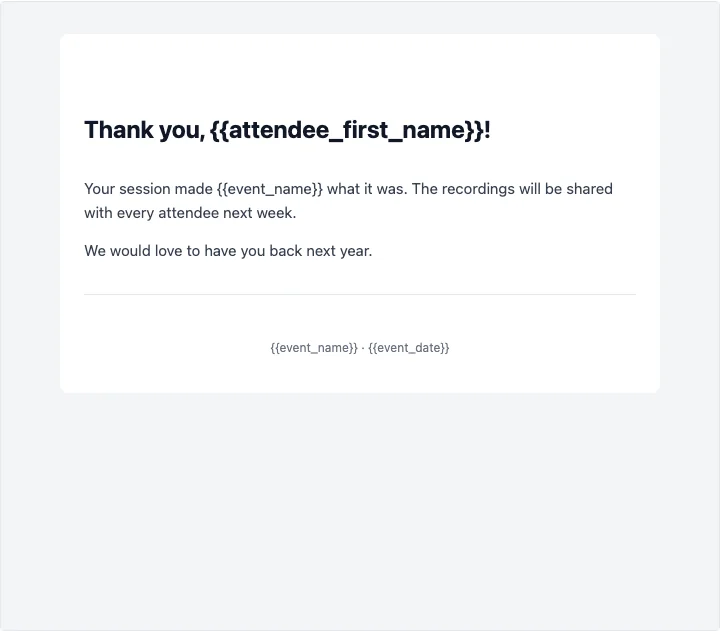
Attendees receive every email inside its layout — your header and footer around the message itself — and the email's variables filled in with their own name and your event's details. A template reaches attendees only once it is applied to an automated email.
Tips
- Keep a layout small: a header, the Email body and a footer read well on a phone. Put anything specific to one email in that email, not in the layout.
- Save a layout you like to your organization so the next event starts from it.
- When Ask Moostoo leaves a variable out — for example a code your text mentioned that no variable holds — the preview says so; add it by hand in the editor.
- In a region whose assistant cannot read PDFs, the paperclip offers images only and says so; paste the text instead.