
Event team and permissions
An event's team decides who can touch it and what they can change. A programme manager needs to edit sessions but not export attendees; a volunteer needs the scanner but not the settings; an AV crew needs to answer requests but see no roster. The event team is where you make each of those true — for this event only, without changing anything about their access elsewhere.
How it works
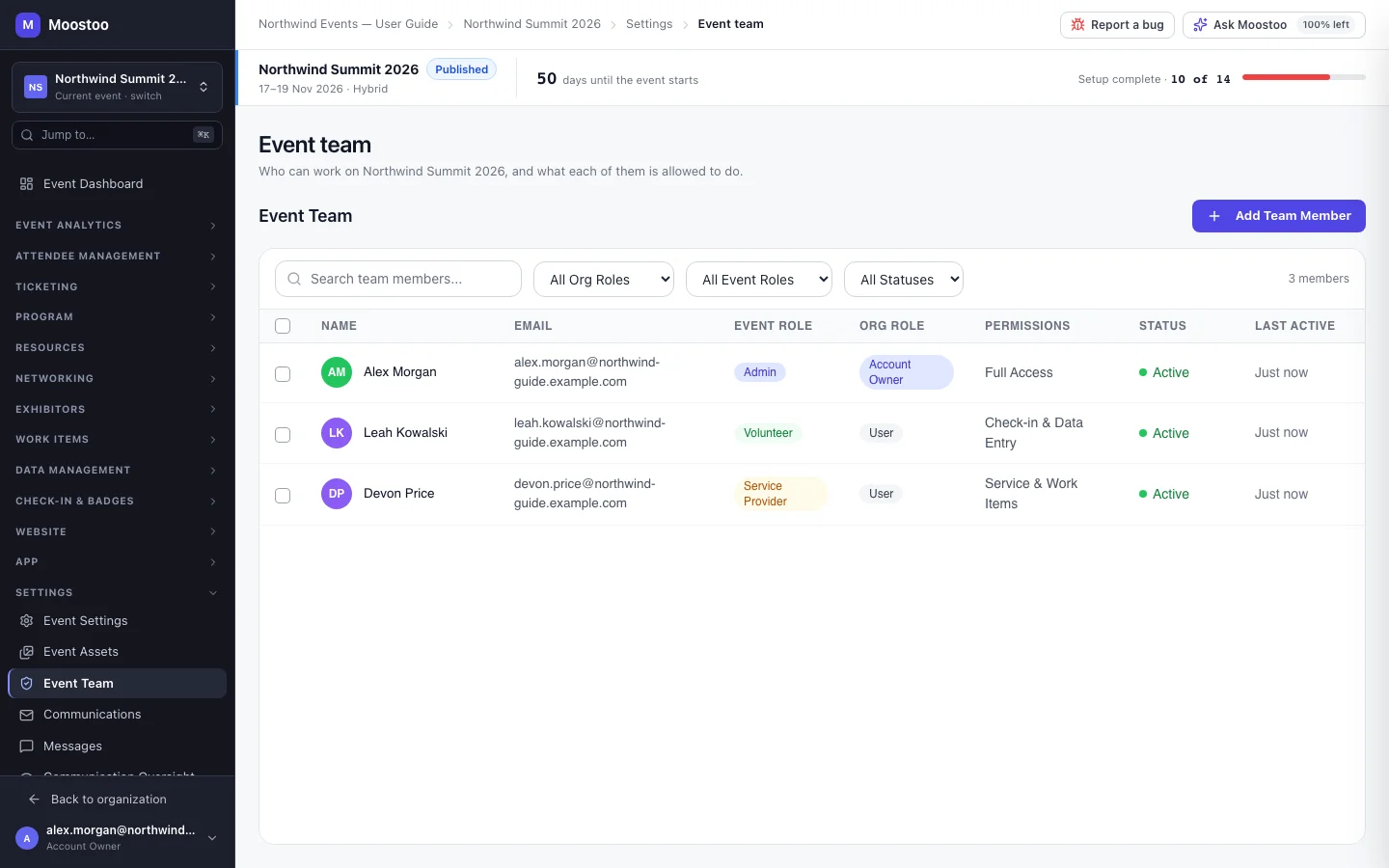
Settings → Event Team lists everyone on the event with their event role, organization role, permissions, status and last activity. Filter by either role or by status, select several members to Set Permission or Remove from Event in bulk, and click a member to open their permissions panel, which saves each switch as you flip it.
| Role | Permissions |
|---|---|
| Admin | All, locked on. Every event must keep at least one Admin. |
| Member | Starts with every permission off — grant what they need. |
| Volunteer | Fixed: Can Manage Attendees and Can Manage Check-in. |
| Partner | Fixed: none. |
| Service Provider | Fixed: none of the admin permissions. Delivers service through chat and work items, and never sees event structure, settings or attendee exports — see Service providers. |
- You are the event's Admin when you create it. Nobody has to add the creator.
- Super Users are on every event automatically, and Account Owners always have full access even when not listed. Super Users cannot be removed from individual events.
- Every team member is a participant. Adding someone seats them on the event's attendee list, with a badge and an agenda, so they can be found, messaged and met. You never add staff twice.
- Event-only seats. A person added here without ticking Also add them to the organization team can work on this event but does not appear in your organization's Team directory. Ticking it later promotes them; leaving it unticked never demotes anyone.
- People without an account are invited. If the address has no Moostoo account, they are emailed the same invitation a team invite uses, and their seat is kept waiting.
The full list of permissions and what each covers is on Roles and permissions.
Step by step
Add someone to the event team
Open Settings → Event Team and click Add Team Member.
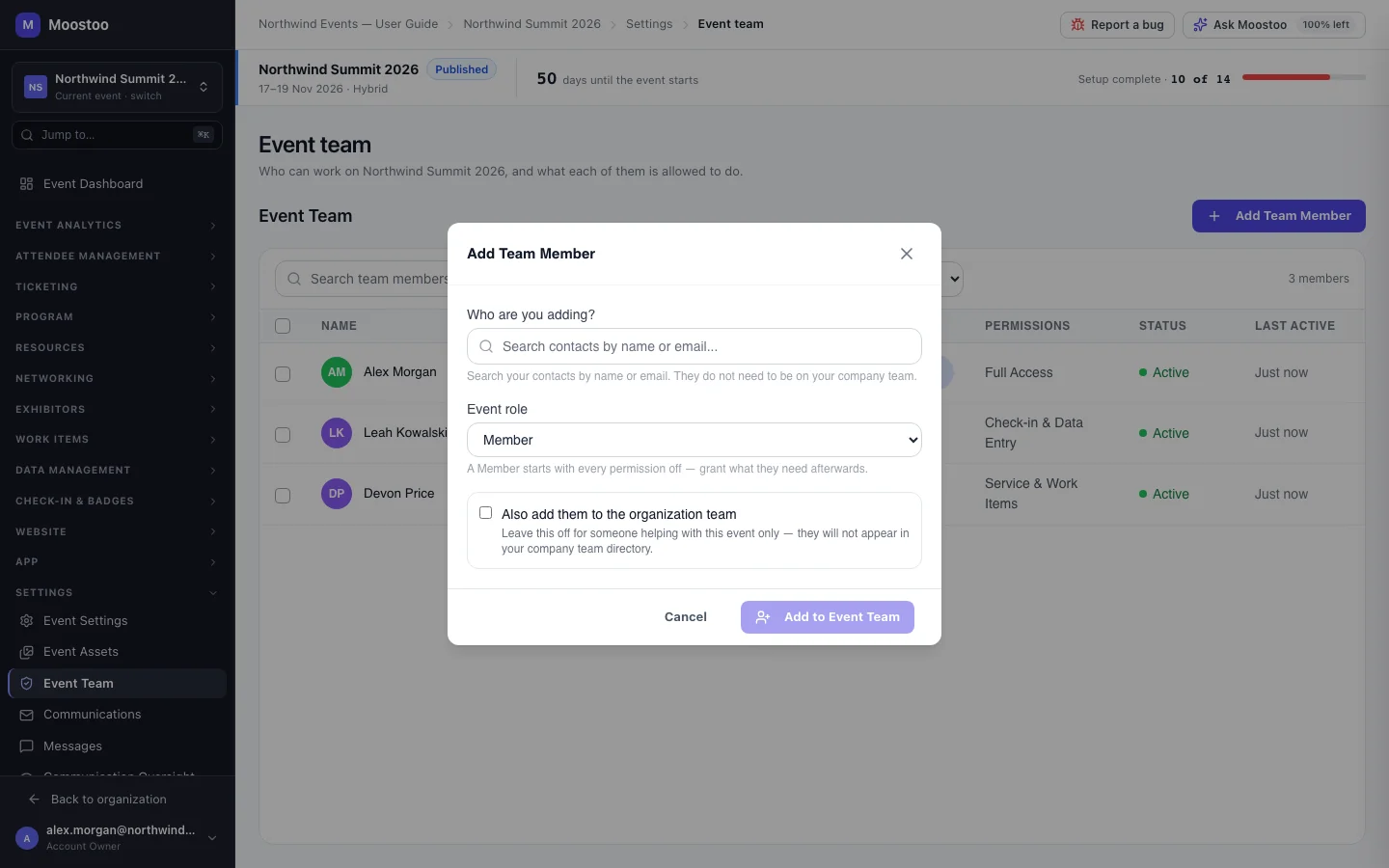
In Who are you adding?, search for the person, or type their email address if nobody matches.
Pick their Event role.
Tick Also add them to the organization team only if they should work on other events too.
Click Add to Event Team.
For a Member, open their row and switch on the permissions they need.
Changes save immediately. Admin, Volunteer, Partner and Service Provider permissions are fixed and shown locked.
Remove someone from the event
Open the member's row and click Remove from Event, or select several and use the bulk action.
If they still have active assignments, the dialog lists them first. The last Admin cannot be removed.
What attendees see
Attendees are not told when you change your team. They see your team members as fellow participants — in the People directory, as speakers or in chats — and Admins, Members and Volunteers find Staff tools (the entrance and session scanners) in their own attendee app for this event.
Tips
- An event role cannot be edited in place. To make a Volunteer a Member, say, remove them from the event and add them again with the new role. Removing someone also takes them off the event's attendee list; adding them back seats them again, so do it before the event rather than during it.
- Grant Can Export Attendee Data sparingly: it is the permission meant to let personal data leave Moostoo. Not every screen checks the switches yet — see where they are enforced today.
- Can Pre-Arrange Meetings and Can View Communication Oversight are never available to Volunteers, Partners or Service Providers.
- Ask Moostoo only offers people the tools their permissions cover: a Member without Can Edit Program cannot have the assistant add sessions either.
Ask Moostoo
Only Account Owners and Super Users can add team members through the assistant.
Add sofia.ruiz@northwind.com to the event team as a volunteer.
Someone without a Moostoo account is emailed an invitation.
Invite our AV lead marco@brightstage.example.com as a service provider for this event only.