
Event companies
A company only becomes visible to attendees once you add it to the event. This screen is where that happens, and where you decide what the company is at this event — an Exhibitor, a Sponsor or a Partner, and at which tier. Those two facts drive how the company is badged in the attendee app's Exhibitors page, how exhibitor page groups sort it, and which of your sponsor sections on the website show it.
How it works
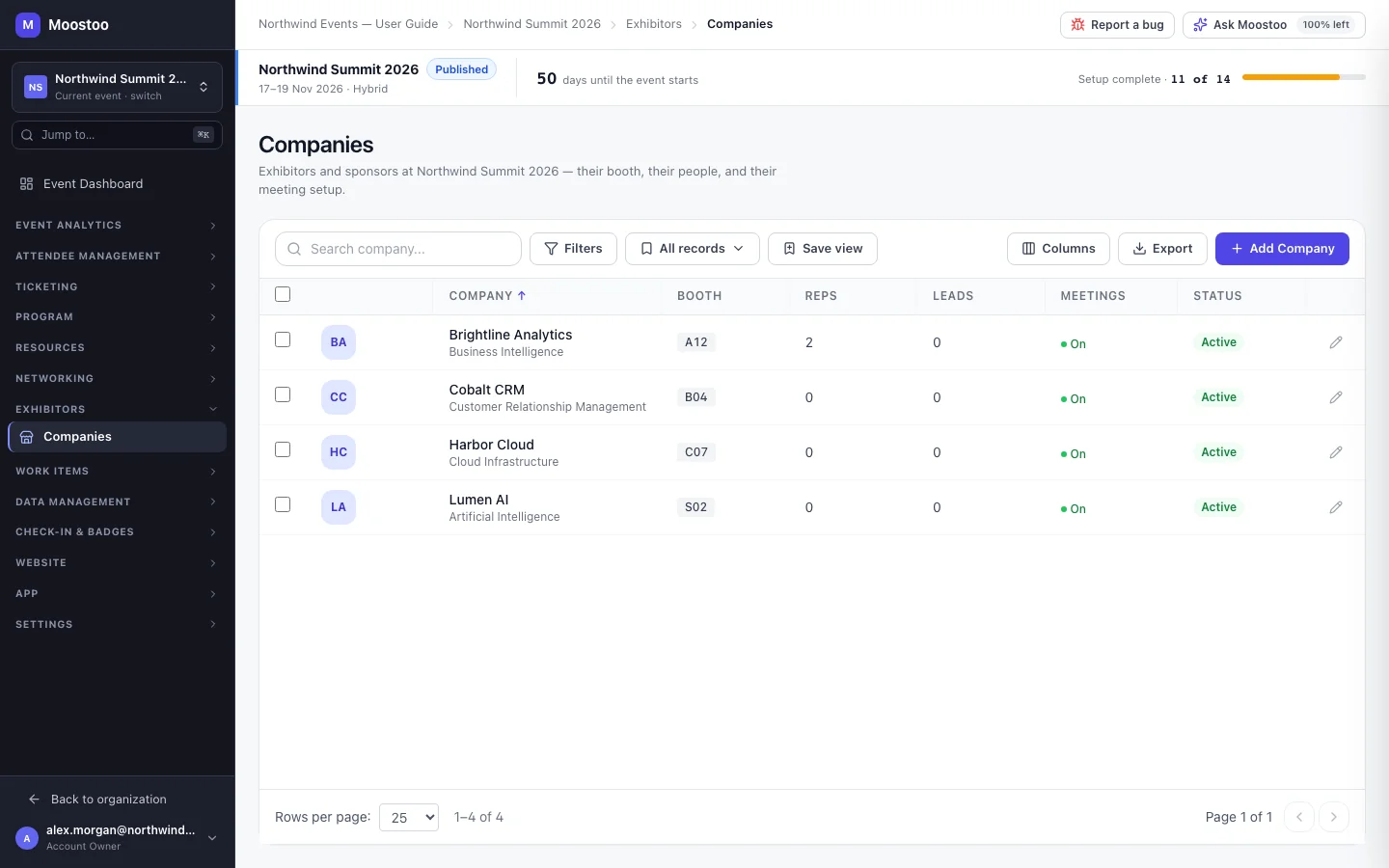
Open Exhibitors → Companies in the event sidebar. The list shows every company at the event with its booth, number of representatives, leads captured, meeting availability and status. Click a company to open its page, which has six tabs: Overview, Booth, Team, Meetings, Leads and Page.
Type Exhibitor, Sponsor or Partner. It is a fact about this event only — the same company can sponsor one event and exhibit at the next.
Tier Platinum, Gold, Silver, Bronze, or a Custom name you type (for example Headline or Startup Alley). Attendees see it as a badge, and exhibitor page groups can select and sort by it.
Status Active companies are shown to attendees. Deactivate for this event hides the company from attendees without removing anything — its booth, team, leads and page are kept for when you turn it back on.
Company information Name, logo, industry, website, contact email and phone, and description. This is the shared directory record: editing it here also updates the Company Directory and every other event that shows the company.
- Adding a company from the directory reuses its record. Creating a new one here also adds it to the Company Directory.
- New exhibitors get a head start. When you add a company that has a website, Moostoo looks it up in its company database and, within a few minutes, fills the blanks of its record (logo, description, industry, LinkedIn, X, city, country) and writes and publishes a first booth page from what it finds. It never overwrites anything you or the exhibitor already wrote.
- Removing a company from the event keeps it in the directory. Its captured leads are archived rather than deleted, and its representatives lose access to the event's booth tools.
Step by step
Add a company to the event
Open Exhibitors → Companies and click Add Company.
On From Directory, search your organization's companies, tick one or more, and click Add to Event.
Use this whenever the company has taken part before — it keeps one record across your events.
Or, on Create New, enter the company name, industry, Company Type, website and description, then click Create & Add to Event. The tier is not asked here — set it afterwards on the company's Overview.
Open the company to finish setting it up: its booth on Booth, its people on Team, its meeting setup on Meetings, and its page on Page.
Correct a company's details, type or tier
Open the company. On Overview, click Edit on the Company Information card (or Edit in the page header).
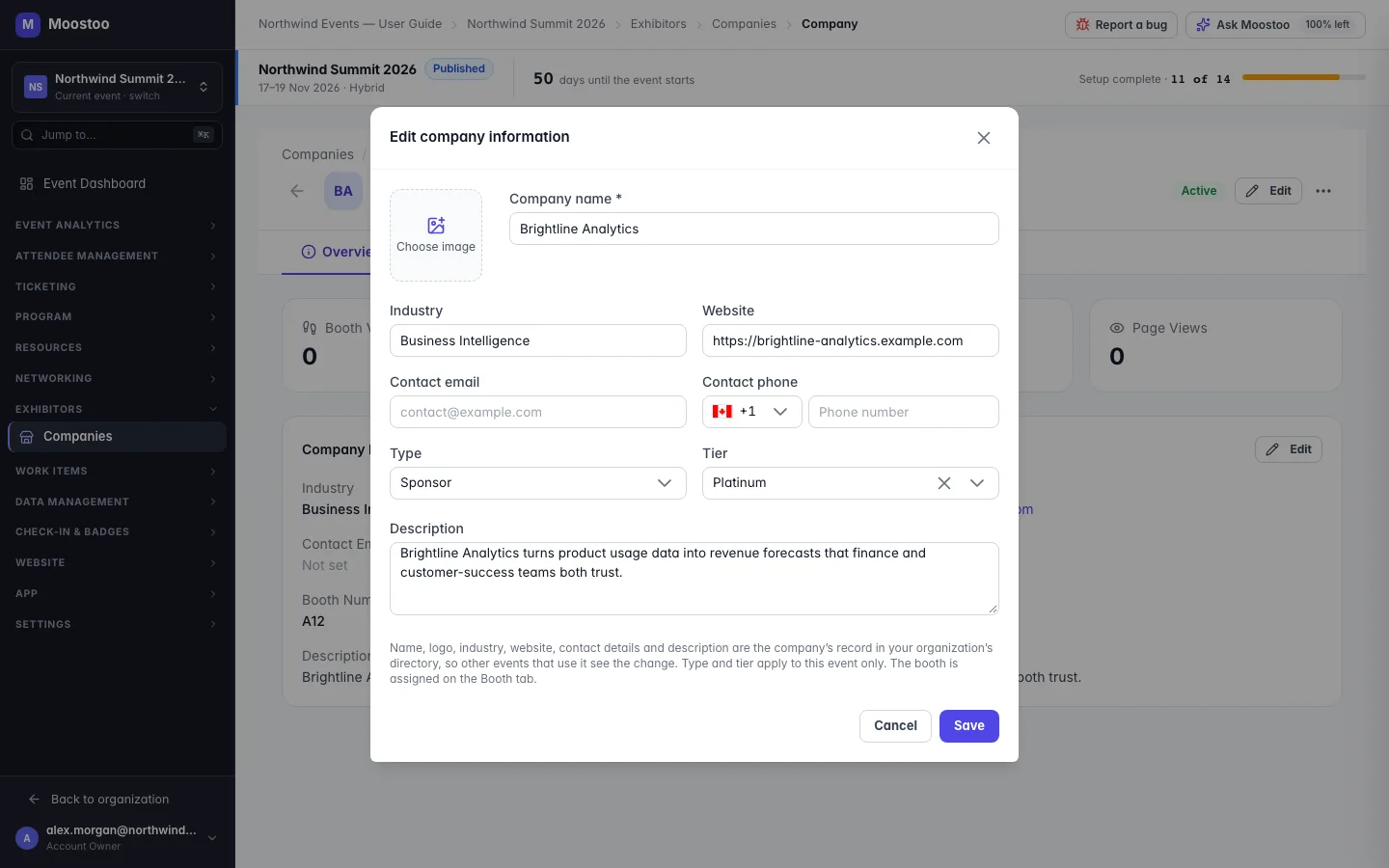
Change any field, including Type and Tier, and click Save.
A name already used by another company in your organization is refused, with the reason under the form.
Use the … menu in the header to Deactivate for this event (or Activate for this event), Assign booth, open the booth page, or Remove from event.
Select several companies in the list to act on them together: Enable Meeting / Disable Meeting, Enable Lead Scanning / Disable Lead Scanning, Export Selected or Remove from Event.
What attendees see
In the attendee app
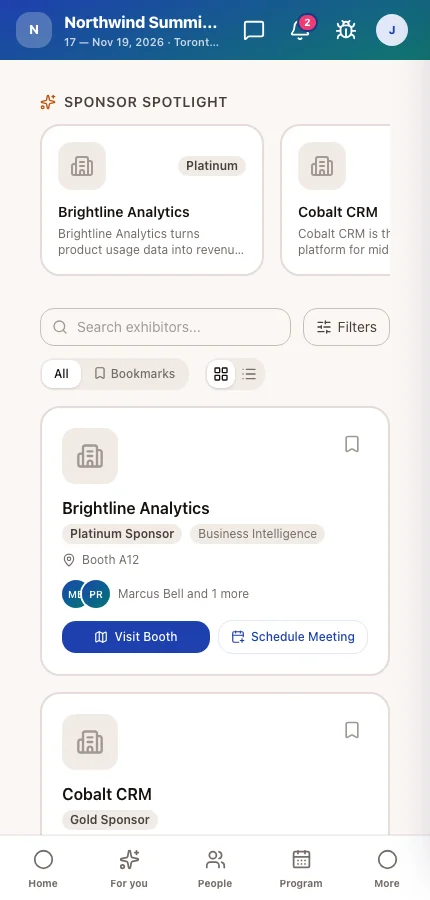
Active companies appear on the attendee app's Exhibitors page with their logo, tier badge, booth, a preview of their team, and — where they take meetings — a Schedule Meeting button. Deactivated or removed companies disappear from it at once.
On the event website
Your website's Sponsors and Exhibitors sections list the same active companies, filtered by type and tier as you configured each section.
Tips
- Set the type and tier as soon as you add a company — groups on the Exhibitors page and sponsor sections on the website select companies by them.
- Prefer Deactivate for this event over removal when a company might come back; nothing is archived.
- Because company information is shared, fix a typo in a company's name once — every event that shows it is corrected.
Ask Moostoo
Add Harbor Cloud to this event as a Silver sponsor, website harborcloud.example.com.
Which companies are at this event?