
Profile visibility
Sometimes a person should not be found: a keynote speaker who does not want to be swamped with requests, a staff member on the roster only for a badge, a guest who asked for privacy, or someone causing trouble. An invisible profile takes that person out of networking without removing them from the event — they keep their badge, agenda and existing conversations. Because it is about a person's own presence, attendees control it too, and Moostoo makes sure an organizer can never override an attendee who chose to be visible again.
How it works
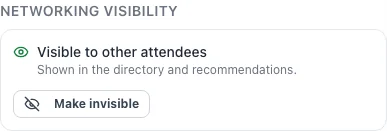
Each attendee's panel in the attendee directory has a Networking visibility section showing whether they are Visible to other attendees or Invisible, and who hid them. Invisible attendees carry an Invisible badge in the list.
| Changes | Does not change |
|---|---|
| Not listed in the attendee directory (except to themselves) | Their existing chats and meetings |
| Never recommended by AI matchmaking, and — while invisible — shown no recommendations themselves | Their registration, ticket, badge and check-in |
| Nobody can start a new direct chat, meeting request or guest invitation with them | Meetings you arrange for them as organizer, and group chats your team creates |
| They cannot browse the directory themselves until they become visible | Their place in your admin roster, exports and reports |
Hidden by the attendee The attendee switched their own profile off. Only they can make it visible again.
Hidden by an organizer You made it invisible. You can make it visible again, and so can the attendee.
Blocked from hiding An attendee who makes themselves visible after an organizer hid them decides the matter: from then on no organizer can hide them again. The panel says why the button is unavailable.
Step by step
Hide or show an attendee
Open Attendee Management → Attendees and click the attendee's row.
On the Profile tab, find Networking visibility.
Click Make invisible (or Make visible).
If the button is disabled, the line beneath explains why — for example This attendee made their profile invisible. Only they can make it visible again.
The change applies at once; AI recommendations for the event refresh shortly afterwards.
What attendees see
In the attendee app
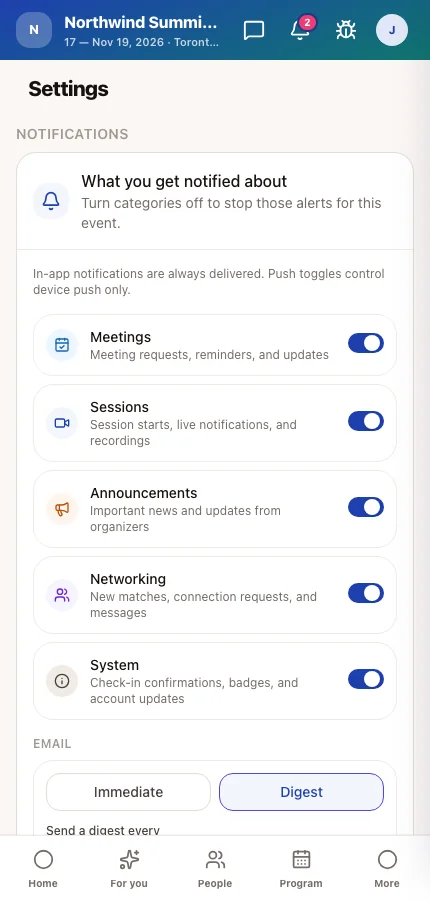
Attendees control their own visibility with Show my profile to other attendees in their event Settings and on the first page of their profile. An invisible attendee who opens the attendee directory sees Your profile is invisible and a button to become visible; if an organizer hid them, the setting says so.
Tips
- Hiding a person is not the same as restricting a whole type. To keep all Speakers out of the directory, use the Visibility grid in Experience rules.
- To stop someone attending altogether, change their status or remove them from the event — invisibility only affects networking.
- You can still arrange meetings for an invisible attendee through Pre-arranged meetings if they agree to it.
- Tell the attendee when you hide them; they will otherwise wonder why nobody finds them.