
Credits and attendance
For accredited events — medicine, law, accounting, engineering — the certificate is the product: attendees come for CME, CPD or CLE credits, and you have to prove who sat in which session. Credit types describe what an event can award; attaching them to sessions says how much each session is worth; and attendance tracking records who was actually in the room, so credits are awarded on real presence rather than on registration. Even without credits, attendance data tells you which sessions filled and which to drop next year.
How it works
Credit type A kind of credit this event can award, with a Name (Continuing Medical Education), an Abbreviation (CME), an optional Description and a Status. Only Active types are offered on sessions. A type that sessions still carry cannot be deleted — remove it from those sessions first, or set it to Inactive.
Session credit A credit type attached to one session with a value — 1.5 CME. A session can carry several types (1 CME and 2 CPD), each once.
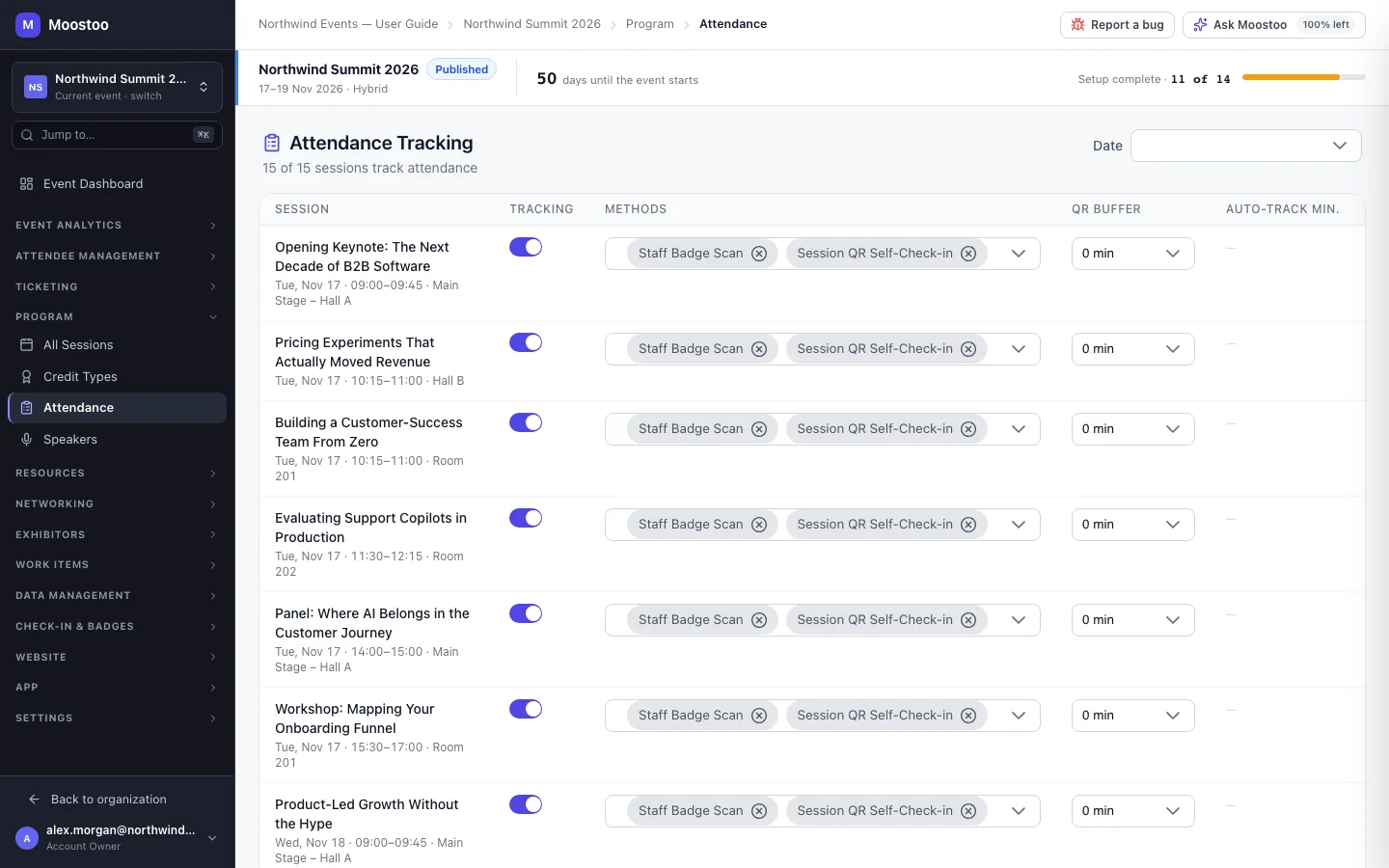
Attendance tracking Switched on per programme session, together with the methods you intend to use. It records your plan for that session's door; the credits a session carries are shown to door staff with every scan.
Methods Staff Badge Scan, Session QR Self-Check-in, Manual Admin Check-in and Browser Auto-Track. Choosing Session QR Self-Check-in reveals the QR buffer (how long before and after the session the code is valid); choosing Browser Auto-Track reveals Auto-track min. (how long a remote viewer must watch).
- Attendance is taken at the door with the session scanner. Staff pick the session in the session check-in scanner and scan badges; each person is recorded once, a full room or an unregistered badge asks staff for an override, and the scan confirms the credits the session carries — for example CE Credit: 1 CME recorded. The scanner records presence for any programme session, whether or not its tracking switch is on.
- Meeting sessions are not listed. Participation in one-to-one meetings is recorded per meeting, not per room.
- The Attendance page and the session's own panel show the same settings. A change on one is a change on the other.
- Only Staff Badge Scan records attendance today: the QR self-check-in, manual admin check-in and browser auto-track methods can be chosen, but neither the attendee app nor the admin screens record attendance that way yet — plan for staff scanning.
Step by step
Set up credits
Open Program → Credit Types and click Add Credit Type.
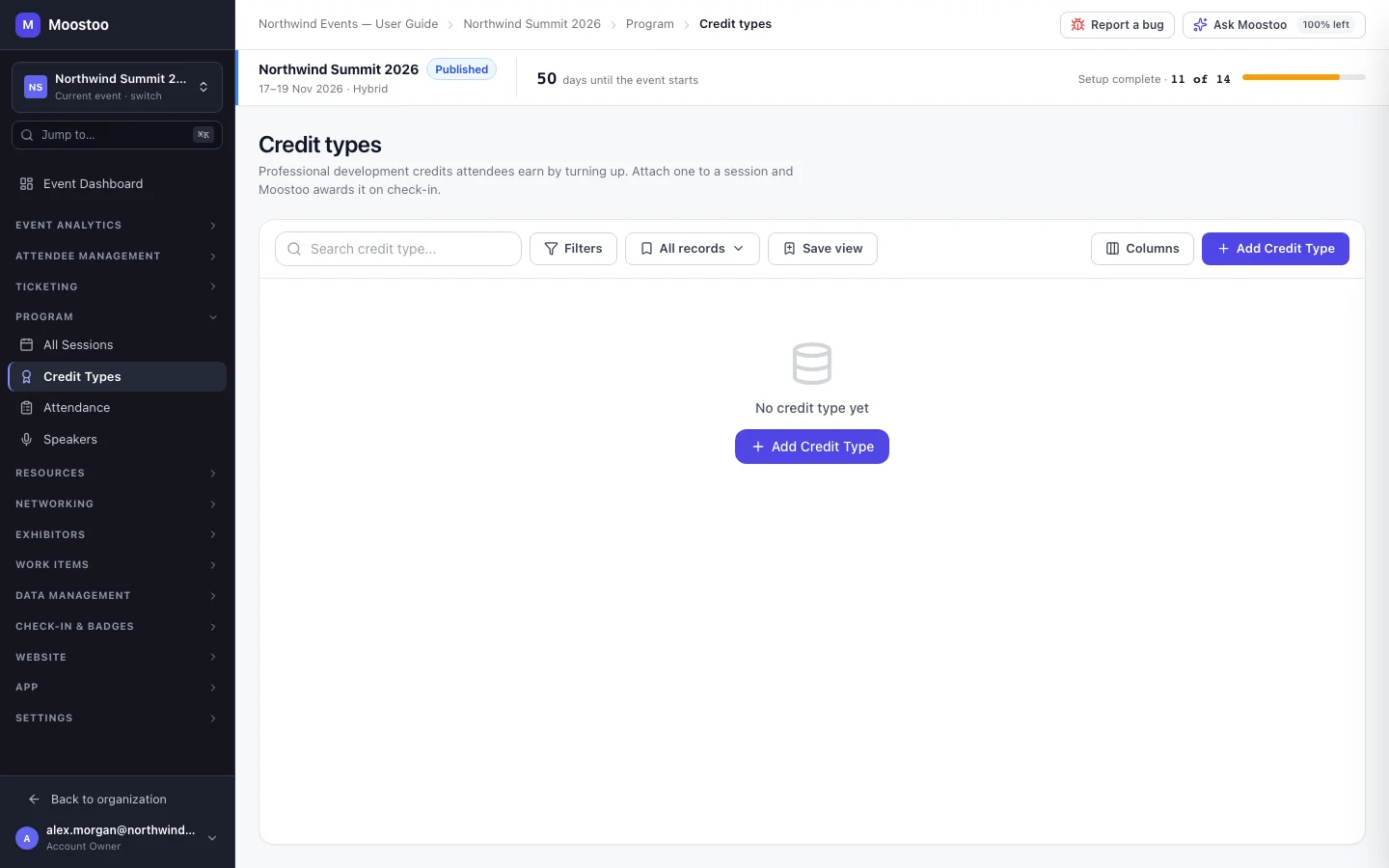
Enter the Name and Abbreviation, an optional Description, keep the status Active, and save.
On Program → All Sessions, add or edit a session, open its Credits section, type the value next to each credit type that applies and click +.
No suitable type yet? Click + Create new credit type in the same section.
Track attendance
Open Program → Attendance. Narrow the list to one day with the date filter if you like.
Switch Tracking on for each session whose attendance matters.
Pick the Methods — at least Staff Badge Scan — and set the QR buffer or auto-track minimum if you chose those methods. Every change is saved as you make it.
On the day, give door staff the session scanner (see Session check-in).
What attendees see
Attendees are not affected directly: they do not see a credits screen in the app, and Moostoo does not issue certificates. What they notice is the badge scan at the session door. Door staff see the credits each scan recorded; the attendance data is yours to report on.
Tips
- Create credit types before building the programme, so you can set credits while you add each session.
- Switch tracking on for every session that carries credits, so your team knows which doors must be scanned — a credit is only worth something if presence is recorded.
- Scan at the door on the way in; a session that has ended is flagged in the scanner so late scans are not confused with real attendance.
- Attendance feeds the post-event report and the attendee analytics — use it to see which sessions filled.
- Set a credit type to Inactive rather than deleting it when you stop offering it; an inactive type is no longer offered on sessions.