
Email campaigns
Automated emails react to what people do; campaigns are what you decide to say — an early-bird deadline, a keynote announcement, a last-call for workshops, a thank-you with the slides. A campaign reaches exactly the segment you choose (VIPs who have not checked in, attendees registered for one session, people who did not open your last email), can be scheduled for the right moment, can test two subject lines against each other, and reports who opened and clicked.
How it works
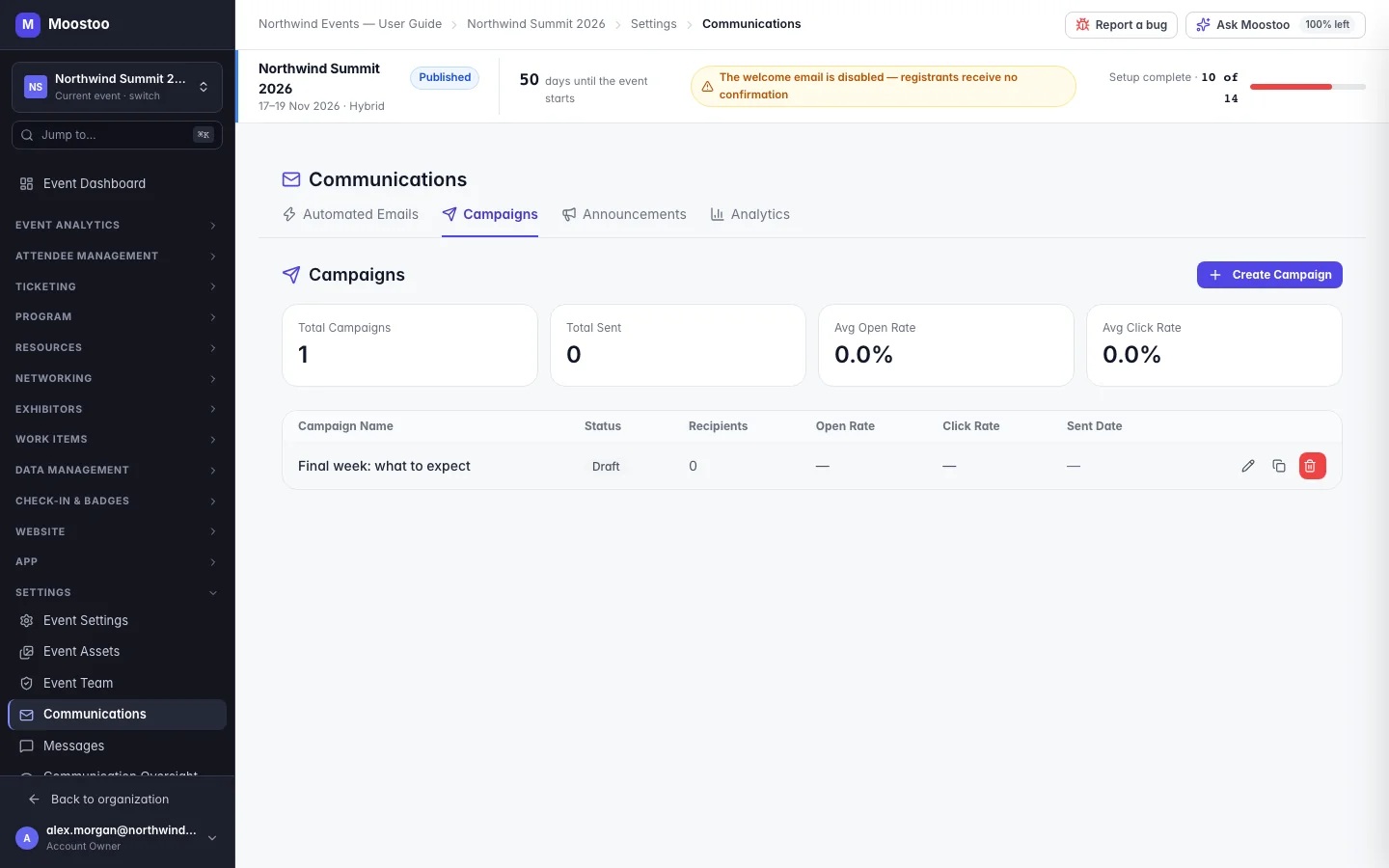
Open Settings → Communications → Campaigns. The list shows totals — campaigns, emails sent, average open and click rates — and every campaign with its status (draft, scheduled, sending, sent, cancelled), recipients, open rate, click rate and sent date. The Analytics tab beside it totals every email this event has sent — automated emails and campaigns alike: emails sent, average open and click rates, bounce rate and unsubscribe rate, with a warning when the bounce rate is high. Creating a campaign opens a four-step builder: Setup, Design, Recipients, Review & Send. Save Draft keeps your work at any step.
Setup Campaign name (for you), subject line (variables allowed), sender name and reply-to address — and the A/B test, if you want one.
Design The email editor. A new campaign starts from a starter email in your event's brand — logo, a greeting, a message, a button and a footer — which is saved even if you move on without editing it. Send Test sends the current design to addresses you type.
Recipients All attendees (everyone except those who unsubscribed), or conditions combined with Match ALL (AND) or ANY (OR) on attendee type, ticket type, session registration, check-in status, a custom question's answer, registration date and engagement with an earlier campaign (opened, clicked, did not open). The recipient count and a preview of names update as you build.
Review & Send A summary of subject, sender, reply-to, recipients and A/B test, then Send Now or Schedule Campaign at a date and time you pick.
A/B testing
Turn on Enable A/B testing in Setup and choose whether the variants differ by Subject line or Email content. Add up to three variants and set what share of recipients each variant goes to (1–50%). Choose the winner metric — Open rate or Click rate — and after how many hours to pick it (1–168). When that time is up, Moostoo sends the winning variant to everyone who has not yet received the email. With fewer than 100 recipients per variant you are warned that the result may not mean much.
- Unsubscribes are honoured automatically. Every campaign carries an unsubscribe link; someone who uses it is left out of every later campaign of this event.
- A campaign that matches nobody cannot be sent — Send and Schedule stay disabled with a warning.
- A scheduled time in the past is refused. A scheduled campaign can be cancelled from the list until it goes out.
- Duplicate a campaign to reuse its design, subject and segment without its send history.
- A campaign that stopped part-way shows how many were delivered and offers Retry Failed in its analytics.
Step by step
Open Settings → Communications → Campaigns and click Create Campaign.
Setup: enter the campaign name, subject line, sender name and reply-to address. Turn on A/B testing if you want to compare variants. Click Next.
Design: edit the starter email in the email editor. Use Send Test to check it in a real inbox. Click Next.
Recipients: keep All attendees, or add conditions and choose whether all or any must match. Check the count and the preview of names. Click Next.
Review & Send: check the summary, choose Send now, or Schedule and pick the date and time, then click Send Now or Schedule Campaign.
Send Now asks you to confirm before anything goes out.
Open the campaign from the list to follow it: sent, delivered, opened, clicked, bounced and unsubscribed; engagement over time; per-variant results; and a searchable list of recipients with when each opened and clicked.
What attendees see
In attendee emails
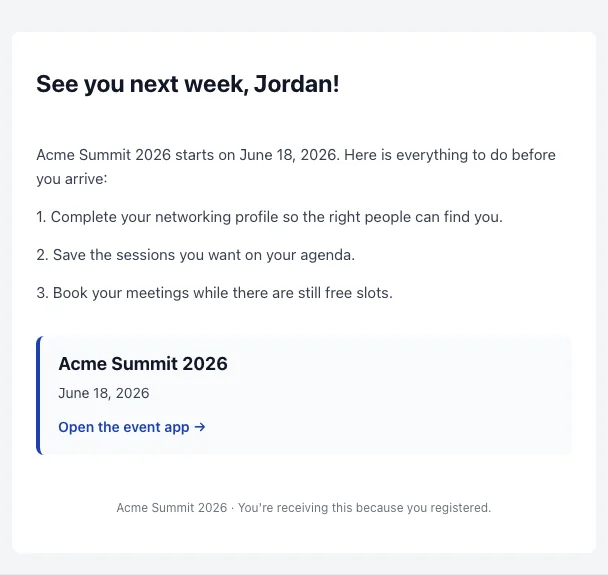
Each recipient receives one email — one variant during an A/B test, or the winner afterwards — personalised with their details, from the sender name and reply-to address you set, with an unsubscribe link at the bottom.
Tips
- Use the did not open engagement condition to send a gentle second attempt to the people who missed the first one.
- Set a reply-to address someone actually reads — attendees reply to campaigns with questions.
- Schedule important campaigns for the attendees' morning. The schedule picker is labelled event timezone but works on your computer's clock — if you are not in the event's timezone, convert the time before you schedule.
- For short, urgent news during the event, an announcement reaches the app instantly and is often the better choice.
- Campaigns of a sandbox event are captured, never delivered.