
Announcements & polls
During an event, email is too slow: a keynote moves rooms, lunch is served early, you need a show of hands for tomorrow's extra workshop. Announcements land in the attendee app instantly — with a push notification on their phone — and polls collect answers in minutes. Both can be aimed at just the people concerned, so the VIP dinner change does not reach everyone else.
How it works
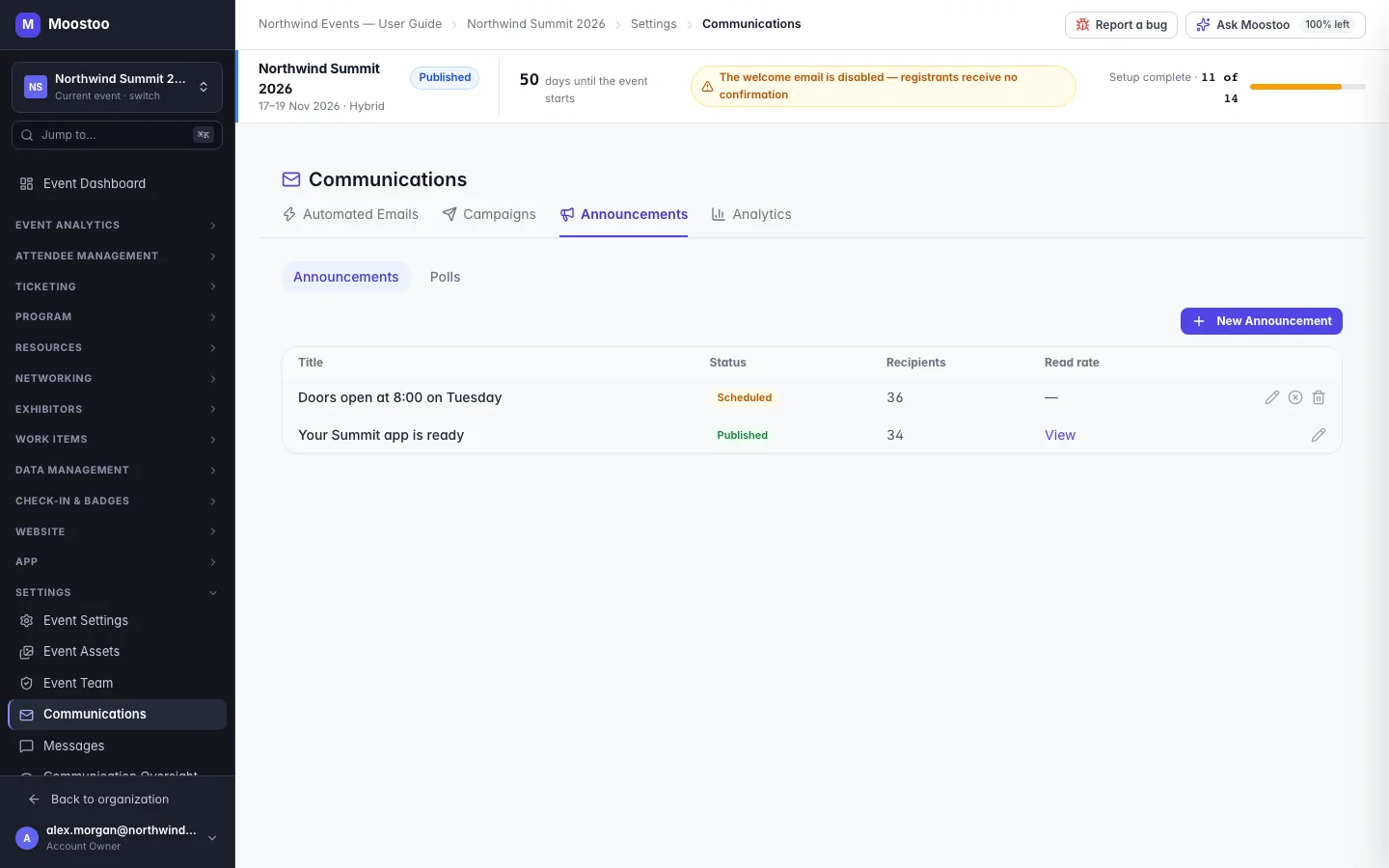
Open Settings → Communications → Announcements. Two switches at the top choose between Announcements and Polls. Each list shows what you created — with its status (draft, scheduled, published, and for polls closed), recipients, and read rate or votes — and opening a published one shows its results.
Announcement A title and a formatted message (headings, lists, links, images). When published, it appears in the From the organizers panel of the app's home screen and is pushed to the phones of attendees who allow announcement notifications. You can edit a published announcement; attendees see the new text the next time they open it.
Poll A question with 2 to 10 options, Single choice or Multiple choice, and an optional Auto-close time. Each attendee votes once and then sees the results so far. Votes are anonymous: you see totals per option and the response rate, never who chose what.
Audience All attendees, or conditions built exactly as for an email campaign: match ALL or ANY of attendee type, ticket type, session registration, check-in status, a registration answer, registration date, or whether they opened or clicked one of your campaigns. Is none of also includes people with no value. The live recipient count shows how many people will receive it; with no matching attendees, publishing is disabled.
Delivery Publish now, or Schedule a date and time. A scheduled item can be cancelled from the list until it goes out. Save draft keeps it without sending.
- Targeting is decided when you publish. People who join an attendee type afterwards do not receive an announcement that was already published.
- A poll's options are fixed once it is published, so every vote counts the same question.
- Results update live: open a published announcement to see how many were targeted, delivered and read; open a poll to see total votes, response rate and the count for each option.
Step by step
Post an announcement
Open Settings → Communications → Announcements and click New Announcement.
Write a short title and the message.
Under Audience, keep All attendees, or switch it off and click Add condition — for example Check-in status · not checked in AND Attendee type · is any of · VIP reaches the VIPs who have not arrived yet. Check the recipient count.
Under Delivery, choose Publish now or Schedule and set the time.
Click Publish to N (or Schedule), or Save draft to finish later.
Run a poll
Switch to Polls and click New Poll.
Type the question, choose Single choice or Multiple choice, and enter at least two options.
Optionally set Auto-close so voting stops by itself.
Choose the audience and delivery exactly as for an announcement, then publish or schedule.
Open the poll from the list to follow the results.
Ask Moostoo
Ask Moostoo can post an announcement, or save it as a draft, for the event you have open.
Post an announcement to all attendees: 'The opening keynote has moved to Hall A.'
Draft an announcement for VIP attendees titled 'VIP dinner tonight' saying the shuttle leaves at 18:30 from the main entrance.
Without 'post' or 'now' the assistant saves a draft you can review before publishing.
What attendees see
In the attendee app
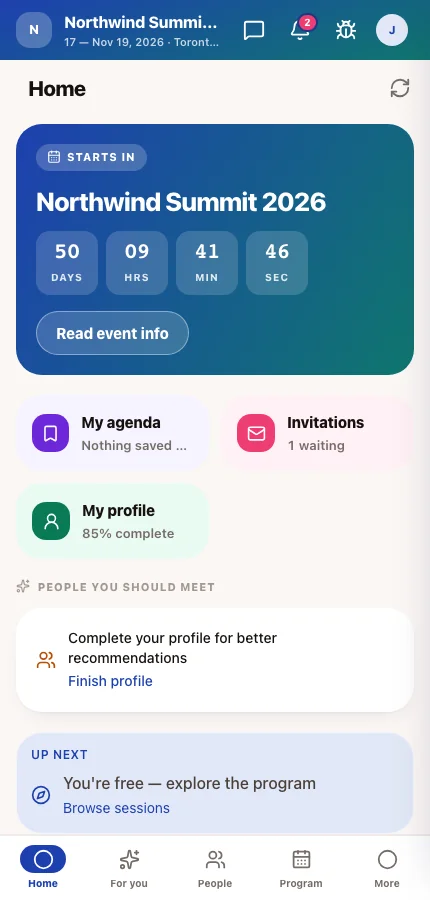
Published announcements and polls appear in the From the organizers panel of the attendee's home screen, newest first with an unread dot, and a push notification reaches the phones of attendees who allow announcement notifications. In a poll they tap an option, Vote, and then see the results; a closed poll shows Closed and its final results. The panel is the Announcements & Polls section of the app's home screen; if you switch that section off in the App Designer, announcements are still pushed to phones, but the app no longer lists them anywhere.
Tips
- Keep titles short and specific — Keynote moved to Hall A is read from the lock screen; Update is not.
- Target narrowly: an announcement about a session's room change should go to the people registered for that session.
- Use ANY to reach several groups at once (speakers or sponsors) and ALL to narrow one group down (VIPs and not checked in).
- Use Auto-close on polls that decide something, so late votes cannot change an answer you already acted on.
- For longer or less urgent news that people need to keep, send an email campaign instead.