
Communication oversight
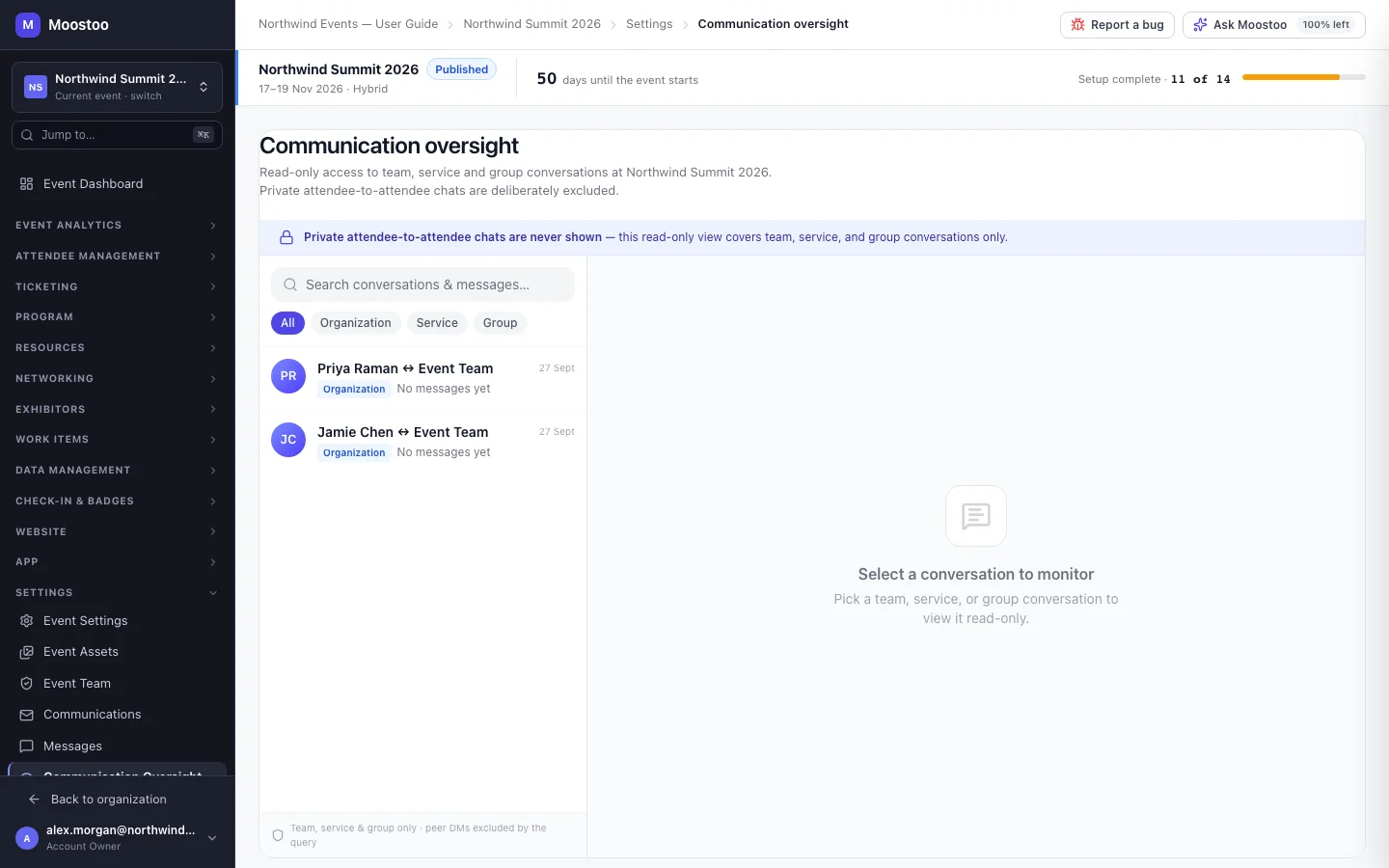
When service is delivered through chat, the quality of that chat is the quality of your event. Oversight lets an organizer look over the shoulder of the event team channel, service providers' conversations and group chats: search them, open a thread, and jump from a request to the work item it became. It is strictly read-only and deliberately blind to private chats between attendees, so attendees can trust that their personal conversations stay personal.
How it works
| Conversation | Shown? |
|---|---|
| Event team channel (an attendee and your organization) | Yes — Organization |
| A service provider's conversation with an attendee | Yes — Service |
| Group chats, including their members and settings | Yes — Group |
| Private chat between two attendees | Never, not even by a direct link |
- Read-only. There is no message box. To answer an attendee, use the link to Messages, which opens the event team channel.
- Access is a permission. Can View Communication Oversight is on by default for Account Owners and Super Users and can be granted to members on the Event team. Volunteers, partners and service providers never get it. Without it, the menu item is hidden and the screen says you don't have access.
- A private chat becomes visible only when it becomes service. If a service provider converts a request made in a private chat into a work item, that conversation is from then on a service conversation and appears here.
- Work items and conversations link both ways. A service thread that produced a work item shows View work item; a work item created from chat links back to its conversation here.
Step by step
Open Settings → Communication Oversight.
Filter by All, Organization, Service or Group, or search conversations and messages by name or text.
Click a conversation to read the whole thread. For a group, its name, posting mode, add-member mode and creator are shown beside it.
Click View work item to open the work item a service request became.
To reply to the attendee, click To reply, use Messages.
What attendees see
Attendees are not affected and see nothing of oversight: it never posts, never marks messages as read and never appears in their app. Their private one-to-one chats with other attendees are excluded by design.
Tips
- Grant the permission sparingly — oversight shows everything your service providers say to attendees.
- Use it after the event to review how requests were handled, and to spot questions worth answering in an FAQ next year.
- If a group chat is being misused, oversight lets you read it, but only a group admin can remove members — ask one, or take part in the group yourself.