
Automated emails
Every event produces a stream of moments that deserve an email — someone is added to the event, registers, is invited to a meeting, joins a booth team, gets a hotel room confirmed. Moostoo sends those emails for you at the right moment, to the right person, on their own clock. This screen is where you switch each one on or off for this event and rewrite it in your own voice, so the messages people receive sound like your event rather than like software.
How it works
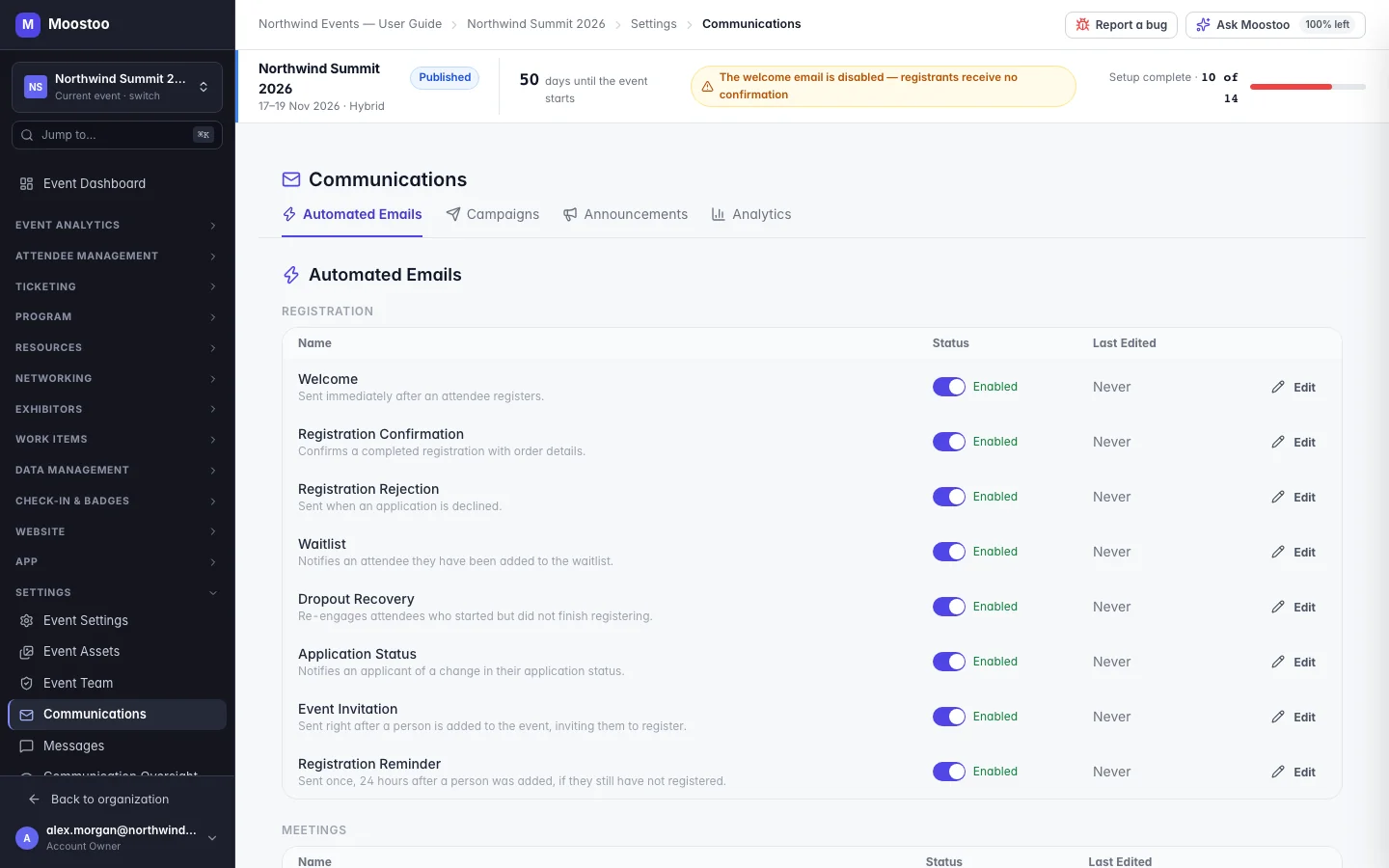
Open Settings → Communications; the Automated Emails tab opens first. Emails are grouped by category. Each row shows the email's name, what triggers it, an Enabled / Disabled switch and when it was last edited. Every email starts from a ready-made design, so it works well before you edit anything; your edits and switches apply to this event only.
| Category | Emails and when they are sent |
|---|---|
| Registration | Event Invitation when you add someone to the event who has not registered yet; Registration Reminder once, 24 hours after the invitation, if they still have not registered; Welcome when someone registers or their application is approved. For applications: Registration Confirmation when an application is approved, Waitlist when it is waitlisted, and Registration Rejection when it is declined — the rejection carries the message you write when declining. |
| Meetings | Meeting Invitation; Meeting Booking Confirmation to both people when it is accepted; Meeting Declined; Meeting Cancellation; Reschedule Request, Reschedule Accepted and Reschedule Declined; Added to a Meeting for a guest; and a Meeting Reminder to both people five minutes before a confirmed meeting starts (sent again if the meeting is moved). |
| Booth | Booth Invitation when someone is added to a booth team or made a booth admin; Booth Welcome the first time they open their booth; Booth Reminder 24 hours after the invitation if they have not opened it yet. |
| Accommodation | Hotel Request Received, Hotel Reservation Confirmed, Hotel Reservation Changed and Hotel Reservation Cancelled — see Hotel room blocks. |
| Check-in | Badge Ready when a badge is sent to an attendee's device. |
| Sessions and General | Templates for session, check-in, event and post-event messages (see the note below). |
Not every template has a trigger yet
The list also holds templates that Moostoo does not yet send by itself: Dropout Recovery, Application Status, Session RSVP Confirmation, Session Reminder, Speaker Confirmation, Check-in Confirmation, Event Reminder, Event Update, Post-Event Thank You and Password Reset (password-reset codes come from the sign-in service, not from this template). You can prepare their wording now; to reach attendees with that kind of message today, use a campaign or an announcement.
- A disabled email is simply not sent. Nothing queues up; switching it on later does not send the ones that were skipped.
- Meeting emails respect people's own privacy settings. A meeting request an attendee blocked is silently dropped, and no email is sent for it either. Requests handled in a booth's own meeting queue send no automated email.
- Times are written on the recipient's clock for online events, with the timezone named, because an email cannot show both clocks.
- Categories follow your edition and features. A Ticketing & Check-in Console organization does not see meeting, booth, accommodation, session or application emails.
- Attendees also get a notification digest. App notifications an attendee has not seen are gathered into one email on the schedule they choose in their notification preferences (every 2 hours by default); a meeting update already sent as a Meetings email is not repeated in it. The digest is the attendee's own setting and is not configured here.
- Cloning an event can copy your edited emails when you tick Automated email templates; it is unticked by default because the wording usually changes for a new edition.
Step by step
Open Settings → Communications. The Automated Emails tab opens.
Use the switch in the Status column to turn that email on or off for this event. The change applies immediately.
Click Edit on an email to open it in the email editor.
Editing a disabled email is allowed; a banner reminds you that it is disabled and your changes take effect only once you enable it.
Change the Subject line — type {{ or use Personalize to insert a variable such as the attendee's first name or the event name.
Edit the body: rewrite text, change the button, add your logo or an image, and turn on Sample data to read it as a recipient would.
Click Send Test to receive a copy yourself, then Save.
Ask Moostoo
Ask Moostoo can switch automated emails on and off for the event you have open.
Turn off the registration reminder email for this event.
Switch the meeting reminder email back on.
Ask Moostoo shows the change and waits for your confirmation before applying it.
What attendees see
In attendee emails
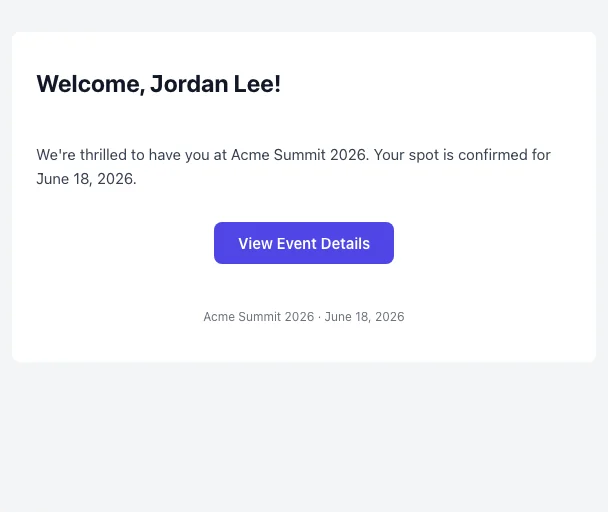
Attendees, booth members and meeting guests receive each enabled email at the moment its trigger happens, personalised with their name, the event and the details of what happened — a meeting's time and place, a booth role, a hotel stay.
Tips
- Before you add attendees in bulk, check Event invitation and Registration reminder — every person you add receives the first immediately and the second a day later.
- Keep one clear call to action per email; most templates already have one pointing at the right place in the attendee app.
- A variable that the email cannot fill is flagged in the editor's toolbar as Not available here — replace it, or it is sent empty.
- Emails of a sandbox event are captured, never sent.