
Sessions
The programme is what most attendees open the app for. Every session you add here appears in the attendee app's Program, on the public website's Schedule, in speakers' portals and in the session check-in scanner — so this is where the event's timetable becomes real. Getting the access type right also decides who can see a session at all, and who can put it on their agenda.
How it works
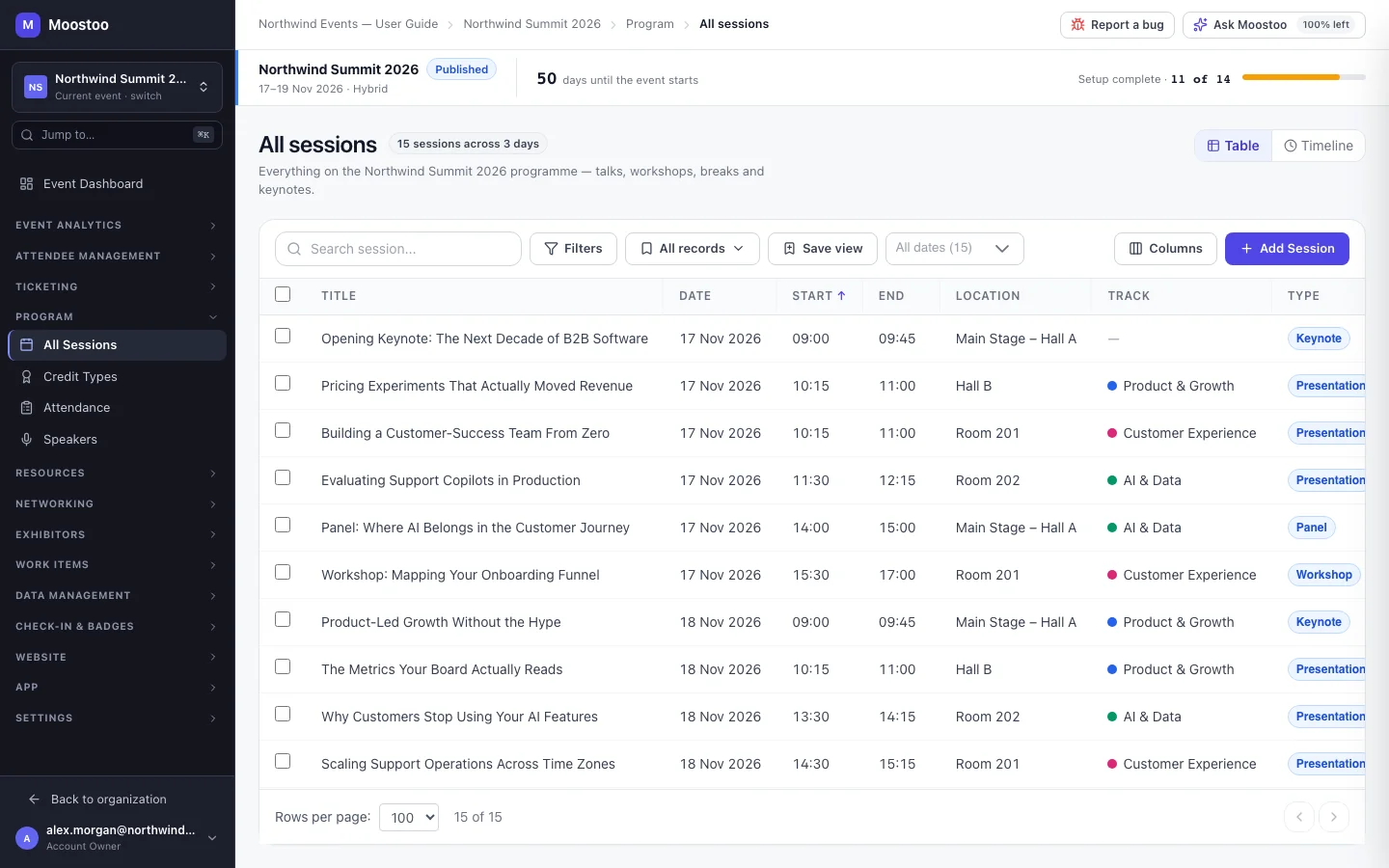
A session has a title, a day inside the event's dates, a start and end time on the event's clock, a session type and an access type, and optionally a description, a location, a track, speakers, a stream, a capacity override, tags, credits and attendance tracking. The table view (the default) lists every programme session; the timeline view lays the days out one under the other, with a column per location and blocks coloured by track.
Session type Presentation, Panel, Workshop, Break, Social or a type you define. It drives the filters attendees see in the Program. Meeting/Networking is not offered here — meeting sessions have their own home, see Meeting sessions.
Access type Open, RSVP, Invite Only or Restricted by Attendee Type. Only Restricted by Attendee Type changes what attendees can do today: a session restricted to the attendee types you tick is hidden from everyone else's Program and refused on the server if they try to add it to their agenda. RSVP and Invite Only are stored and shown to your team, but the attendee app currently treats them like Open — an Invite Only session is not hidden from uninvited attendees.
Capacity Defaults to the location's capacity; a Capacity Override on the session wins. Once as many attendees have added the session to their agenda as it has seats, it shows as Full and nobody else can add it. A session larger than its room is a warning, not a refusal.
- Conflicts are refused: a speaker in two overlapping sessions, or two sessions in the same room at once, cannot be saved.
- Dates stay inside the event. The day picker only offers the event's days; widen the event's dates in Event settings first if you need another day.
- A finished session can't be added to an agenda, and attendees can't add two sessions that clash without confirming it.
- Times are wall-clock times on the event's timezone. Fixing a wrong timezone later does not move your sessions — see Timezone.
Step by step
Open Program → All Sessions and click Add Session.
A large quick-add window opens: the form on the left, the sessions you add in this sitting on the right.
Enter a title, pick the day, start and end time and the session type.
Choose a Location (or pick Create new location at the bottom of its list to add one on the spot) and, if you use them, a Track.
Pick the Access type. For Restricted by Attendee Type, choose every attendee type that may attend — at least one is required.
Add the speakers, and a description attendees will read.
Turn on Enable Streaming if remote viewers watch it: choose the Stream Source (Zoom, Teams, Streamyard or Custom URL) and paste the Stream URL or the provider's embed code.
Click Add session. It is saved immediately, and the form keeps the day, type, track, location and access type — with the next start set to this session's end — so the next session is quicker to add.
If Moostoo refuses the save — a speaker already presenting at that time, a room already booked, a day outside the event — the reason is shown on the form and nothing is added. To change a session later, click it in the table and choose Edit.
Adding a full programme at once? Import it from a spreadsheet through the Import/Export Hub. Imported rows go through exactly the same checks as the form.
What attendees see
In the attendee app
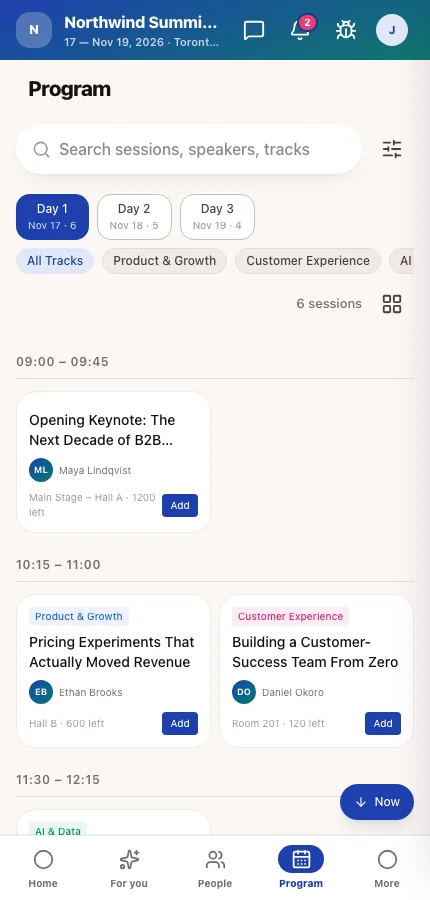
Attendees browse the programme by day, track and type, open a session to read its description and speakers, and add it to their agenda while seats remain. Sessions restricted to other attendee types never appear. A streamed session can be watched from the app, and is listed on the attendee's Online meetings screen when they have saved it.
On the event website
Once the website is published, its Schedule section lists the same programme sessions — meeting sessions are never shown there.
Tips
- Use Break and Social types for coffee and lunch so attendees see the whole day, but can filter them out.
- Need a private session, such as a VIP dinner? Use Restricted by Attendee Type with a VIP type — Invite Only does not hide a session from attendees today.
- Deleting a session removes it from every attendee's agenda. Prefer editing it when only the time changed.
- Several sessions can be selected in the table and deleted together; any Moostoo refuses to delete are reported one by one.
Ask Moostoo
Add a 45-minute panel called 'Scaling Customer Success' on 2026-11-18 at 14:00.
The assistant sets title, day, times, type, access, description, tags and streaming. Set the location, track and speakers in the session form afterwards (or name the speaker with the assign-speaker request).
Change the access of the opening keynote to RSVP.
Edits the title, day, times, type, access, description, tags and streaming of an existing session.
Which sessions are on day 1?