
Downloads
Big reports can take a while to prepare, and an emailed export goes out of date in someone's inbox. Downloads is the one place every file you ask for goes. A quick export still saves at once. A slow one keeps preparing while you work.
How it works
Every Export button in the admin app creates an entry in Downloads. That includes analytics reports, All meetings, the attendee, speaker, company and contact lists, tickets, email analytics, the rooming list and the Import/Export Hub.
The file covers the whole report with its filters, not only the page on your screen.
How a file arrives
- A fast export saves at once, as usual. It is also listed in Downloads.
- A slow export keeps going in the background. The Downloads button shows a spinner and a count. While the admin app stays open, the file saves itself when it is ready.
- Nothing is emailed. Each run of a scheduled post-event report lands in the Downloads of the person who scheduled it, marked Scheduled.
- Files are kept for 7 days, then the entry reads Expired. Export again for a fresh file.
- If a file fails, its entry shows the reason in red, and an Export failed notice appears.
Mine and Everyone
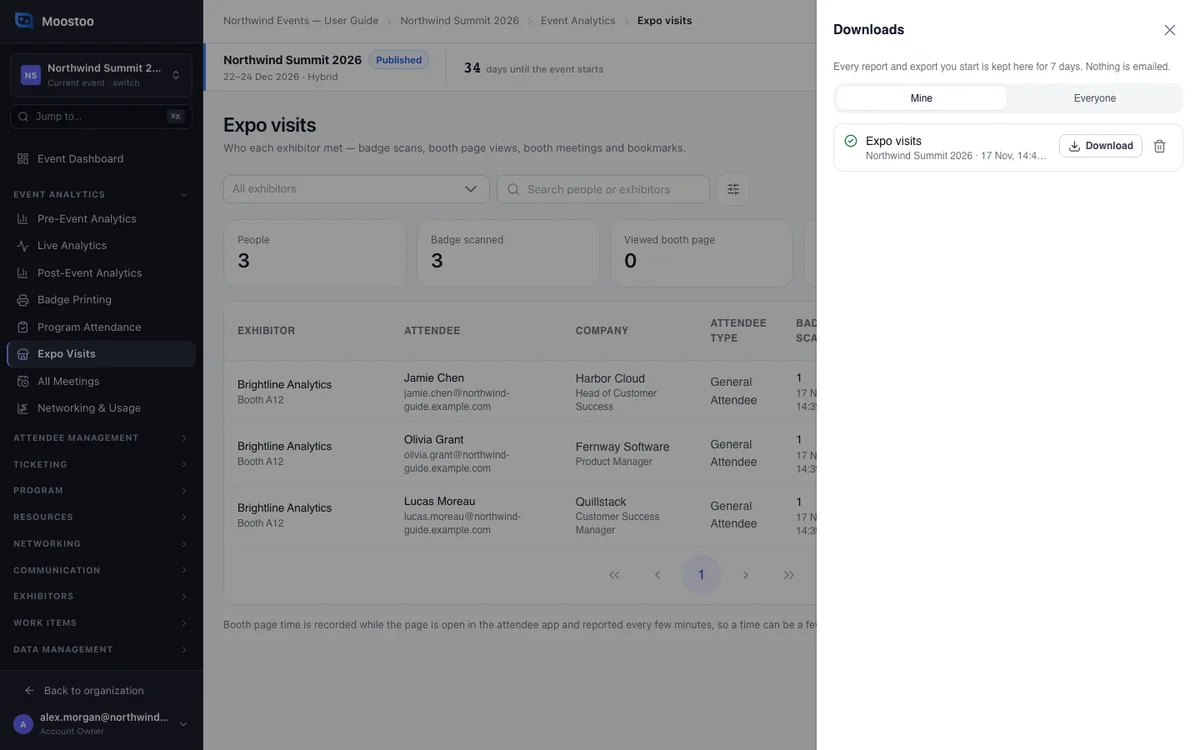
Mine The files you asked for. Most team members see only these.
Everyone Account Owners and Super Users also see the whole team's files, each with Requested by. Useful when a colleague is away.
Step by step
Get a report's file
On a report or list, click Export, choose the format and click Export in the dialog.
If the file saves straight away, you are done. Otherwise carry on working.
Click Downloads in the top bar to open the panel.
Each entry shows the report, the event, when it started, the format and the size.
Click Download beside an entry to save it.
You can download it again as often as you like within the 7 days.
Account Owners and Super Users: switch to Everyone to see the team's files.
What attendees see
Nothing changes for attendees. Downloads is in the admin app only. Each file is visible to the person who asked for it and to the organization's Account Owners and Super Users.
Tips
- Turn on Reports in your notification preferences to hear when a slow or scheduled report is ready.
- Many exports contain names and email addresses. Remove an entry with the bin icon when you no longer need it.
- A file is a snapshot. During the event, export again rather than reusing yesterday's file.
- Exports from the Import/Export Hub are here too. The Hub's Exports tab only keeps the scheduled-export settings.