
Applications
Some passes are not for everyone: speakers, investors, hosted buyers, free startup passes. Setting an attendee type to Apply turns registration into a request, and this screen is where you decide. Approving turns an application into a real registration and sends the confirmation; declining sends your message; waitlisting keeps the person in line without promising anything. Auto-approval rules take the obvious decisions off your hands.
How it works
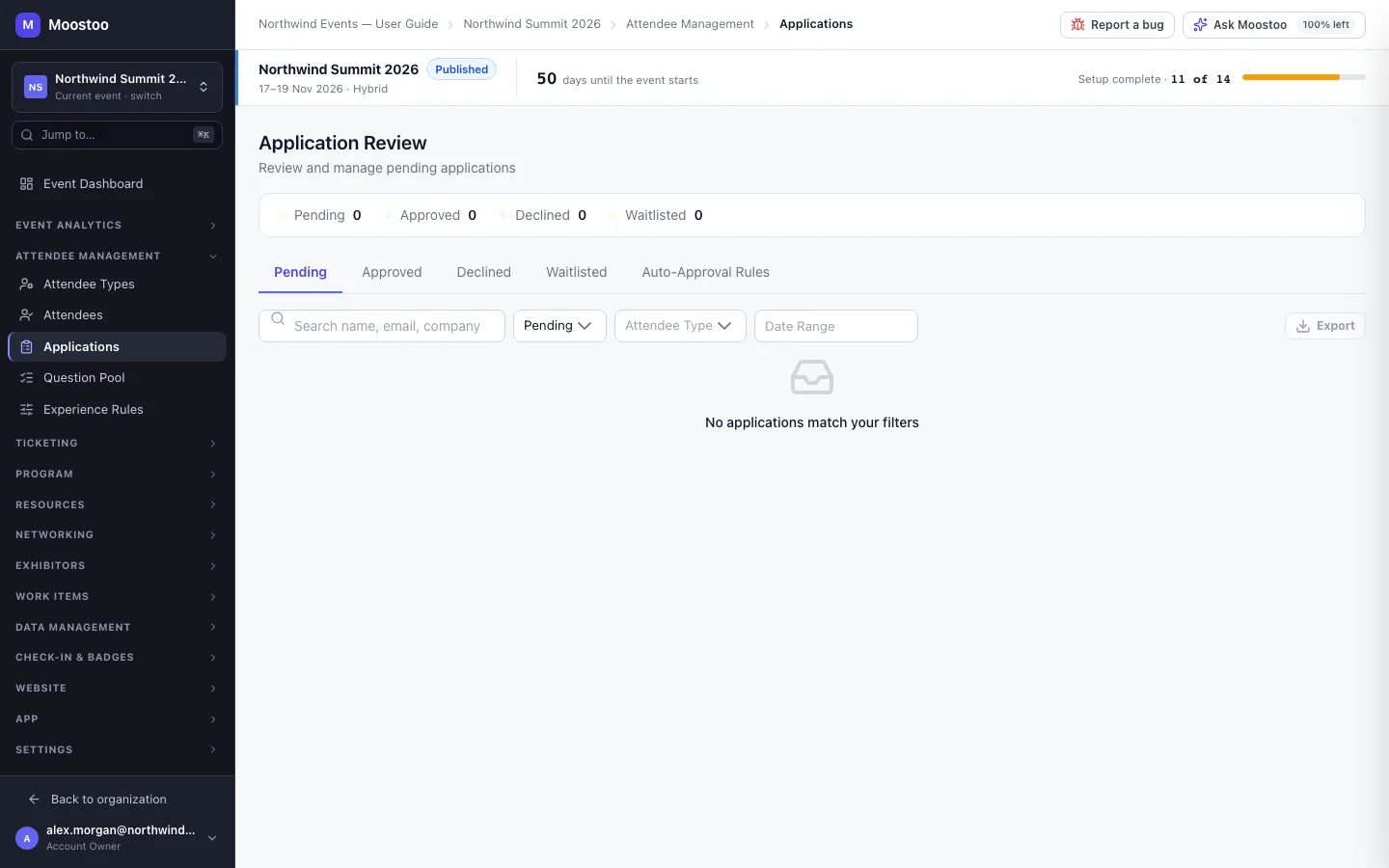
Whether someone registers or applies is decided by their attendee type: each type is set to Register or Apply. When a registrant chooses an Apply type on the registration form, their submission arrives here as a Pending application instead of becoming a registration.
Pending Waiting for your decision. The Pending tab shows how many are waiting.
Approved The application became a registration: the person is on the attendee list with the attendee type they applied for, and receives the registration confirmation.
Declined Refused. The person receives your decline message — the default one from the rules tab, or one you edit for this decision.
Waitlisted Neither yes nor no; the person receives your waitlist email. Approve them later if a place opens up.
- Capacity: set an overall event capacity on the Auto-Approval Rules tab (blank means unlimited); the header shows how many places are used and marks the event At capacity. Approving beyond it asks first — Approve Anyway or Waitlist Instead.
- Decisions can be changed. Declining or waitlisting someone you already approved asks you to confirm, and removes them from the attendee list again.
- Auto-approval rules approve an application the moment it arrives when every condition matches. A condition compares the Email domain, the Attendee type or an Answer to question (equals, does not equal, contains, greater than, less than). Rules can be switched on and off without deleting them.
- Admin defined attendee types cannot be applied for. A type you reserve for yourself is never offered on the public form, and an application naming one is refused.
- Paid passes: the drawer shows whether the application is for a paid event. For an Apply type, payment follows approval rather than preceding it — an approved applicant for a paid ticket is also emailed a request to complete payment.
Step by step
Review applications
Open Attendee Management → Applications. The Pending tab opens first.
Search by name, email or company, or filter by status, attendee type or date. Add Answer columns to compare applicants by the questions that matter to you.
Click an applicant to open the drawer with their details and every answer they gave.
Click Approve, Decline or Waitlist.
Declining opens a dialog pre-filled with your default decline message; edit it for this person if you like, then Confirm Decline.
To decide many at once, tick their rows and use Approve All, Decline All or Waitlist All.
Approve automatically
Open the Auto-Approval Rules tab and click Add Rule.
Name the rule and add conditions. All conditions must match for the rule to approve.
Leave Active on and click Save Rule.
Under Decline Message & Capacity, set the event capacity and the default decline subject and message, then Save.
The message can use the merge fields {{attendee_name}} and {{event_name}}.
What attendees see
In the attendee app
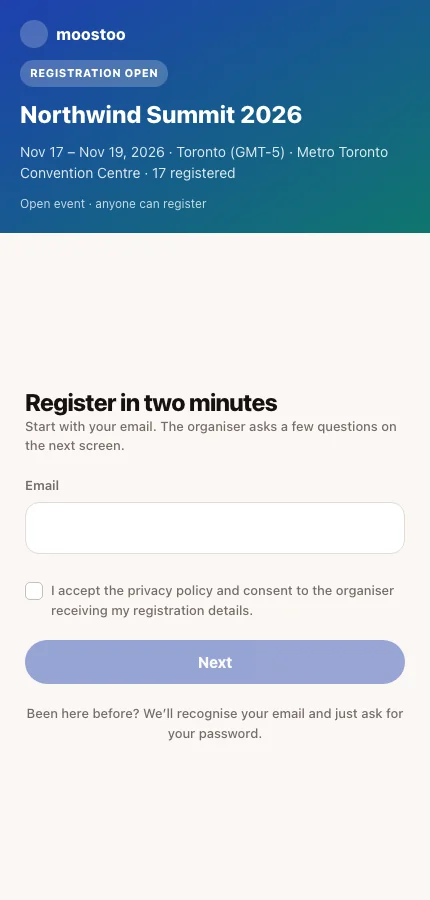
Applicants fill in the same registration form as everyone else. Choosing an attendee type set to Apply submits an application rather than confirming a registration; they hear from you by email when you approve, decline or waitlist them.
In attendee emails
An approved applicant receives the registration confirmation and welcome emails from your automated emails; a waitlisted one receives the waitlist email; a declined one receives your decline message.
Tips
- Switching an attendee type from Register to Apply does not affect people already registered with it; only new submissions become applications.
- Write the default decline message before the first application arrives — a bulk decline uses it for everyone.
- Rules act only on new applications. After adding a rule, review the pending ones by hand.