
Timezone
Every session time, meeting slot and check-in window you type is a time on the event's clock. Picking the right timezone once makes "09:00" mean nine in the morning at the venue for everyone. If the timezone was set wrong, Moostoo treats changing it as a correction: the times you typed stay as you wrote them, and you are shown exactly what else is affected before anything is saved. For online events the timezone also decides the reference clock from which each attendee's own local times are calculated.
How it works
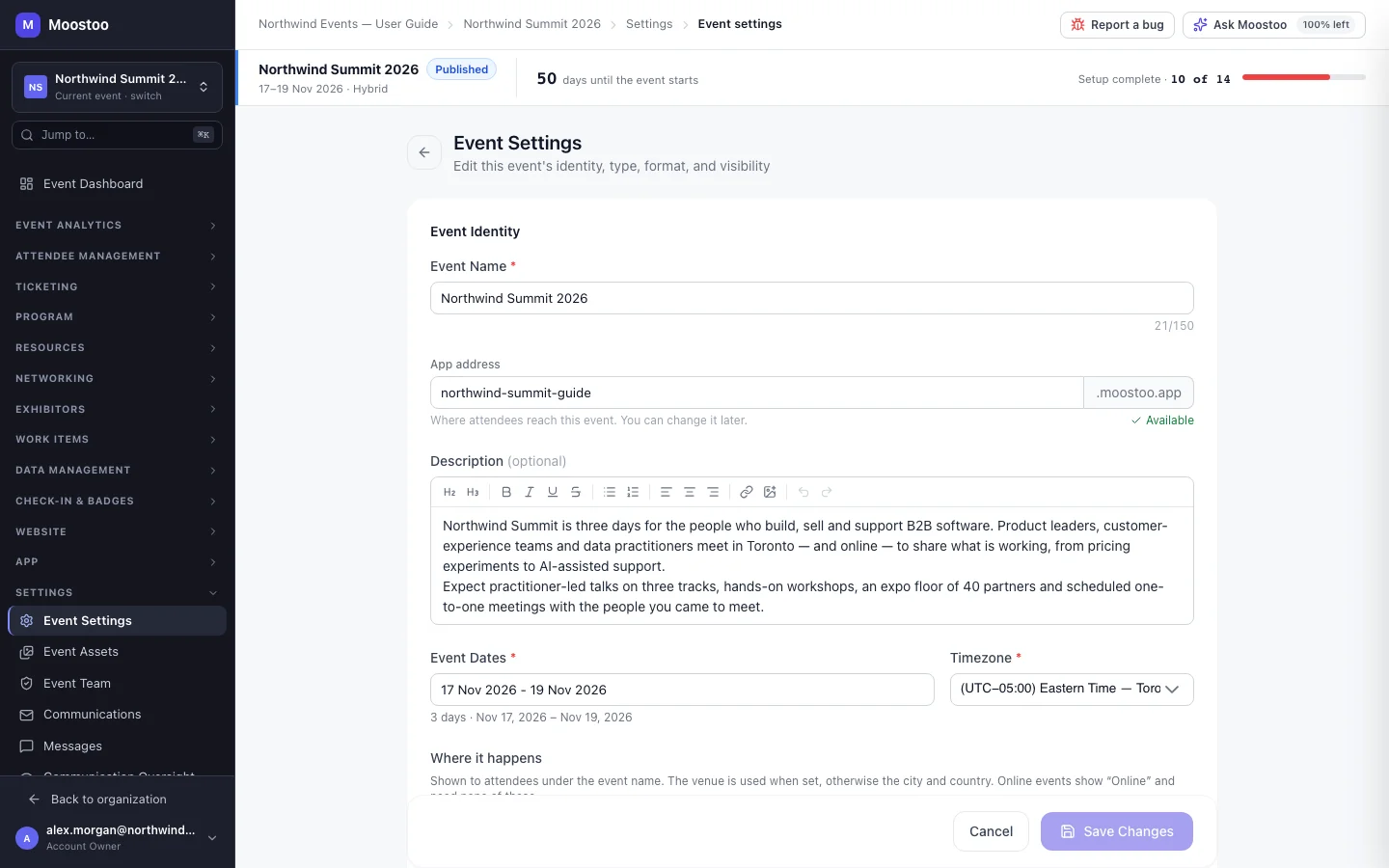
The event's timezone is set on Event settings. The picker is searchable by city, by timezone name or by offset (GMT+3, UTC-05:00) and lists clocks grouped by region, such as (UTC−05:00) Eastern Time — Toronto, New York.
Written times Sessions, meeting slots, confirmed meetings, proposed meeting times, table reservations, booth meeting sessions, the check-in window and the event's days. These are wall-clock readings — "14:00 on day 2" — and keep that reading when the timezone changes.
Moments Scheduled announcements, scheduled or open polls, scheduled email campaigns, deadlines and ticket sales windows. These are fixed points in time and still happen when they would have — so after a timezone change they read differently and deserve a check.
When you save a new timezone, Moostoo first asks the server what the change touches and opens Change the event’s timezone?. It shows the old and new zone and two lists — These keep their times as written and These keep their moment — naming only the lines that have something in them. Nothing is saved until you confirm.
| Event format | Session, meeting and slot times are shown on | Days of the agenda follow |
|---|---|---|
| On-site | The event's clock | The event's days |
| Hybrid | The event's clock | The event's days |
| Online | Each attendee's own clock | The attendee's own days |
- On-site and hybrid events show the venue's clock — the attendee is (or will be) there. Hovering a time shows it on their own clock too when the two differ.
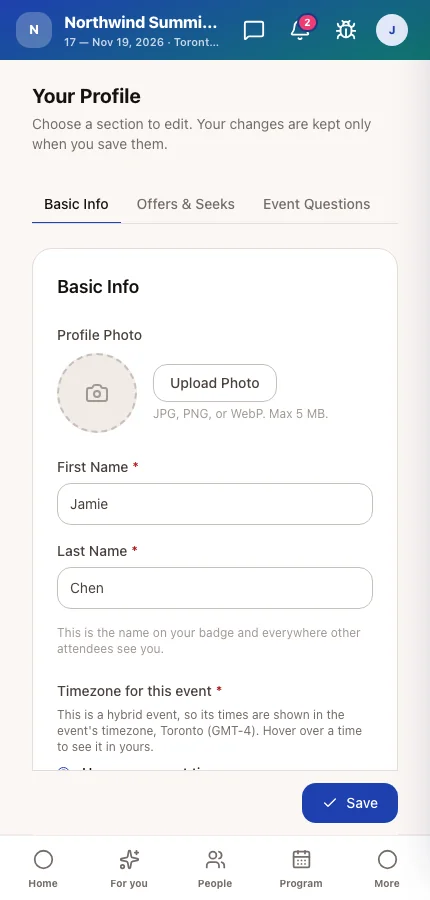
- Online events show every time on the attendee's own clock, because there is no venue to be in. An attendee's clock is taken from their device the first time they use the app, and they can choose a different one for this event on page 1 of their profile.
- Message and notification times are always shown on the attendee's own clock, whatever the format.
- Changing an online event's timezone notifies people. Everyone with an upcoming confirmed meeting — both parties and guests who have not declined — gets one Meeting times changed notification naming the new zone and their next meeting's time on their own clock. Attendee off-time blocks keep the moment each attendee chose. On-site and hybrid attendees are not notified: their readings did not change.
Step by step
Correct the event's timezone
Open Settings → Event Settings.
In Timezone, search for the right city or offset and pick it.
The event's days stay the days you chose — they are moved onto the new zone, not re-read in it.
Click Save Changes. Moostoo checks what the change affects.
If that check fails, the dialog says so and only offers Cancel — nothing is saved.
Read both lists. Note any scheduled sends, deadlines or sales windows under These keep their moment.
Click Change timezone and save, or Cancel to keep editing without saving.
Afterwards, open each item from the keep their moment list and check its time still says what you intended.
Deadlines are not moved for you
A ticket sales window closing "at 17:00" keeps its moment, so under the new timezone it may now read 16:00 or 23:00. Revisit ticket types, promo codes and scheduled campaigns after a timezone change.
What attendees see
In the attendee app
Each attendee's profile has a required Timezone for this event on its first page: Use my account timezone or Use a different timezone for this event. The setting explains whether this event's times follow it — for an online event it does; for on-site and hybrid events times stay on the event's clock.
In attendee emails
Emails that name a time for a person — a moved meeting, the notification digest — use the recipient's clock for online events and state the zone, because an email cannot show a second clock on hover.
Tips
- Set the timezone in the creation wizard before you build the programme. It is safe to correct later, but it is simplest when nothing is scheduled yet.
- If a session appears an hour off to you, it is almost always your computer's clock, not the event's. Moostoo's admin screens always draw event times on the event's clock.
- Choose the zone of the venue for a hybrid event, not the zone most remote attendees are in — hybrid attendees see the venue's clock.
- Changing format and timezone in one save counts the dialog's figures on the old format. Save them separately if you want the online notification count to be exact.