
Exhibitor page groups
At an event with forty exhibitors, one alphabetical list buries your headline sponsors next to the smallest startup table. Groups let you give the Exhibitors page a shape that matches your floor and your sponsorship packages: sponsors first by tier, a startup zone of its own, exhibitors by hall. Because a filter group picks companies by their type and tier, a sponsor you add later lands in the right group without you touching the page.
How it works
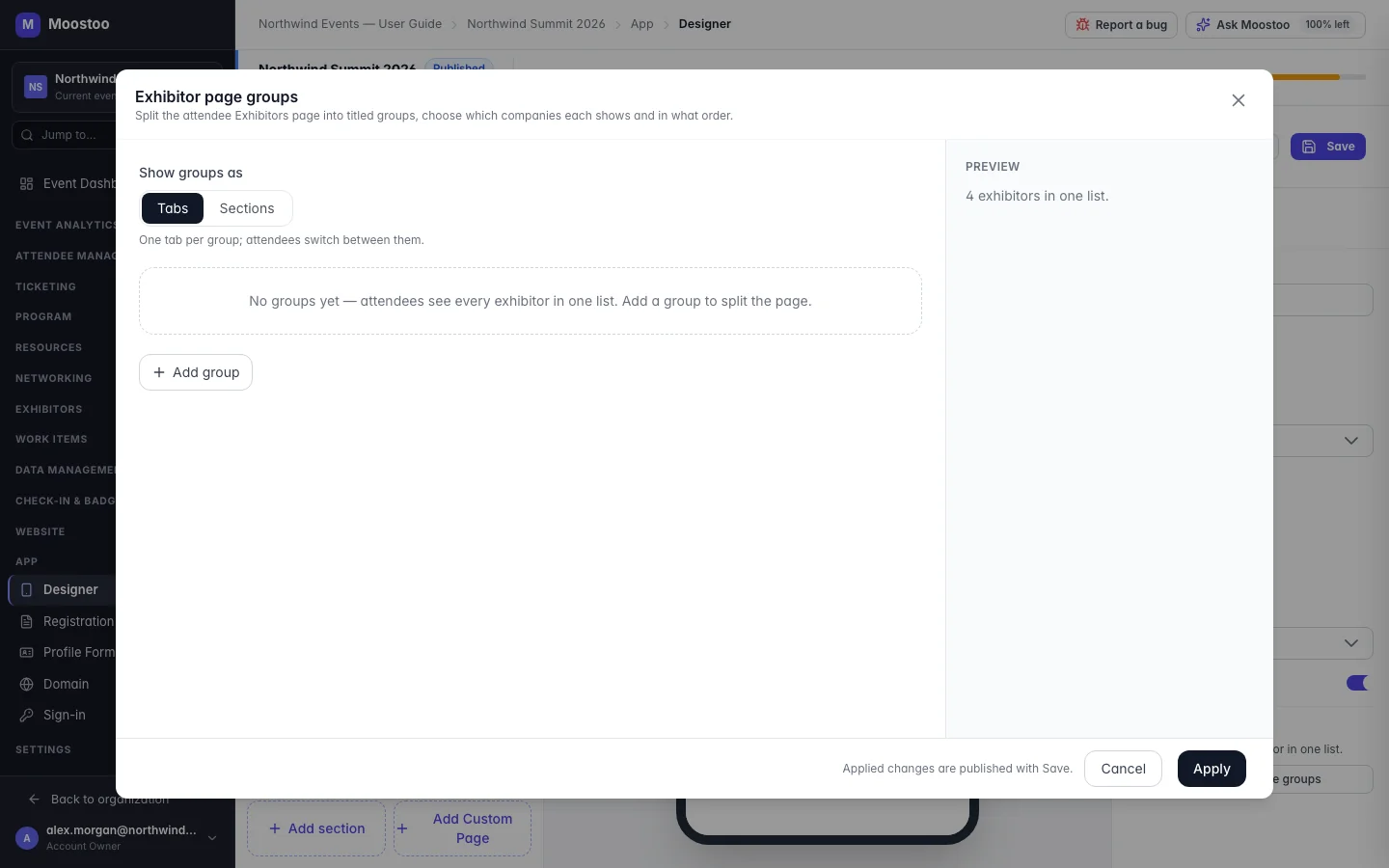
Groups are an advanced option of the Exhibitors page in App → Designer. With no groups, attendees see every exhibitor in one list, as before. With groups, the page's main tab is divided into the groups you define, in your order.
Show groups as Tabs — one tab per group, attendees switch between them. Sections — every group on one page, one titled section after another, each showing its first eight companies with a Show all link.
By filter The group holds every company matching its Type, Sponsorship tier and Industry choices. A list left empty means any; the lists combine, so Sponsor + Platinum, Gold means Platinum or Gold sponsors.
Pick companies The group holds exactly the companies you choose, in the order you choose them.
Order Manual (set the order below), Alphabetical, Sponsorship tier (Platinum first, then Gold, Silver, Bronze, other tiers, none) or Booth number. In a filter group ordered manually, a company that joins later is added after the ones you ordered, alphabetically — it is never left out.
- A company can be in several groups — for example in Platinum sponsors and in AI & Data.
- A group with no companies is hidden from attendees, and the dialog's preview tells you so.
- Only active companies count. A company you deactivate or remove from the event leaves every group at once.
- Up to 20 groups; titles up to 80 characters.
Step by step
Open App → Designer and click Exhibitors in the menu.
Under Advanced, click Exhibitor page groups.
Choose Show groups as: Tabs or Sections.
Click Add group and give it a Group title.
Under Companies, choose By filter and pick types, tiers and industries — or Pick companies and choose them one by one.
Choose the Order. For Manual, move the companies into place with the up and down arrows.
Add more groups, reorder them with the arrows, and check the Preview.
Click Apply, then Save in the Designer header to publish.
What attendees see
In the attendee app
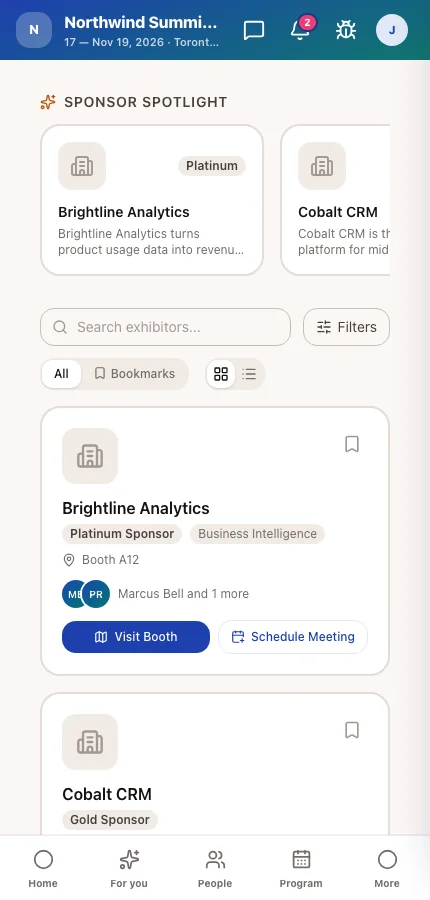
The Exhibitors page shows your groups as tabs or titled sections. Search and filters narrow every group at once, and a group left empty by a search disappears. The Bookmarks tab and the sponsor spotlight work as before.
Tips
- Prefer By filter for sponsor tiers: set each company's type and tier on Event companies and the groups keep themselves up to date.
- Use Pick companies for a curated shortlist, such as Launching this week.
- Tabs suit many groups; Sections suit two or three, where attendees scroll through everything anyway.
- The public website's Exhibitors section has its own selection — groups here only change the attendee app.