
Add and edit attendees
Not everyone arrives through registration or an import. VIPs, speakers, sponsors' guests and last-minute additions are usually typed in by you — often a dozen at a time from a list someone emailed you. The quick-add window is built for that: each person is saved the moment you add them and appears in a list beside the form, and the choices you repeat stay filled in. Editing is where you fix what is wrong before it ends up on a badge or in a report.
How it works
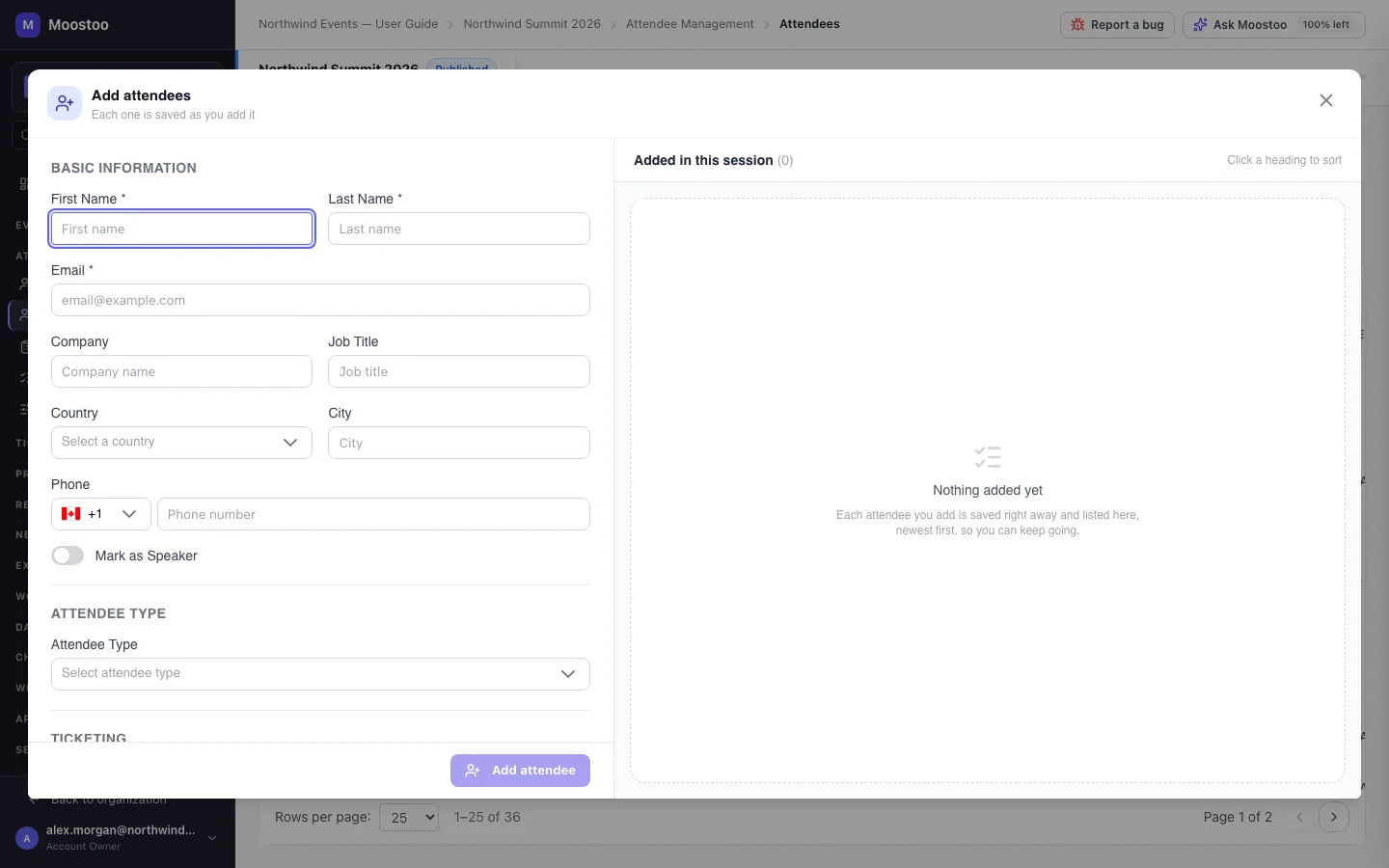
Add on the attendee directory opens Add attendees — Each one is saved as you add it. The form is on the left; on the right is a table of only the people you added in this sitting (Name, Email, Company, Attendee type, Ticket ID), newest first, re-sortable by clicking a heading. The table is cleared when you close the window.
| Section | Fields |
|---|---|
| Basic Information | First Name, Last Name and Email (required), Company, Job Title, Country, City, Phone, Mark as Speaker. |
| Attendee Type | One of the event's types — or Create attendee type from the list itself. |
| Ticketing | The ticket source and, when tickets are sold in Moostoo, the Ticket Type; with a connected platform the ticket type arrives with its import. Ticket ID and QR Code are always offered. |
| Profile — Offers & Seeks | What I Offer and What I'm Seeking, used by AI matchmaking. |
| Profile Questions | Every question in the event's question pool scoped to Profile only or Both, so you can record the person's answers as you add them. |
| Notes | Internal notes attendees never see. |
- Company is free text — whatever you type is what the attendee's card and badge show for this event. It does not have to match a company in your directory.
- Country is picked from a list and City is free text, so "Turkey", "Türkiye" and "TR" all become one country in reports.
- Phone numbers are stored in international format. Pick the country and type the number; an invalid number is refused on the field. An older number stored in another format is still shown and is left alone unless you change it.
- An email already on this event is refused with An attendee with this email is already registered for this event, shown under the email field — nothing is added.
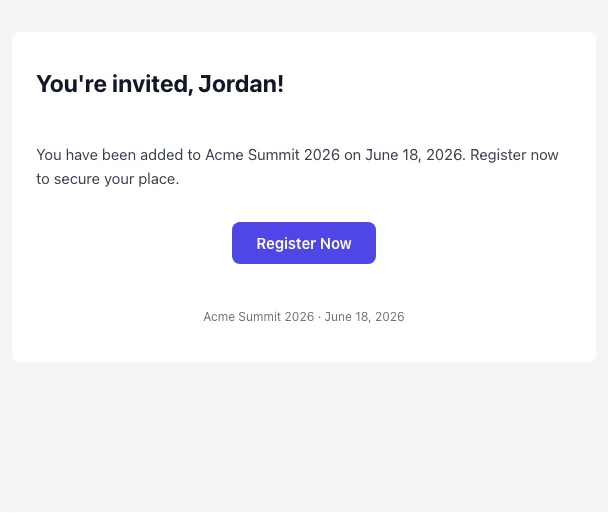
- Someone you add starts as Invited. If the Event Invitation automated email is on, they receive it, inviting them to register. They become Registered when they do.
Edit on an attendee's panel opens Edit Attendee Profile: photo; Identity & Contact; Attendee Type; Ticket & Badge; Bio & Social; Offers & Seeks; and every Registration Question and Profile Question of the event, with their current answers.
- Changing a signed-up attendee's email changes their login. Save stays disabled until you tick I understand and want to change their login email.
- Changing the attendee type keeps every answer — including answers to questions the new type is not asked.
- Answers are checked for format, not completeness: a number question must hold a number and a choice must be one of the options, but an unanswered required question never blocks your save. The problem fields are highlighted.
- Your edits reach the contact directory and refresh the attendee's AI matchmaking.
Step by step
Add several attendees
Open Attendee Management → Attendees and click Add Attendee.
Enter the first person's First Name, Last Name and Email, and whatever else you know.
Choose the Attendee Type and, if the event sells tickets, the Ticket Type.
Click Add attendee. The person is saved and appears in the table on the right.
If the save is refused, the reason is shown on the form and nothing is added.
The form clears for the next person but keeps the attendee type and ticket type. Repeat, then close the window.
Made a mistake? Use the row's Delete action in the table and confirm.
Correct an attendee
Click the attendee's row in the directory, then Edit on the Profile tab.
Change the fields you need.
Changing a signed-up attendee's email asks for an extra confirmation.
Click Save Changes. You will see Attendee profile updated.
What attendees see
In attendee emails
A person you add receives the Event Invitation email (if it is switched on in Automated emails) with a link to register for the event.
In the attendee app
Your edits appear in the attendee's own profile and on their card in the attendee directory straight away. Name, company and job title changes also appear on any badge printed afterwards.
Tips
- Adding more than a couple of dozen people? Import them from a spreadsheet instead.
- Set the Ticket ID when the person holds a ticket from another system, so check-in finds them by the code on that ticket. See Badge codes.
- Publish the event before adding people you want invited — the invitation leads to the event's join page, which is closed while the event is a draft.
- Mark speakers with Mark as Speaker so they appear in the Speaker Directory and can be put on sessions.
Ask Moostoo
Invite Maria Lopez (maria.lopez@brightline.example) and Tom Reid (tom.reid@cobalt.example) as VIPs.
Every invitee needs a first name, last name and email. One attendee type applies to everyone in the request and is optional — a type name the event does not have leaves them without a type, so check the name.
Add Dana Kim, dana@harbor.example, as an Investor.