
Running the doors from the console
On the day, a console event succeeds or fails at the door: every ticket holder scanned or looked up in seconds, the right badge printed at the right desk, unpaid tickets stopped before they cost you money. The console gives you the full Moostoo check-in and badge toolset with nothing else in the way. This page is the order to set it up in and how the pieces depend on each other; each piece has its own page in Event day.
How it works
Everything under Check-in & Badges and the three reports under Event Analytics (Pre-Event Analytics, Live Analytics and Badge Printing) open once the event has an attendee data source. They work exactly as in full management; the difference is only that nothing else competes for your attention.
| Screen | What it sets | Depends on |
|---|---|---|
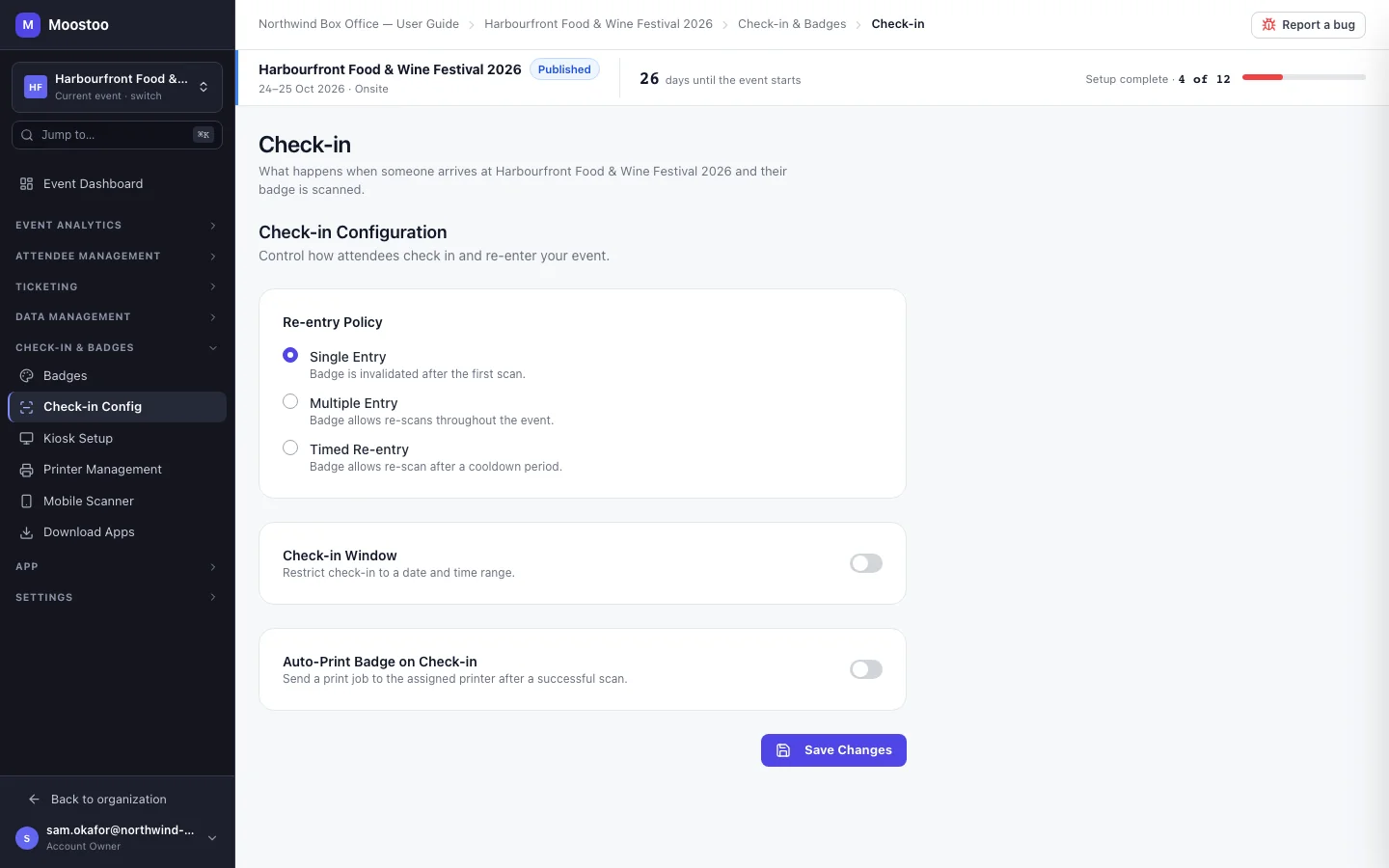
| Check-in Config | Re-entry policy (Single Entry, Multiple Entry or Timed Re-entry with a cooldown). The check-in window and the Auto-Print Badge on Check-in switch are saved here but not yet applied by the scanners — see Check-in setup. | — |
| Badges | Badge designs, and which design each ticket holder gets — by attendee type, ticket type, company, a question's answer and so on. | Attendee types; the data source for names |
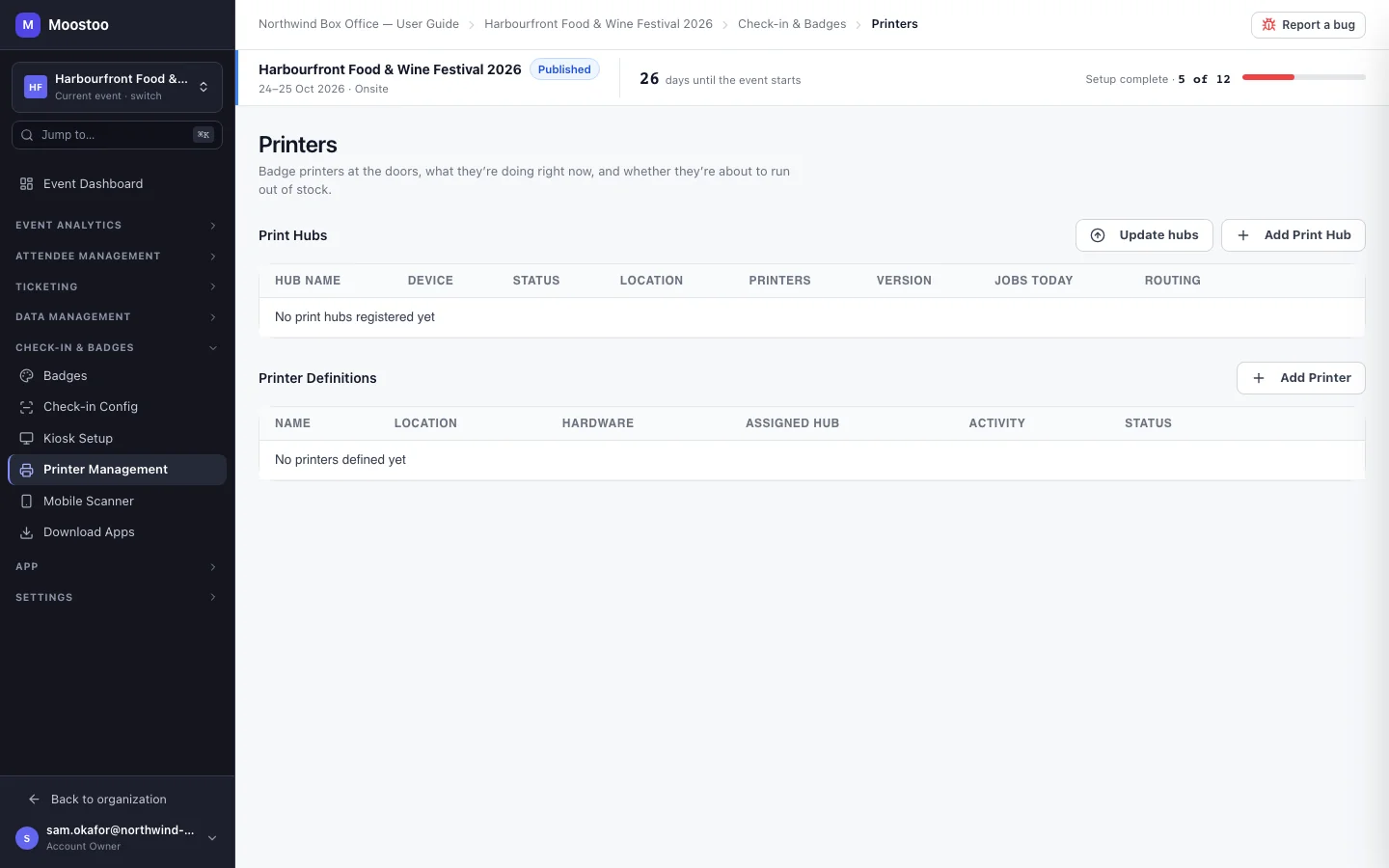
| Printer Management | Print hubs (the computers running the Print Queue Manager), the printers each hub drives, its routing rules, connecting each hub machine by QR, and the live queue. | — |
| Kiosk Setup | Self-service kiosks: which hub and printer each prints on, connecting each kiosk device by QR, check-in methods, welcome message, idle timeout, confirmation and auto-print. | A print hub |
| Mobile Scanner | What an entrance scan does on staff phones: default printer, auto-print on scan, photo and sound. | A printer, for auto-print |
| Download Apps | The installers for the kiosk and Print Queue Manager apps. | — |
| Pre-Event · Live Analytics · Badge Printing | Registrations before the day, arrivals as they happen, and an audit of every badge printed. | Check-in running, for the last two |
- An unpaid ticket is not admitted. A ticket whose order is still waiting for payment — a bank transfer, an invoice — is refused at the scanner, the kiosk and badge print; nothing is recorded and no badge prints. The kiosk names the order and the amount; the staff scanner currently shows only Check-in failed. Record the payment and the same badge scans at once; no reprint is needed.
- The code on the badge is the one the source issued. An imported Eventbrite barcode or Lu.ma QR code keeps scanning; see Badge codes.
- Door staff scan with the attendee app. Your organization's Account Owner and Super Users, and event team members with the Admin, Member or Volunteer role, find Staff Tools in their own attendee app for this event; Partners and Service Providers do not. See Entrance check-in.
Step by step
Open Check-in & Badges → Check-in Config, choose the re-entry policy and click Save Changes.
Whether a badge prints the moment someone is scanned is set on Mobile Scanner (Auto-print on scan) and, for kiosks, in Kiosk Setup.
In Badges, design the badge and decide which ticket holders get which design.
See Badge designer.
In Printer Management, click Add Print Hub for each registration desk computer, then Add Printer for each badge printer it drives.
See Printers and print hubs and Print routing.
In Kiosk Setup, click Add Kiosk for each self-service station and pick the hub and printer it prints on.
See Kiosks.
In Download Apps, download the Print Queue Manager and kiosk apps and install them on their devices. Each app then shows a QR code: connect it with Connect by QR on its row in Printer Management or Kiosk Setup.
In Mobile Scanner, choose the scanners' default printer and whether they print automatically.
Add your door staff to the event team as Volunteers so the scanners appear in their attendee app.
On the day, keep Event Analytics → Live Analytics open to watch arrivals, and use Badge Printing to answer "was this badge printed, and where?"
What attendees see
In the attendee app
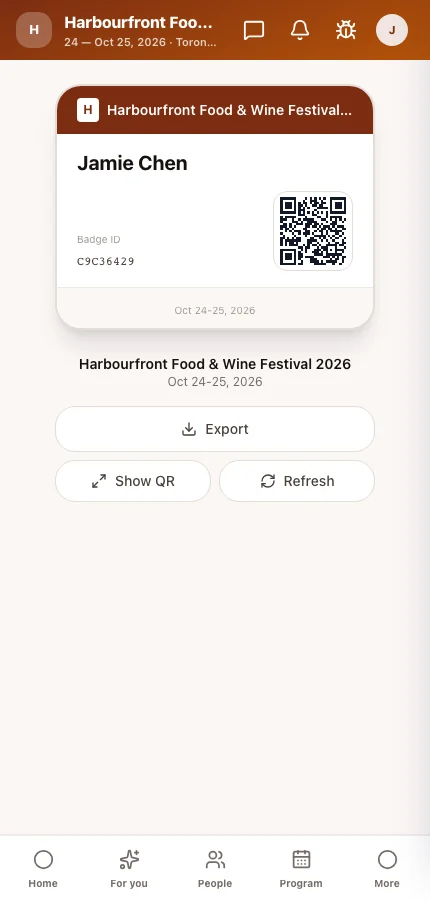
Ticket holders carry their badge code in the attendee app — the same app as any Moostoo event — and show it at the door or kiosk. The printed badge follows the design and code you set.
At the kiosk
At a self-service kiosk, ticket holders scan their code or search their name, confirm who they are, and collect the badge from the printer the kiosk is paired with.
Tips
- Do a dress rehearsal the day before: pair every device, print a test badge on every printer and scan one ticket of each type.
- Settle outstanding bank transfers before doors open — every unpaid ticket becomes a conversation at the desk.
- Timed Re-entry suits festivals where people come and go; Single Entry suits one-off admission with no pass-outs.
- The attendee data source cannot be skipped for event day: until it is set up, these screens stay locked.