
All meetings
On the day, the questions come fast: is my 14:00 still on?, can you add my colleague?, did the other side ever show up? All meetings answers them from one screen. It lists every meeting attendees agreed or you pre-arranged — invitations that were never accepted are not meetings and are not listed — shows each person in it with their role, and — for online meetings — who is in the video room right now and how long everyone spent there.
How it works
Open Event Analytics → All Meetings. The list is sorted by date, earliest first. A meeting appears once its invitation is accepted; one still waiting for an answer, declined or withdrawn is not listed — follow those on Pre-Arranged Meetings. On a narrow screen the table scrolls sideways while Date and Attendees stay in place, and a meeting still to come has a ⋯ at the start of its row — click it to open Add guest and Cancel meeting. The filter button beside the search opens a side panel listing the event's attendee types and every choice question on the attendee profile; pick options and the list keeps only meetings where one of the people — either person meeting or a guest — matches every section you picked from. Your picks show as chips under the search; click a chip's × to remove it, or Clear all. Click a person's name or photo to open their profile in a panel beside the list — the same details the Attendees page shows, read-only; Open Attendees takes you there to edit them. The Location column says whether a meeting is online or in person and names its meeting session and table; Pre-arranged shows Arranged by organizer for a meeting an organizer set up (point at the badge to see who) and Peer request for one the attendees arranged themselves. It refreshes itself every 30 seconds, and the line under the title says how many people are in a meeting room right now.
Date The meeting's day and time on the event's clock.
Attendees The two people meeting, tagged Requester and Recipient, and each guest tagged Guest. A guest who answered Maybe or Not going shows that answer.
Status Confirmed until it starts, then In progress and Ended; Cancelled if it was called off after it was agreed.
Room time For an online meeting: In the room (with a pulsing dot) while someone is there, Joined · 12 min once they have left, or Didn't join once the meeting has started without them. In-person meetings have no room, so nothing is shown.
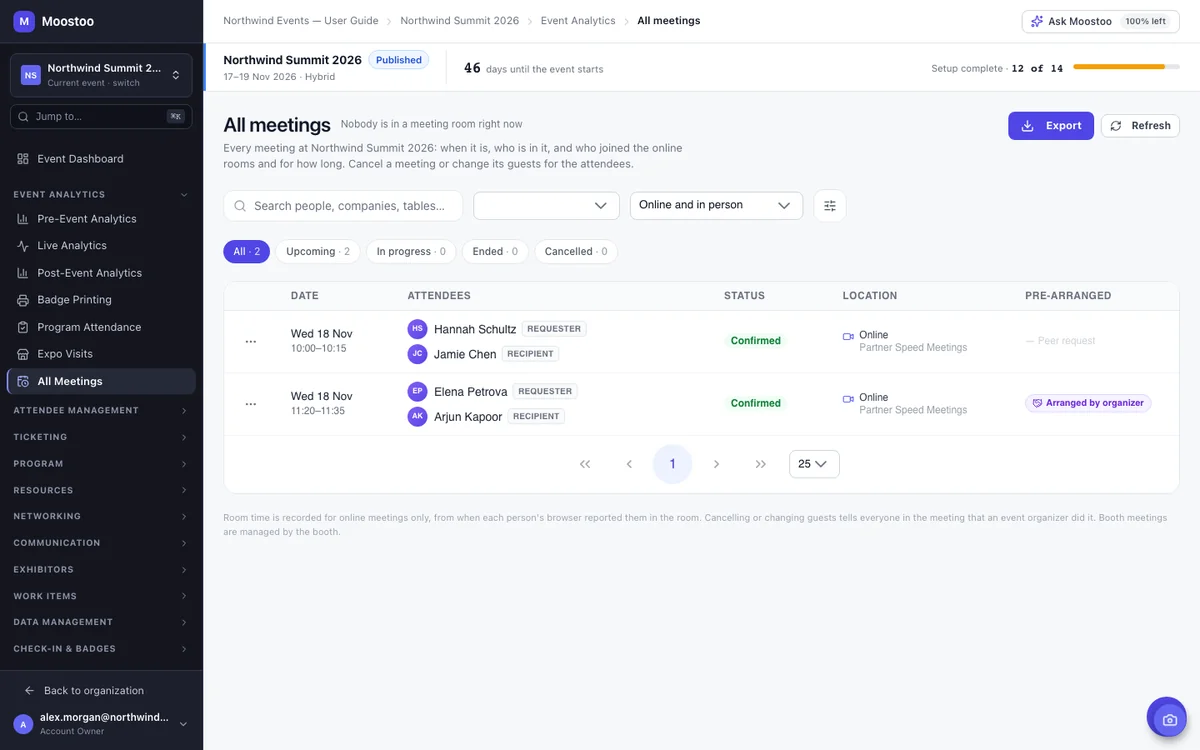
- Filter by day, by online or in person, and by status — upcoming, in progress, ended or cancelled. The search box finds people, companies, tables and sessions.
- Cancel ends a meeting that has not finished yet. You can add a short message; both people and every guest are told an event organizer cancelled it, and the table is freed.
- Add guest adds up to three guests to a confirmed meeting that has not ended; the × beside a guest takes them off. The guests and the two people meeting are told an event organizer made the change.
- The same rules apply as when an attendee does it. A guest who does not take meeting requests from the requester's attendee type is not added, and you are told who. Nobody who has made their profile invisible can be added.
- Booth meetings are listed but managed by the booth, so they offer no actions here.
Room time comes from each person's browser reporting that they are in the video room. It is recorded for online meetings only, and meetings held before this was introduced show everyone as not joined.
Step by step
Open Event Analytics → All Meetings.
Narrow the list with the day, type and status filters, or search for a name.
To add someone, open the meeting's ⋯ menu, choose Add guest, search for them and click Add guest.
To call a meeting off, open the meeting's ⋯ menu, choose Cancel meeting, optionally write a message, and confirm.
To take the list with you, click Export and choose CSV or Excel.
The file follows the filters on screen — day, type, status, search and the attendee filter. It has two tables: one row per meeting, and one row per person in each meeting (party or guest) with their answer and, for an online meeting, whether they joined the room and for how long.
What attendees see
In the attendee app
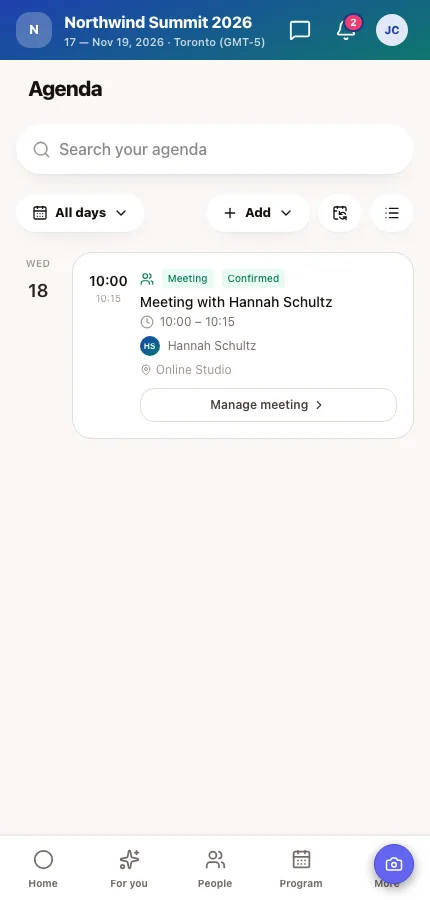
A guest you add finds the meeting on their agenda marked Guest, and both people meeting see the new guest in its guest list. A notification tells each of them an event organizer made the change; the organizer is never named.
In attendee emails
Cancelling sends everyone in the meeting the usual cancellation notification and email, with your message if you wrote one.
Tips
- Keep the screen open on the day of the event: the In progress filter and the in-the-room count show at a glance which online meetings are running and who is missing.
- To set up a new meeting between two people, use Pre-Arranged Meetings.