
Domain & publishing
Your event has one address — your-event. followed by your Moostoo domain, for example your-event.moostoo.com — shared by the public website and the attendee app. Getting it right once means every email, badge, poster and social post can use the same link: visitors land on the website, and registered attendees reach the app under the same name. This screen is where you set that address and check how the website is published.
How it works
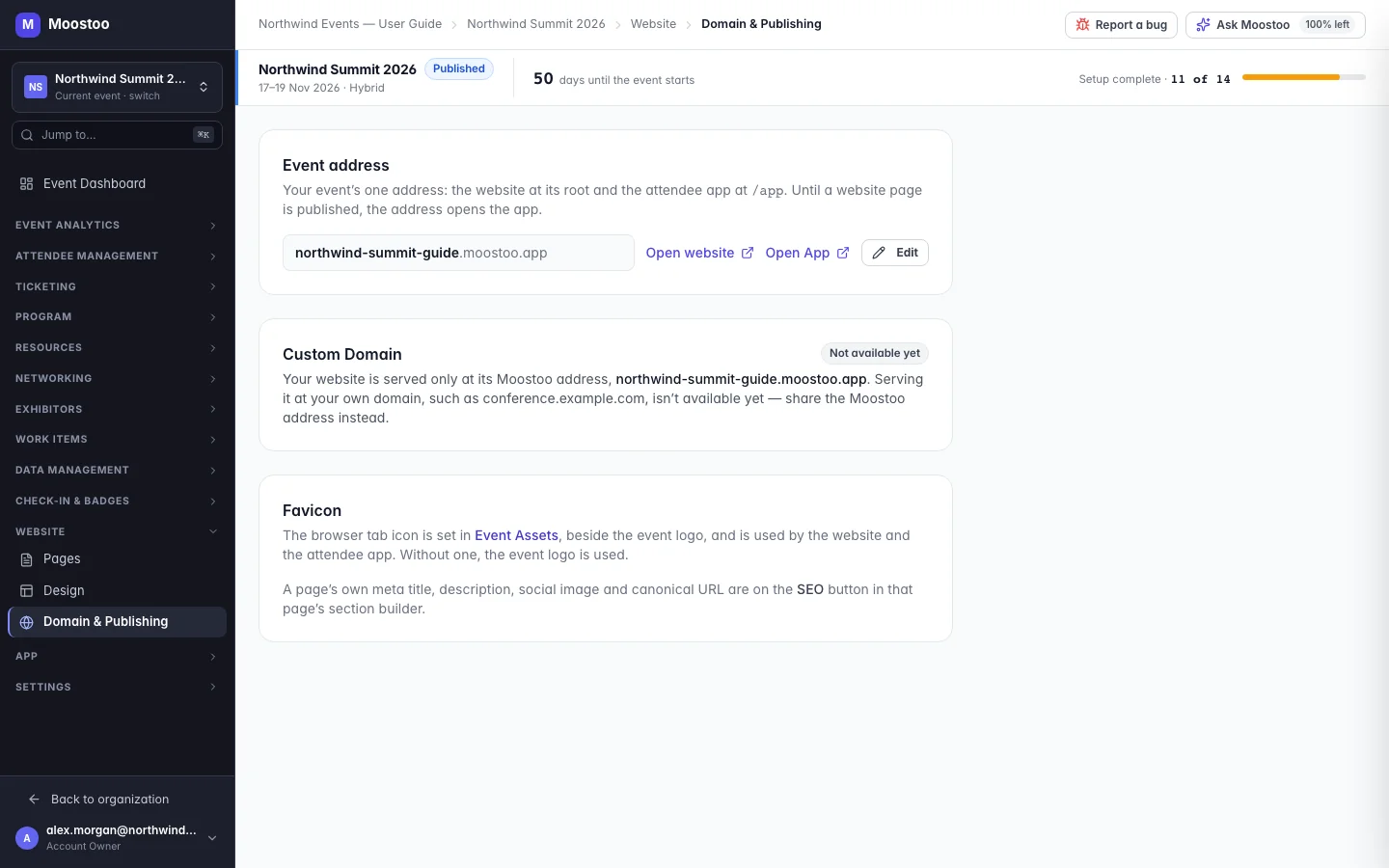
Event address Your slug followed by your Moostoo domain (the screen shows the exact address). The website answers at the address itself; the attendee app lives under /app on the same address. It is the same setting as App → Domain — changing it on either screen changes both.
Nothing published yet While no website page is published, anyone opening the address is taken straight into the attendee app. You do not need a website to share the link — publish pages whenever you are ready, and from then on visitors land on the website first.
Custom domain Serving the website at your own domain (such as conference.example.com) is not available yet. The panel says so and shows the Moostoo address your site is served at. If a domain was saved earlier, it is named as not connected — visitors who go there will not reach your site.
Favicon The browser-tab icon belongs to the event, not the website. Set it in Settings → Event Assets beside the event logo; both the website and the attendee app use it. Without one, the event logo is used.
- Changing the slug frees the old address immediately. It stops opening your website and app, and another event may claim it. Moostoo warns you before you save.
- A draft event already answers at its address, but visitors to the app see a not open yet notice instead of the sign-up form until the event is published.
- Per-page SEO lives in the section builder. Each page's meta title, description, social image and canonical address are on the SEO button in that page's builder — see Website pages.
Step by step
Set the event address
Open Website → Domain & Publishing.
Under Event address, click Edit and type the slug you want.
Moostoo checks availability as you type; a slug another event holds is refused and your current address stays live.
Read the note about the old address, then click Save address.
Use Open website and Open App beside the address to check what visitors now see.
Take the website live
Publish at least one page from the section builder.
From that moment the address opens the website instead of the app.
Publish the remaining pages; each goes live within about a minute of publishing.
To take the website back offline, delete its published pages. There is no unpublish button. With nothing published, visitors go to the attendee app again.
What attendees see
On the event website
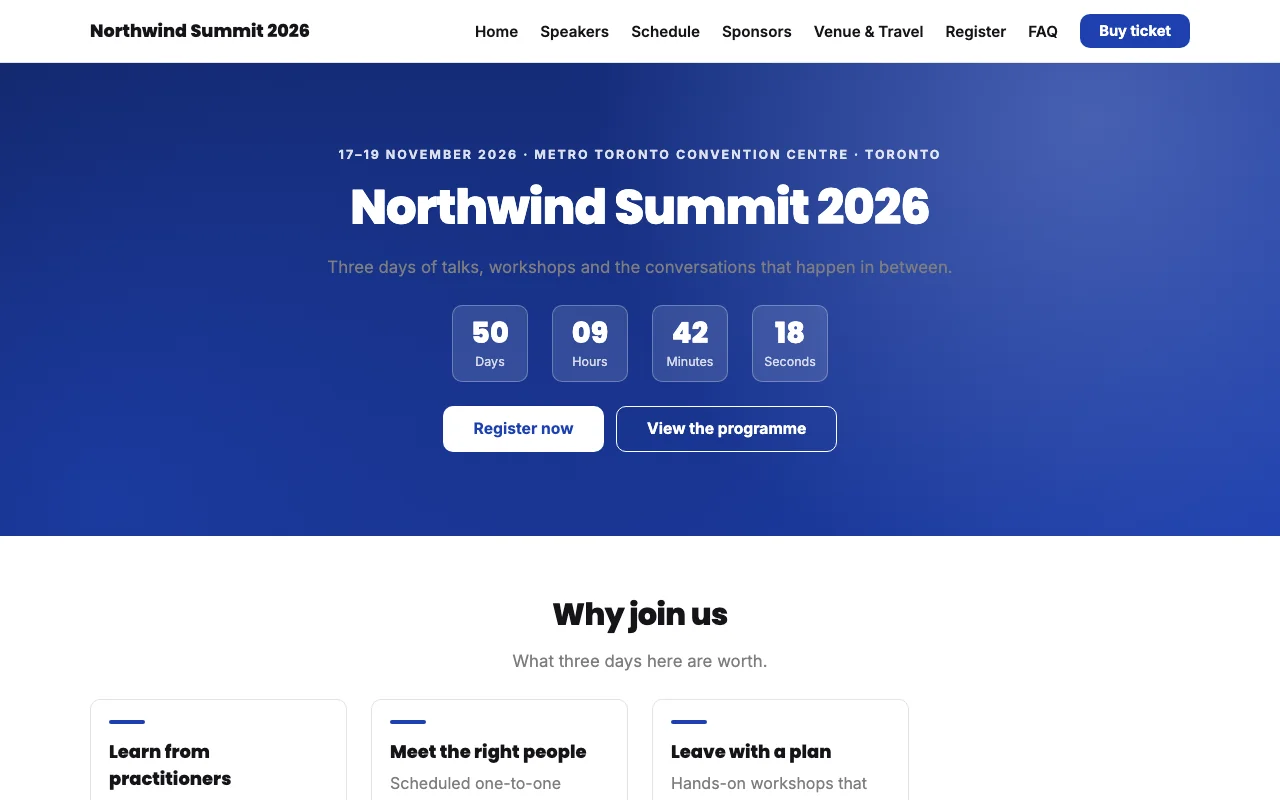
Visitors open one address for everything: the published website at the root, and registration and the attendee app under /app. Before any page is published, the address takes them directly to the attendee app.
Tips
- Settle the slug before you print anything — badges, posters and early emails keep the address they were made with.
- Short, lower-case slugs such as
northwind26are easiest to type from a slide. - Share the plain event address in announcements; it is correct whether or not the website is published yet.
- Links in emails you sent before a slug change stop working. Resend important links after changing it.