
The attendee’s own settings
Many help-desk questions are answered by a setting the attendee owns. You cannot change these for them. Knowing where each one lives, and whether it applies to one event or the whole account, lets you point people to the right place.
Two kinds of settings
A Moostoo account is one sign-in for every event. So some choices follow the person everywhere, and others belong to one event. Both are in the account menu: Event settings inside an event, Account settings anywhere.
| Setting | Applies to | Where the attendee changes it |
|---|---|---|
| Language | The whole account | Account menu, Account settings or page 1 of the profile |
| Light, Dark or System mode | The whole account | Account menu → Mode |
| Account timezone | The whole account | Account settings |
| Timezone for this event | One event | Page 1 of that event's profile |
| Notifications | One event | Event settings, or the gear in the notification panel |
| Visibility, blocked people, meeting requests | One event | Event settings |
| Calendar sync | The whole account | Account settings, or Agenda → Calendar sync |
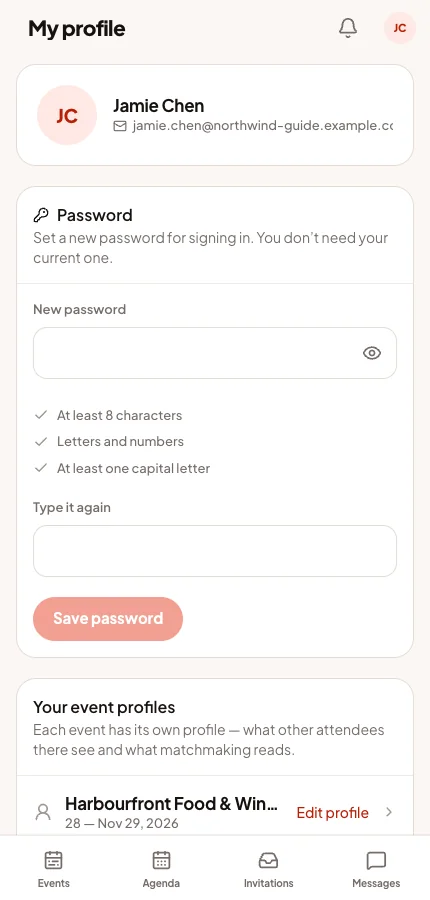
| Password and account deletion | The whole account | My profile and Account settings |
Language
Every new account ends with a Your language step. After that, the language can be changed from the account menu, Account settings or the profile. It is one setting in all three places.
The app, emails and notifications follow it at every event. With automatic translation on, your content does too. Account settings also has Translation switches for chats, announcements and polls.
The clock times are shown on
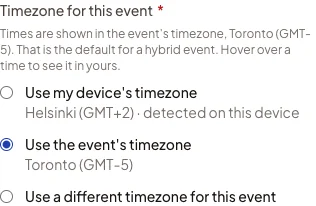
Your event's times never change. What each attendee chooses is the clock they see them on. Page 1 of every event profile asks for a Timezone for this event:
- Use my device's timezone.
- Use the event's timezone.
- Use a different timezone for this event, from a searchable list.
Until they choose, an online event shows their device's time. An in-person or hybrid event shows the event's time. When the two differ, hovering a time shows both.
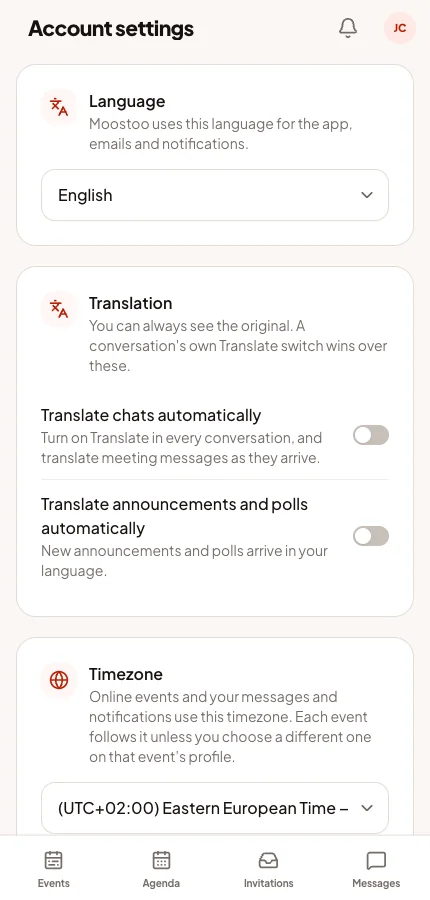
The account timezone in Account settings starts as the device's zone. Messages and notifications use it.
Light, Dark or System
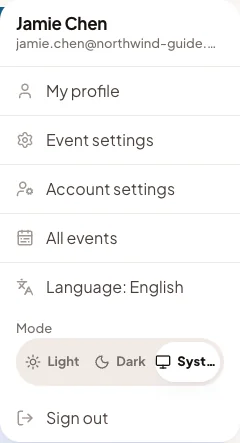
Mode in the account menu switches between Light, Dark and System, which follows the device. It is saved to the account, so another device shows the same choice.
Your brand colours stay readable in both modes. Where a colour would not stand out, the app uses the nearest shade that does.
Event settings: notifications and privacy
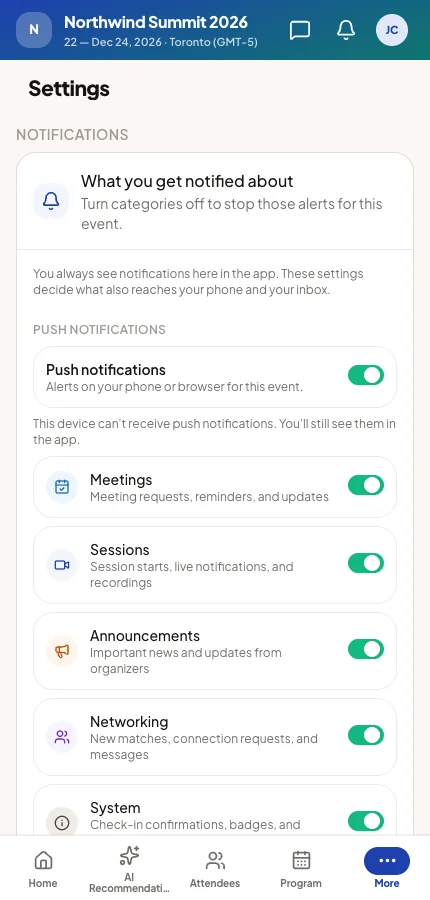
Event settings holds choices for one event. Notifications always appear in the app. These switches decide what also reaches the device and the inbox:
- Push notifications: one switch for the event, then one per category.
- Email notifications: one switch for the event, then meeting emails and other notifications. Your own emails, such as welcome or campaign emails, are not affected.
- Visibility: whether other attendees can find them.
- Blocked people and who can request meetings.
Unsubscribe uses the same switch
The unsubscribe link in a meeting email turns off meeting emails for that event only. The attendee can turn them back on here.
Calendar sync
In Account settings, Connect a calendar offers Google Calendar, Microsoft Outlook and Apple iCloud Calendar. Moostoo then keeps a separate Moostoo calendar up to date with their meetings and agenda sessions, across every event.
Nobody receives an invitation or email from it. Only one calendar can be connected at a time. Connecting another replaces it.
Busy times as off-time is off until the attendee turns it on. Moostoo then reads only when they are busy, never what the appointment is. Those times block meeting requests. Agenda → Calendar sync opens the same settings, plus a Download .ics file.
My profile across events
Outside an event, My profile shows the account: name, sign-in address and password. It also lists each event's profile with Edit profile. Inside an event, My profile opens that event's profile.
A new event's profile starts filled from earlier events where the questions match. Nothing reaches you until they have seen it and saved.
Deleting the account
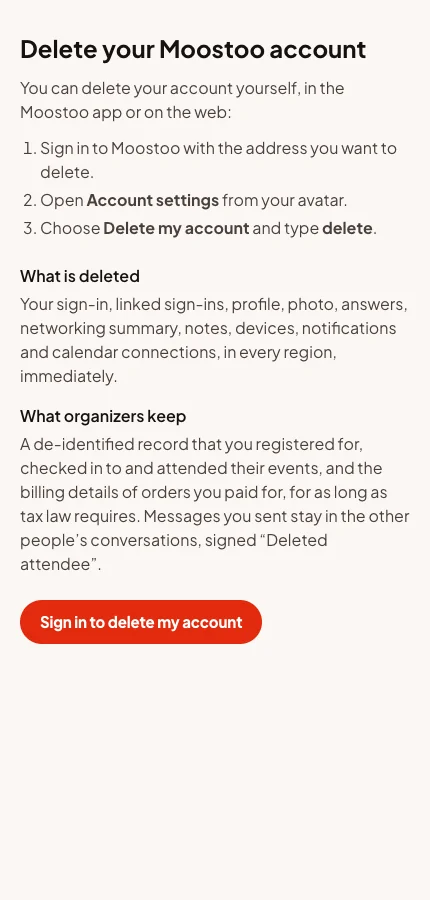
Delete my account lists what will be removed and asks the person to type delete. It is permanent. It removes their sign-in, profiles, photos, answers, notes, devices and calendar connections at every event. Their future meetings are cancelled.
You keep the fact that the person registered, checked in and attended, without their name or contact details. Orders keep the billing details the law requires.
The only Account Owner of an organization cannot delete their account. They must first make someone else an Account Owner, or delete the organization. Anyone can read how deletion works at the app's /delete-account address, which you can link to.
You cannot do this for them
Only the account holder can delete their account. To remove someone from one event, delete them from your attendee list instead. Their account and other events stay as they are.
What you set that these choices build on