
Badge printing report
Badges print from many places at once: entrance scanners, session doors, self-service kiosks, your own attendee screens and print hubs working offline. When an attendee says they never got a badge, when a sponsor asks how many badges the VIP desk printed, or when a printer ran through a roll of stock by lunchtime, this report answers from the record rather than from memory. Every print writes one line, and the report is those lines.
How it works
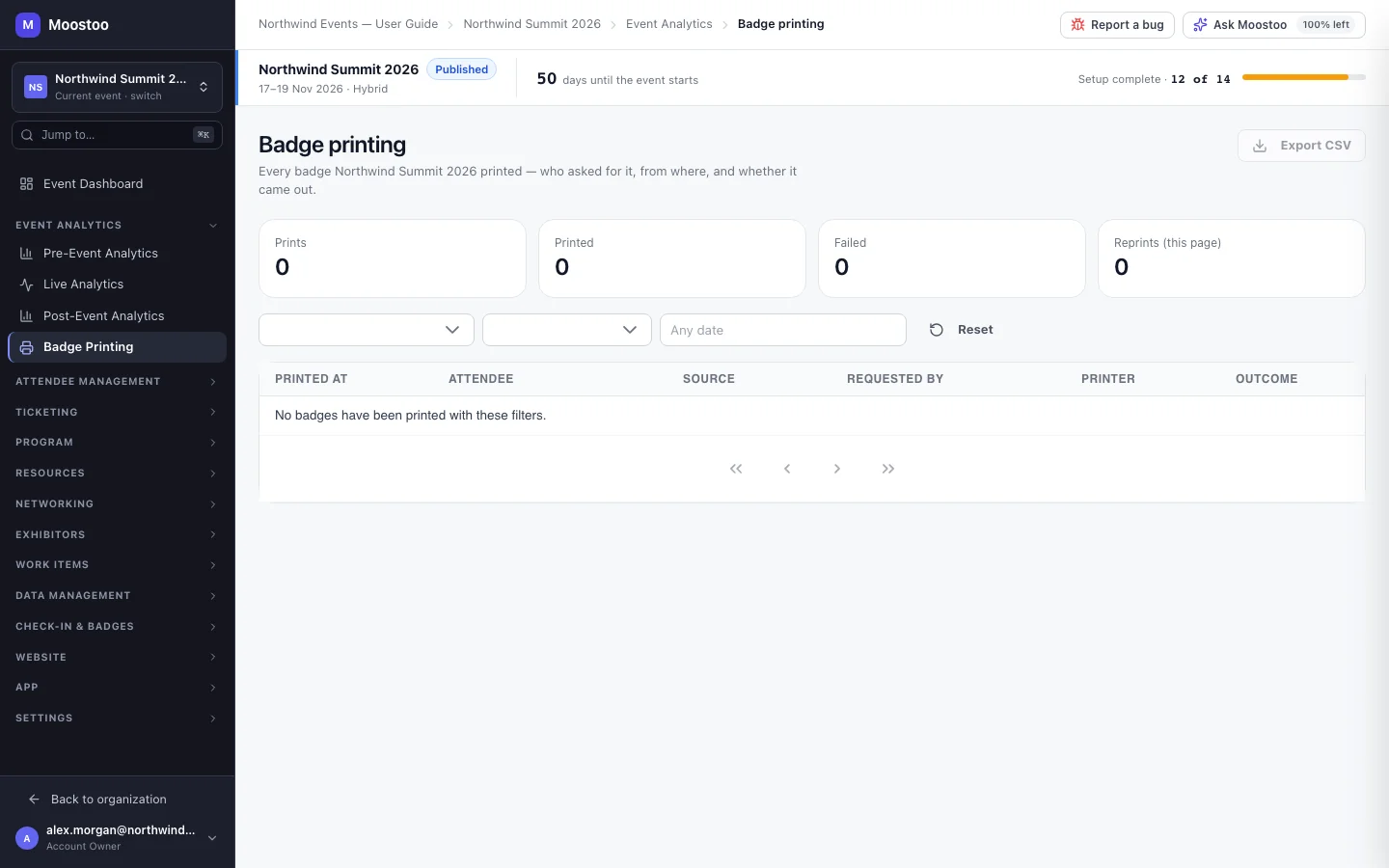
Open Event Analytics → Badge Printing. The top of the page totals the current filter — Prints, Printed and Failed, plus Reprints (this page) for the page you are looking at — followed by a count per source (only sources that printed something). The table below lists each print, most recently requested first, fifty at a time. In a Ticketing & Check-in Console event these screens stay locked — Choose where your attendee data comes from first — until the event has an attendee data source.
| Column | What it tells you |
|---|---|
| Printed at | When the badge came out (or, for one that has not printed, when it was asked for), on the event's timezone. |
| Attendee | The name printed on the badge at the time. |
| Source | Where the print came from: Entrance scanner, Session scanner, Self-service kiosk, Admin panel, or Print hub — manual. |
| Requested by | Who caused it: the staff member, the kiosk, or the print hub. The name is kept even after the person leaves your team. |
| Printer | The printer the badge was sent to. Empty for a badge sent to a hub on Hub auto-assign — the hub picked the printer; the export's Printed on column says which. |
| Outcome | queued, printing, printed, failed or cancelled (hover a row with an error to read the printer's reason). A repeat print is marked reprint. |
Addressed to and printed on A badge can be aimed at one printer and come out of another — a kiosk set to Hub auto-assign has no printer until the hub's routing rules pick one, and staff at a hub can forward a jammed printer's work. The export carries both answers: Printer (addressed) and Printed on.
Reprint A reprint is its own line pointing at the original. "Printed once, reprinted twice" reads as three lines, and the original keeps its own outcome and time.
Cancelled A badge somebody stopped before it printed. It is not a failure — nothing went wrong, it simply wasn't needed.
Offline prints Badges a print hub printed while it had no connection appear once it reconnects, with the time they actually printed.
The same record appears on each attendee's own page: open the attendee in the attendee directory and their Activity tab lists Badge prints — so the report and the attendee can never disagree.
Step by step
Open Event Analytics → Badge Printing.
Narrow the report with the filters: a source, an outcome (for example Failed), and a date range of event days.
The date range and the ordering use the time a badge was requested. The totals above the table always describe the same filter as the rows. Reset clears all three.
Hover the outcome of a failed badge to read the printer's reason.
Click Export CSV to download the report.
The file holds every print the filter selects (up to 100,000), not just the page on screen. Beside each print — queued and printed times, source, who requested it, both printer columns, outcome, reprint link and error — it adds the attendee's details: first and last name, email, name on the badge, ticket ID, ticket type, attendee type, company, job title, badge code, status and check-in. The button is disabled while the filter matches nothing.
Retry, reprint or cancel
This report is read-only. To act on a badge while the event runs, open the print hub's live queue from Printers and print hubs: Retry a failed badge, Reprint a printed one, or Cancel one still queued. Staff can also retry a failed badge from a scanner's Print Queue tab. Each action appears here as it happens.
What attendees see
Attendees do not see this report or anything in it. It records badges printed for them; it changes nothing they see.
Tips
- Filter by Failed during the event every hour or so. A cluster on one printer usually means it needs stock or a reset, before a queue forms.
- "I never got my badge": search the export, or the attendee's own Badge prints list, for their name — you'll see whether it was printed, where, and by whom.
- Counts per source show where your attendees really check in. If the kiosks print most badges, move staff from the desk to the kiosks next time.
- Badges printed before the audit existed show as Admin panel by System rather than being hidden.