
Languages
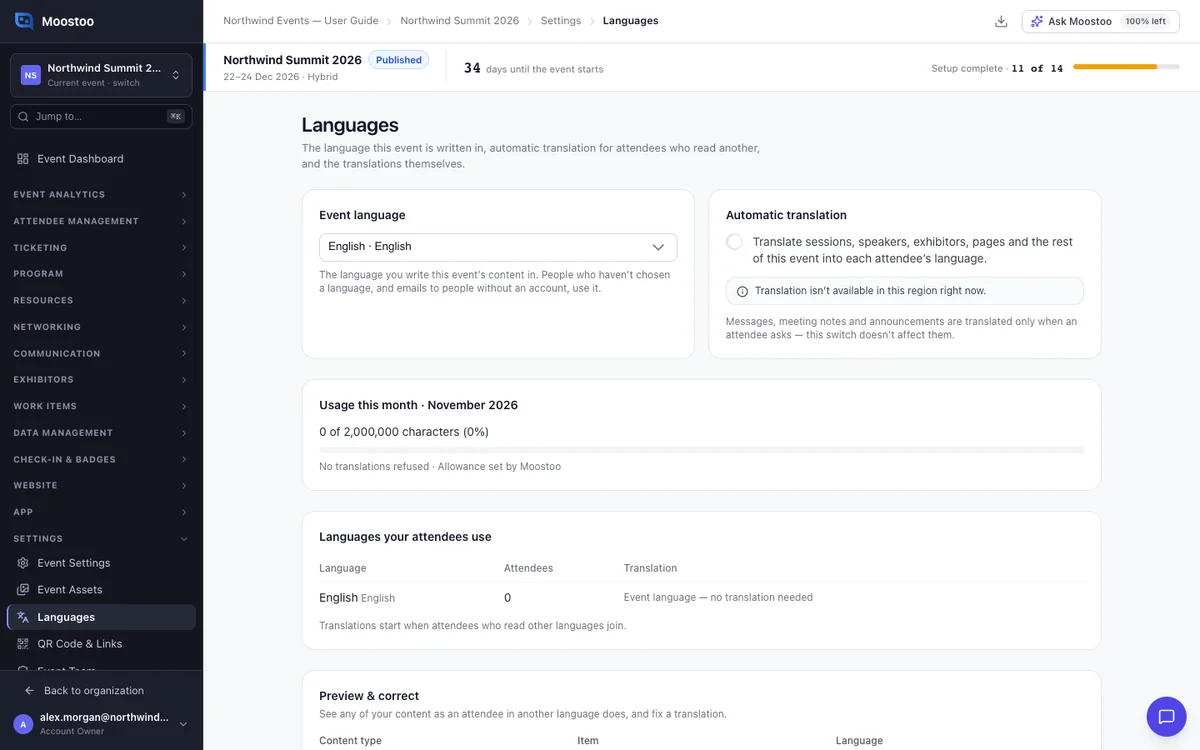
Your attendees do not all read the language you write in. Moostoo shows each attendee the app, emails and notifications in their own language. With automatic translation on, it also translates your event's content for them. This page is where you set your writing language, watch the translation allowance and fix a translation that reads wrong.
How it works
Event language
This is the language you write the event's content in. Attendees who read it see your texts as written. Everyone else gets translations.
People who have not chosen a language also see the event language. It starts as the language you used when you created the event.
Automatic translation
Automatic translation is on by default. It translates the event's content into every language your attendees read:
- sessions, speakers and exhibitors
- booth pages and app pages
- questions, attendee types and ticket types
- menu labels, hotels and the event description
Messages, meeting notes and announcements are different. They are translated only when an attendee asks, and this switch does not affect them.
Your own admin screens always show your originals. This page is the one place where you look at the translations.
The monthly allowance
Each event can translate a set amount of text per calendar month. The usage meter turns amber at 80% and red when the allowance is used up.
When it runs out, attendees see your original texts until next month. Translations already made stay.
Corrections
A correction is your own wording for one translated field. It replaces the automatic translation for every attendee reading that language. If you later edit the original text, the field is translated again and your correction no longer applies.
Good to know
- Changing the event language asks first. Content you already wrote stays as it is.
- Turning automatic translation off asks first. Existing translations stay until you change a text.
- The languages table shows each language your attendees read, how many read it, and the translation status.
- If Moostoo has turned translation off for your organization, the switch is disabled and Preview & correct is unavailable. The app's own interface is still translated.
- Without the Edit event settings permission, the page is read-only.
- Automated emails go out in each recipient's language by default. Campaigns can too, with a switch on their Setup step. See Automated emails.
Step by step
Set the event language
Open Settings → Languages.
Under Event language, pick the language you write in.
In the confirmation, click Change.
Check and correct a translation
Open Settings → Languages and scroll to Preview & correct.
Pick a content type, such as Session, then an item and a language.
The original is on the left and the translation on the right. Previewing never uses the allowance.
Click Edit beside a field, write your wording and click Save correction.
The field is then marked Corrected by your team. Pages are corrected in their own editors.
To go back to the automatic translation, click Revert to automatic.
What attendees see
In the attendee app
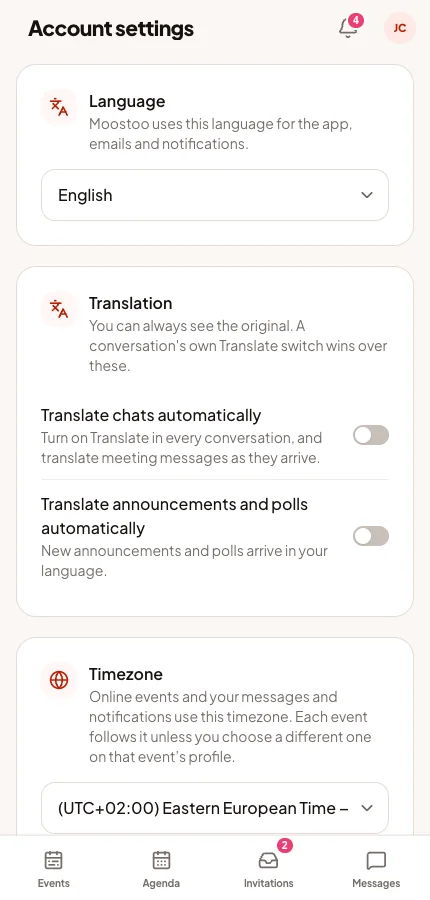
Each attendee chooses their language when they create their account. They can change it later on their profile or in Settings. With automatic translation on, your content appears in their language, with Show original one tap away. A text still being translated shows your original meanwhile.
Tips
- Write the whole event in one language. Mixed languages give worse translations.
- Check what attendees read first: the event description, session titles and menu labels.
- If the allowance runs out before the event, ask Moostoo to raise it. Turning translation off stops new translations for everyone.
- In Communication → Messages, the Translate this conversation switch shows an attendee's messages in your language.